Changelog
Notable updates and releases for ClockTap.
Changelog
A running list of notable updates to ClockTap. We'll add entries here as new features ship.
September 22, 2026
New
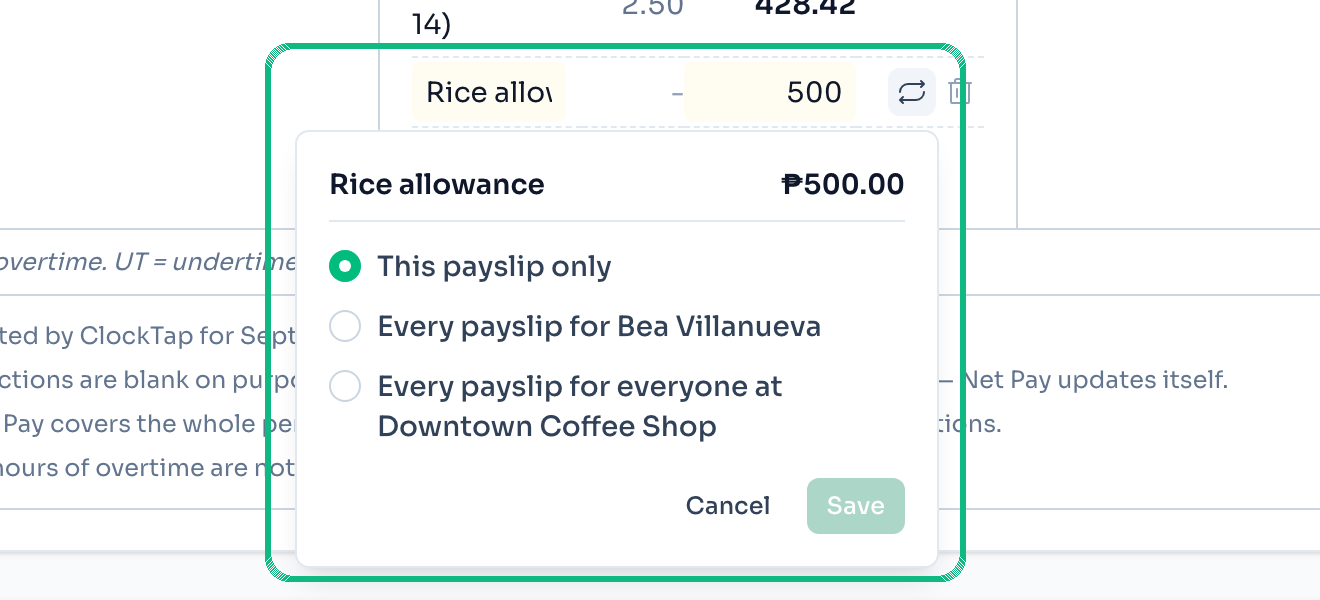
- Allowances that repeat. A repeating allowance fills in every later payslip and is listed under Location Settings → Payroll → Allowances. Type over it and only that payslip changes.
Improvements
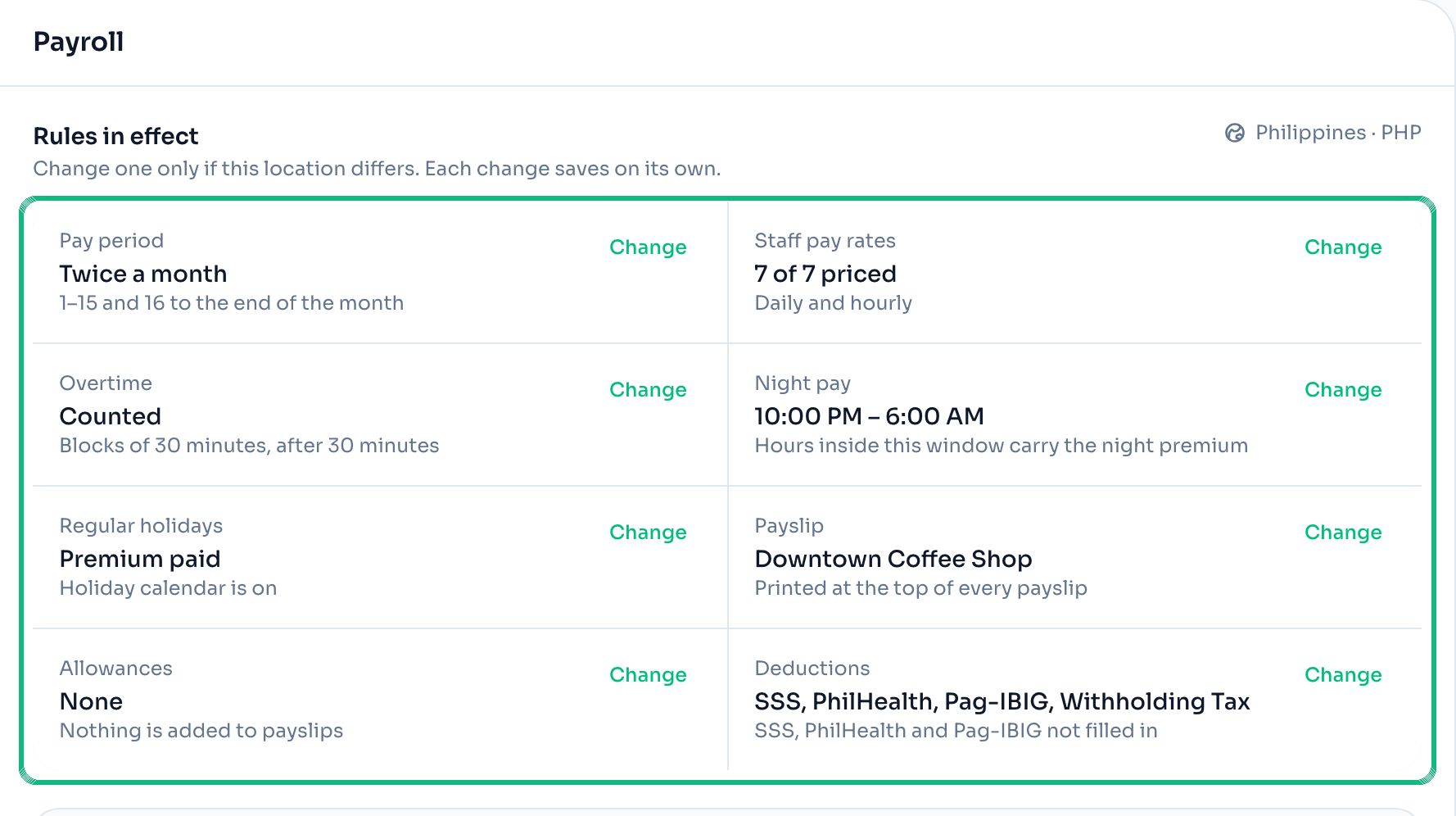
- Payroll settings show the rules in effect. Change opens one rule and saves it on its own. The overtime settings moved here from Hours & Overtime.
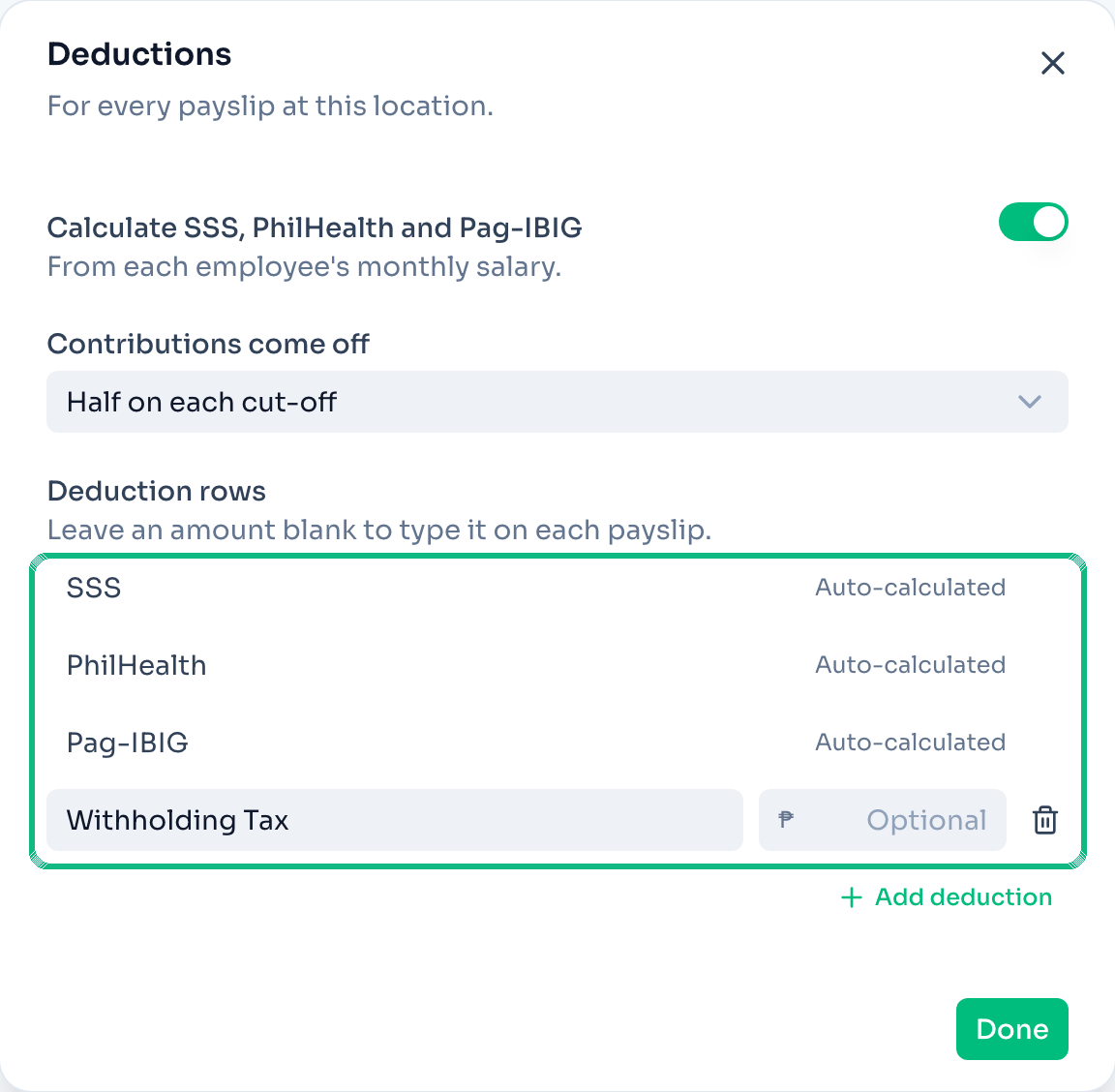
- Deductions can carry a saved amount. Set it under Location Settings → Payroll → Deductions and it fills in on every payslip, where you can still change it.
- A payslip keeps what you type after a reload, a new cut-off or on another device.
- Phone clock-in turns on or off per employee with one switch under Location Settings → Personal login, supervisors and managers included.
- The employee screen shows the location, today's shift, who else is off and the next holiday, on the kiosk and on a phone.
- The 2027 holiday calendar now follows the official list, Proclamation No. 1427.
Fixes
- Signing back in after a session expired no longer leaves pages unable to load.
- Deleting an employee's login, or a duplicate kiosk address, no longer fails.
September 16, 2026
New
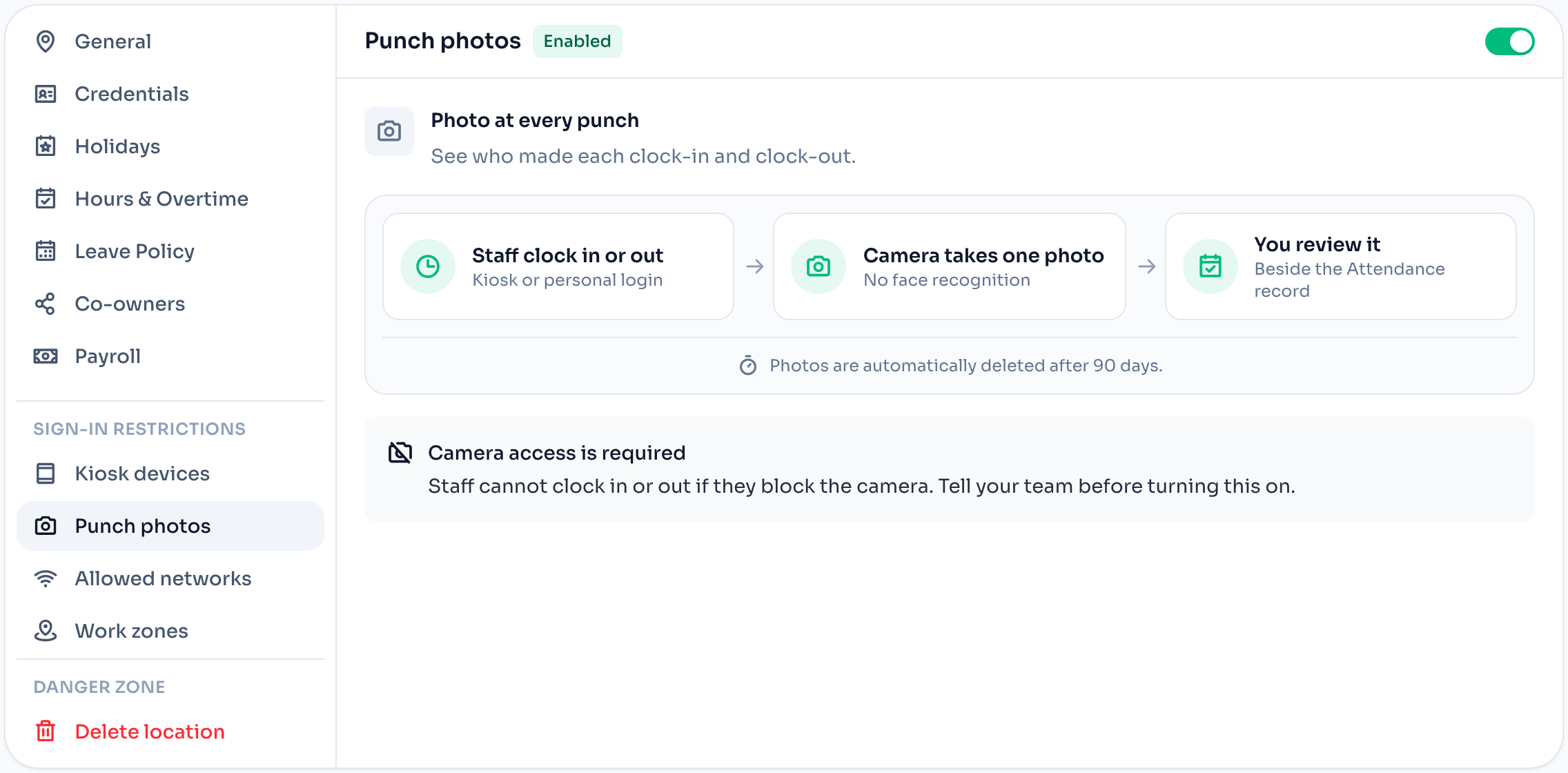
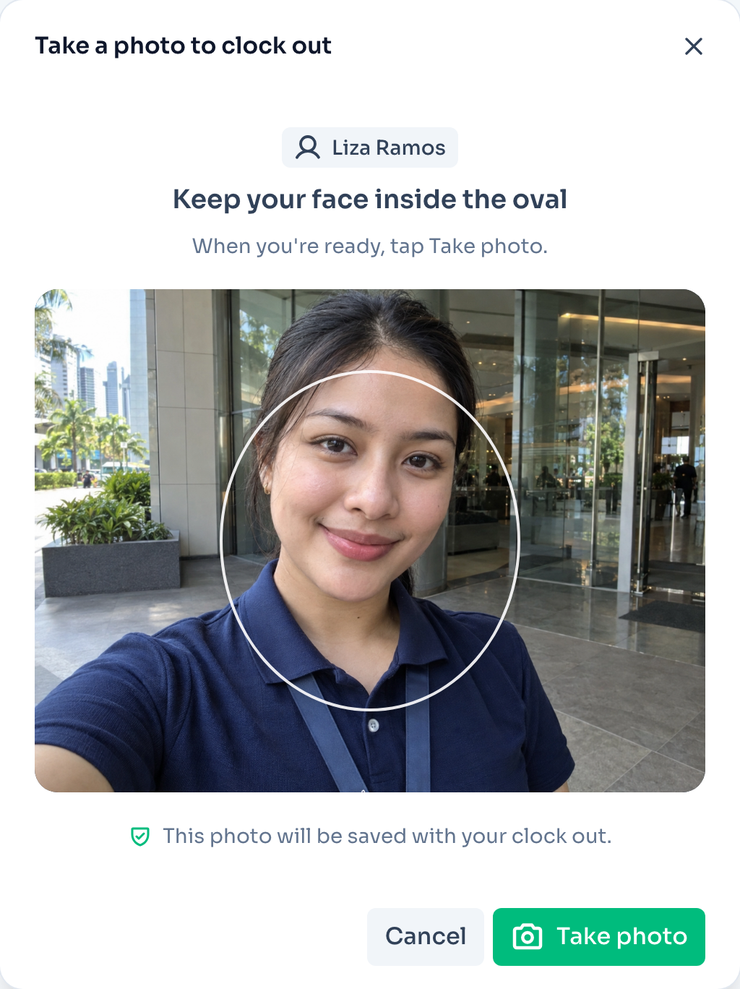
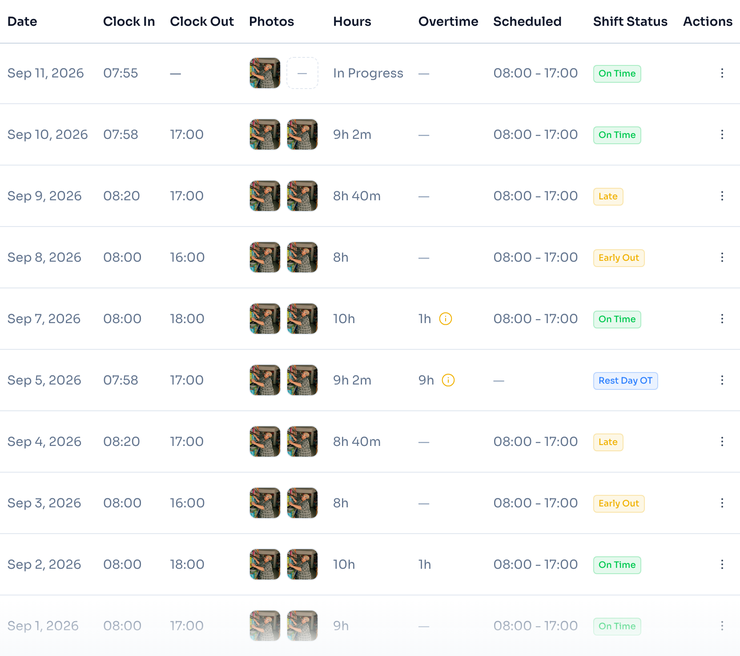
- A photo at every punch. The camera opens on the kiosk and on a phone, and a thumbnail sits on the attendance row — one tap opens the full photo. Pro plan only.
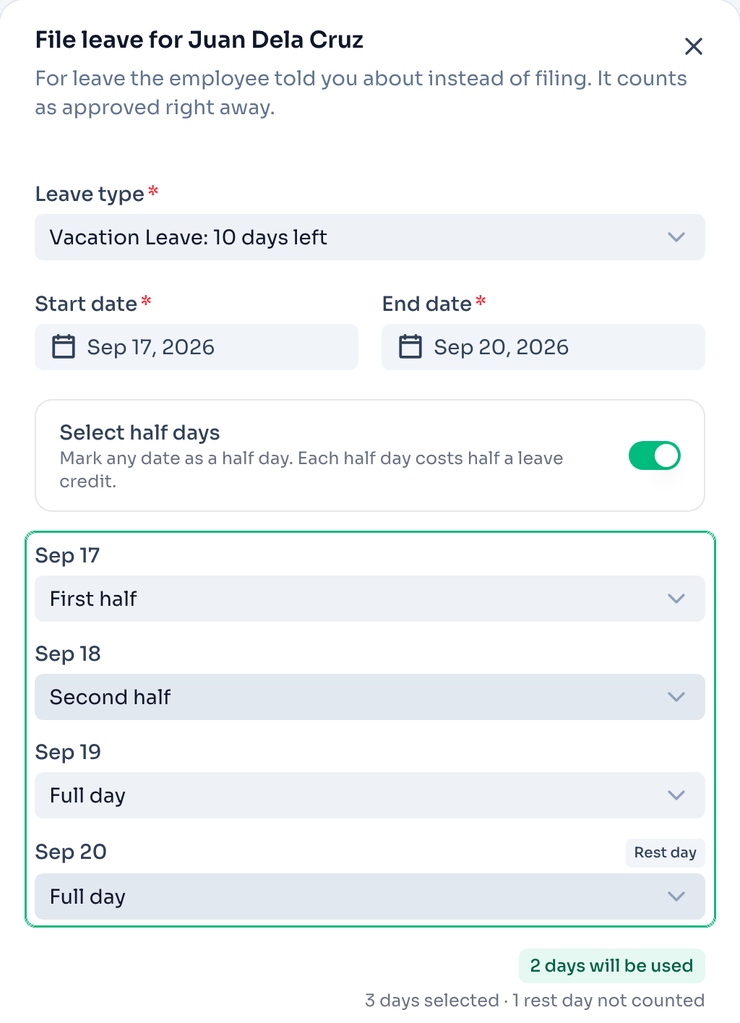
- Half days anywhere in a range. Approvals, the dashboard and the request emails name which dates are halves, so a week of them never reads as whole days off.
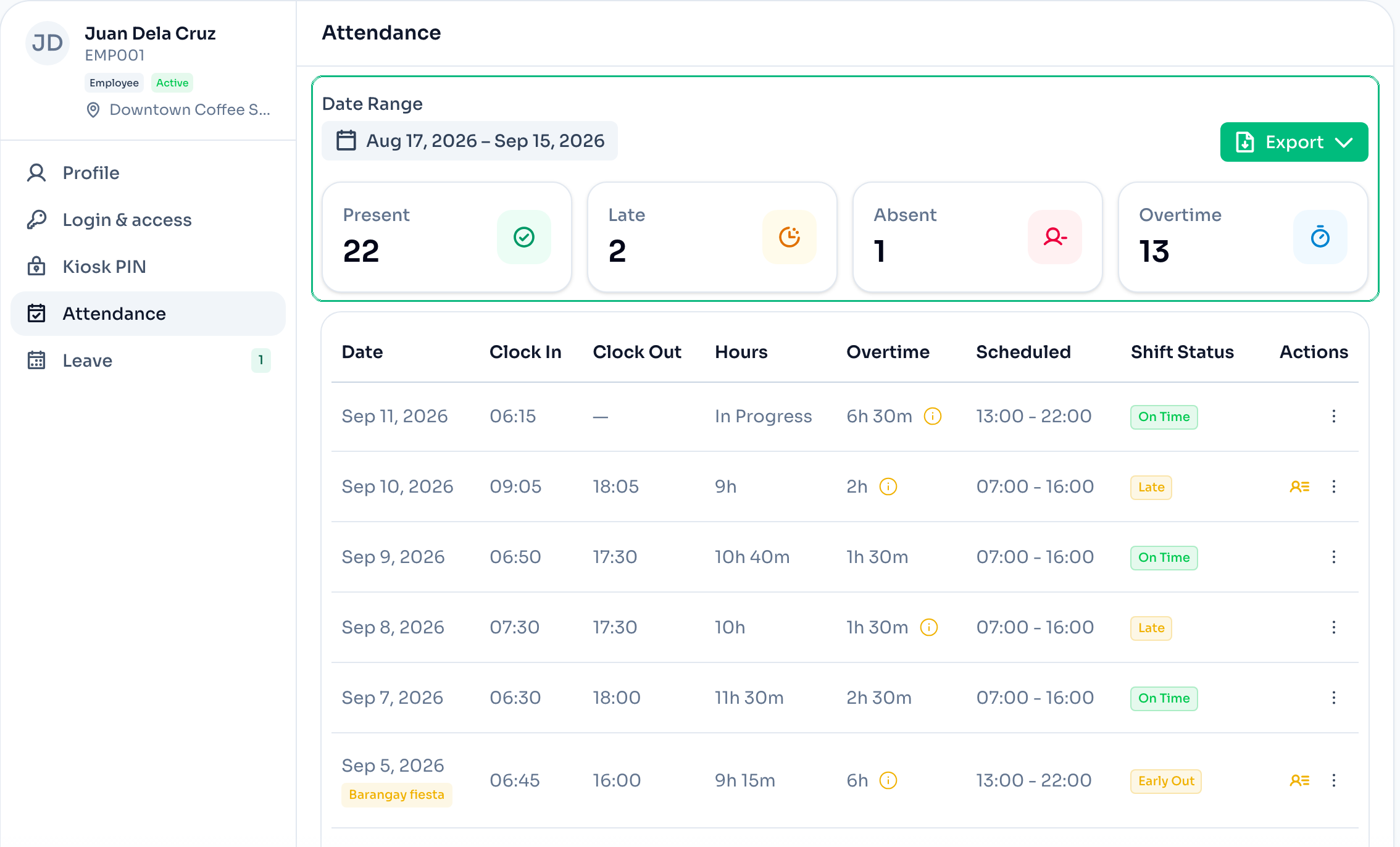
- A full attendance view on one person's tab. It replaces a read-only 7-day preview, and the export from this tab carries only that person's rows.
Improvements
- One Leave row per employee. Activity is gone: the balance history it held now sits under the balances it explains.
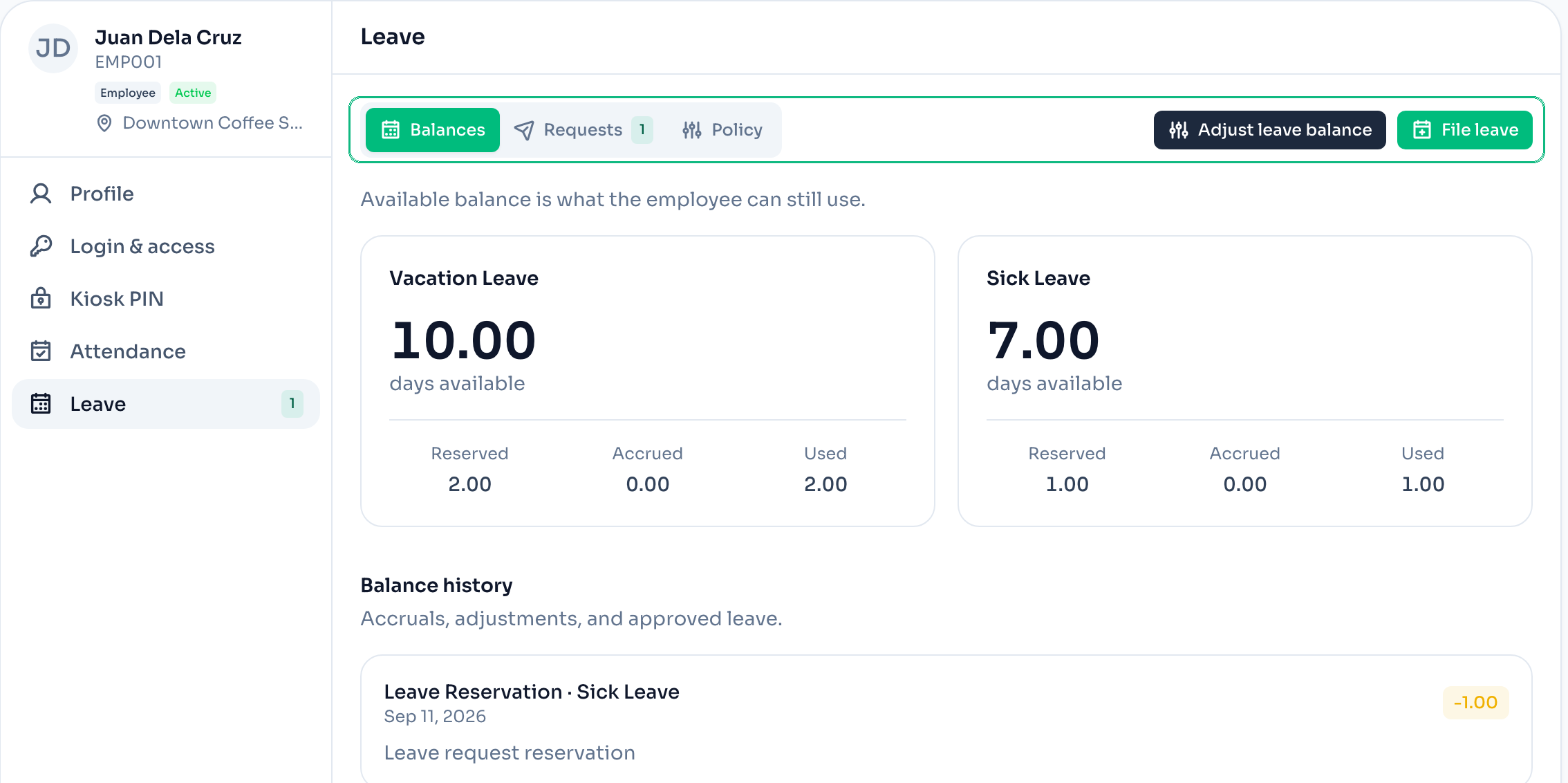
- Text on alerts and badges is darker, so a tinted box is easier to read.
- A panel that needs Pro says so at the top, before the locked controls.
Fixes
- A correction request marks the clock-out control that is wrong, and offers the next morning when the shift runs overnight.
- Payroll and its export count the same overtime and absent days as the attendance list, so an export from a filtered view matches the screen.
September 15, 2026
New
- The payslip fills in SSS, PhilHealth and Pag-IBIG. ClockTap works out each employee's share from their monthly salary and writes it into the deduction row, with a line underneath saying what the amount was worked out from. Type over any figure and yours is the one that prints. Withholding tax stays blank for you, and ClockTap still files nothing with anyone.
- Your locations start with it off. Nothing on a payslip you already download changed overnight. Turn it on under Location Settings → Payroll, where a location paid twice a month also says which cut-off carries the month's contribution. Pay weekly or daily and the rows stay empty, with the reason printed beside them: a contribution is a monthly amount, and a week cannot carry a fair share of one.
- A statutory monthly salary per employee. Use it when the figure ClockTap derives from someone's rate is not the one you declare to the funds, a part-timer on twenty hours a week being the usual case. Anyone who is not a member of a fund can have that fund switched off.
- Each fund reads its own figure. SSS is charged on what the month actually paid, so overtime raises it and a month with unpaid leave lowers it — ClockTap totals the whole month even when the payslip covers one cut-off. PhilHealth and Pag-IBIG stay on the fixed monthly salary, which is what their own rules require: absences never reduce them. A period that paid nothing deducts nothing, and says so.
September 10, 2026
New
- Clock in from home or a client site. An employee pins their own zone while standing in it. That part needs Pro.
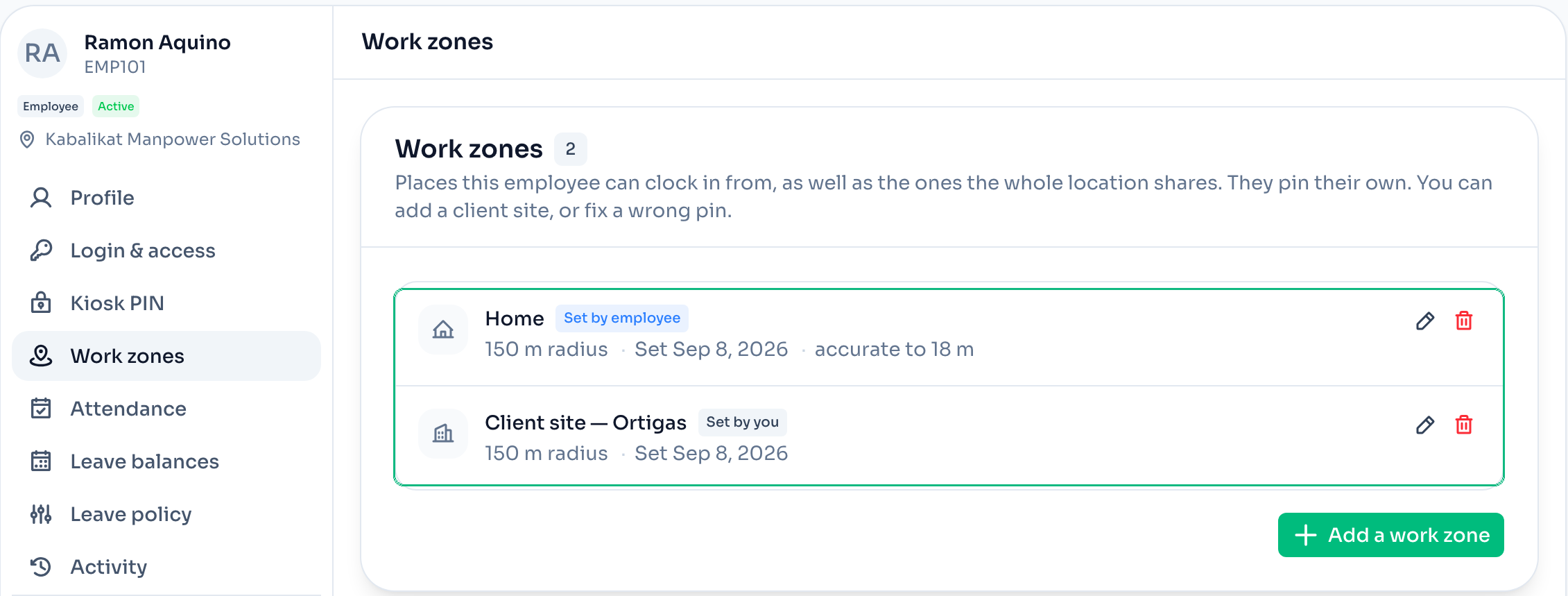
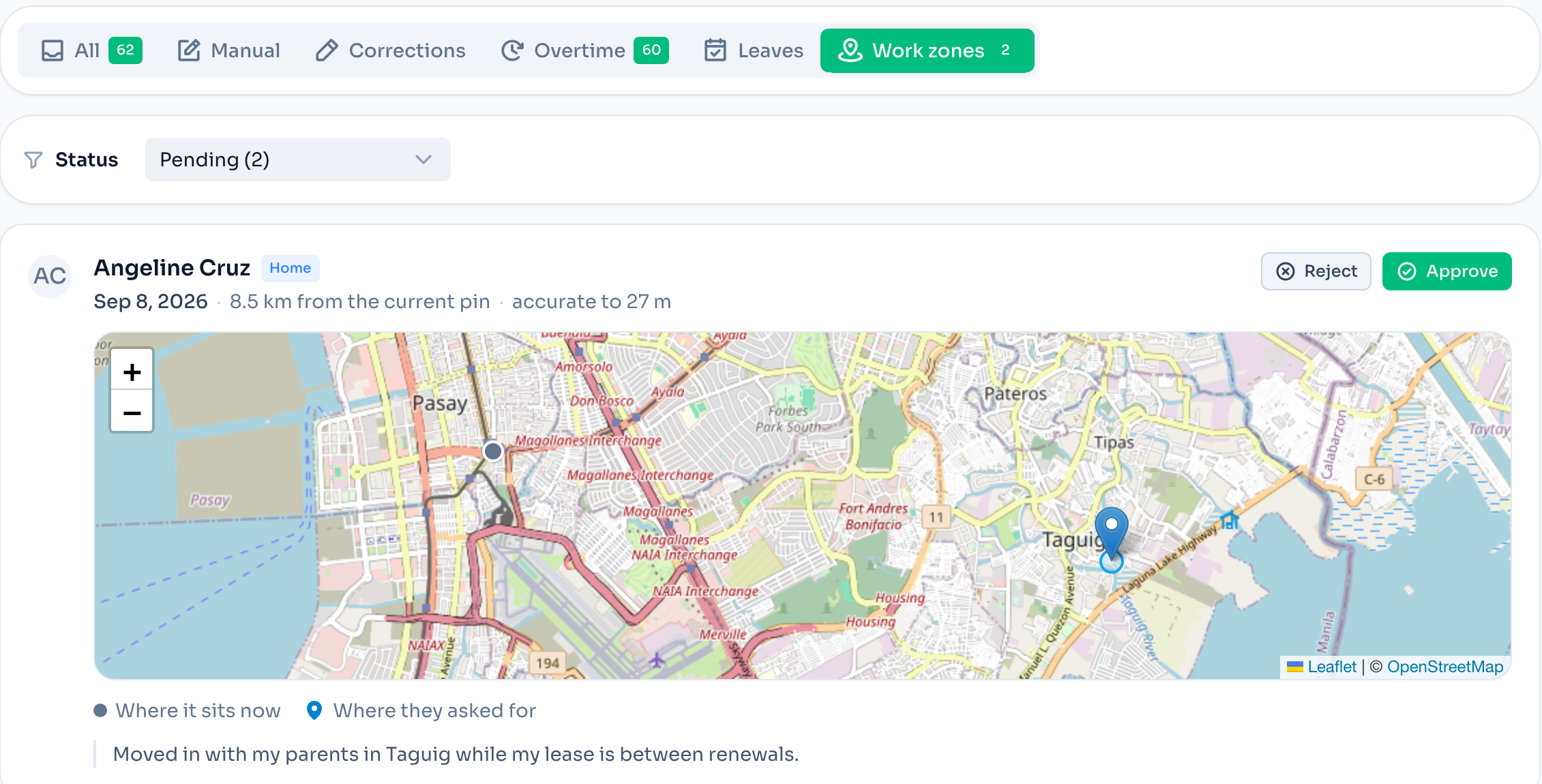
- A move goes through Approvals. Their old zone still works, so they can keep clocking in while you decide.
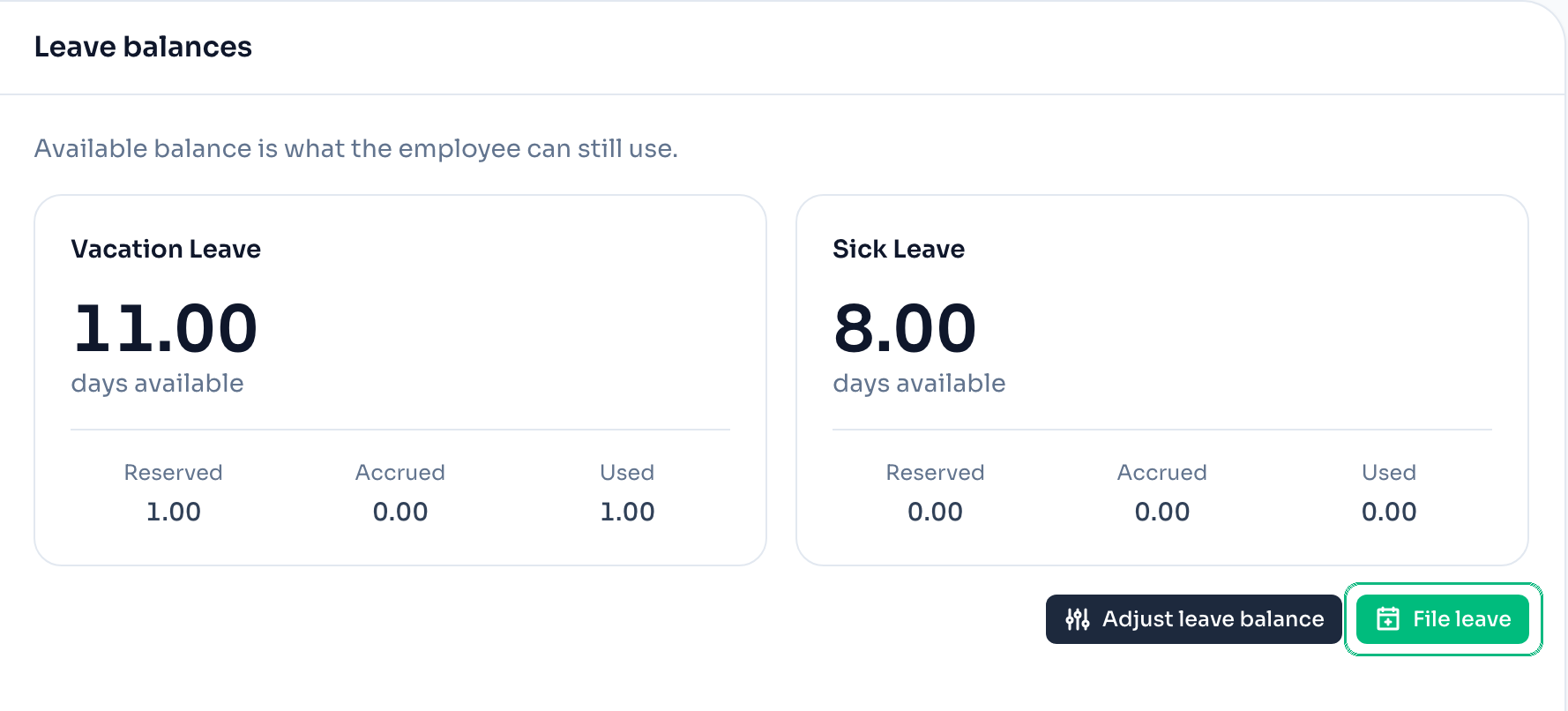
- File leave for an employee. The button sits on their Leave balances tab. The employee gets an email, and the record shows you filed it.
Improvements
- Times are easier to type. You no longer have to clear the box before you can type a new time.

- ClockTap opens in light mode instead of following the phone's dark setting.
Fixes
- Overtime counts only the minutes an employee is on the clock outside their shift, so a clock-in long after the shift ended no longer earns the hours in between.
September 7, 2026
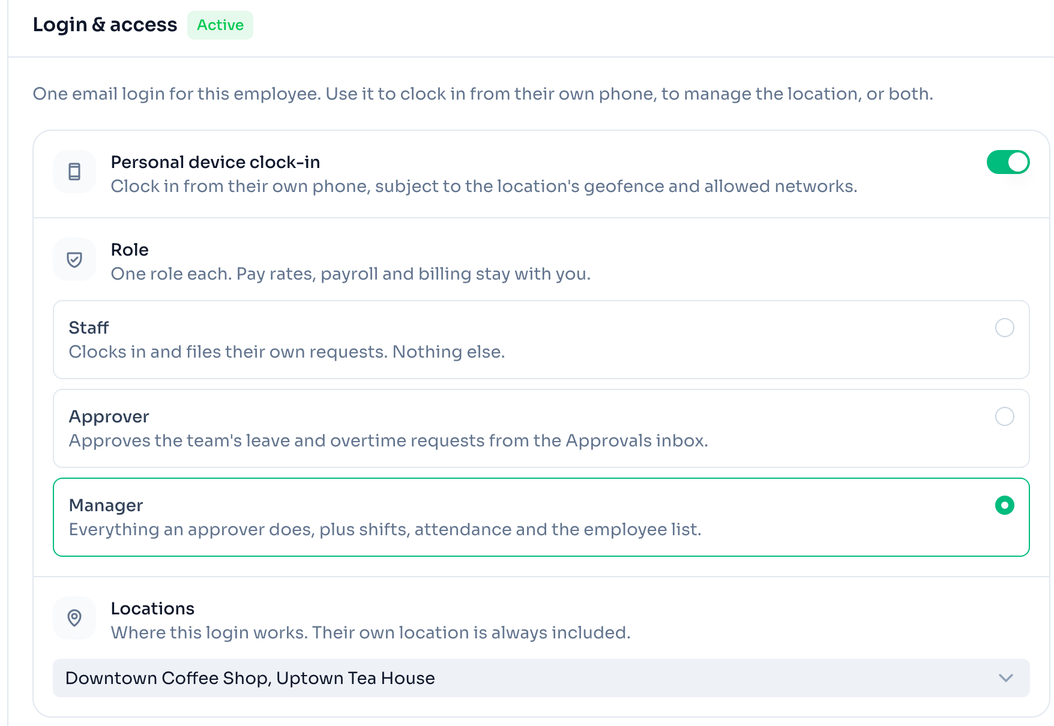
- A new role: Manager. Approvals, attendance, shifts and the employee list — across every location you give them.
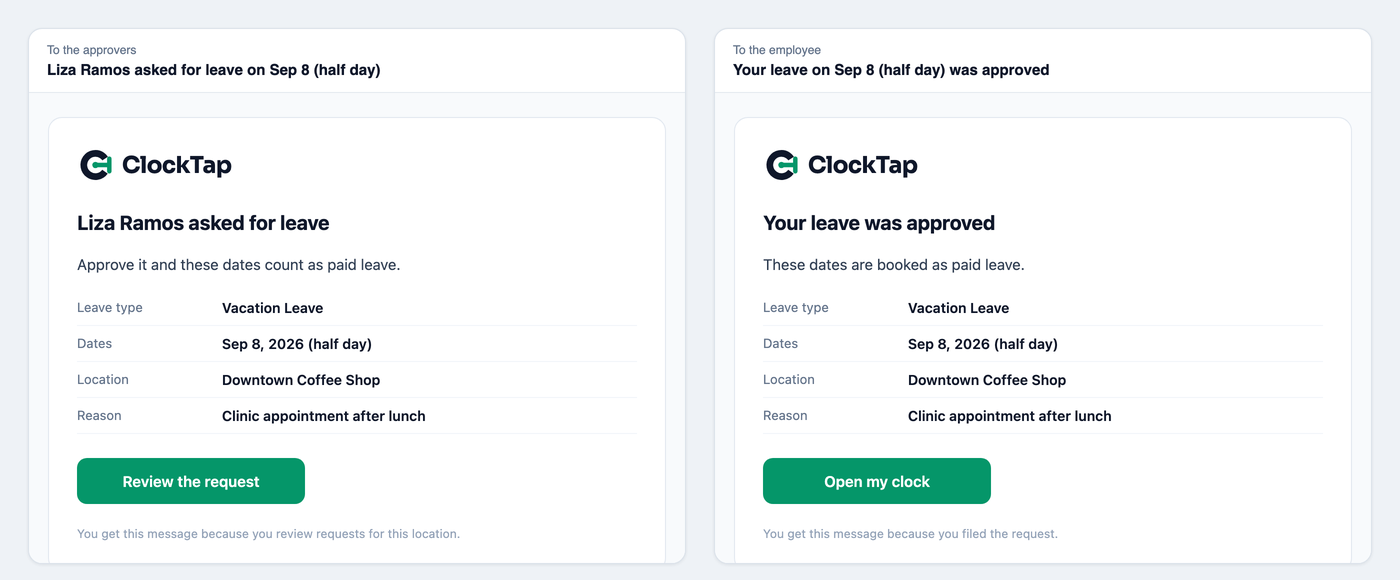
- Requests now email you. Approvers get the filing, and the employee gets your decision.
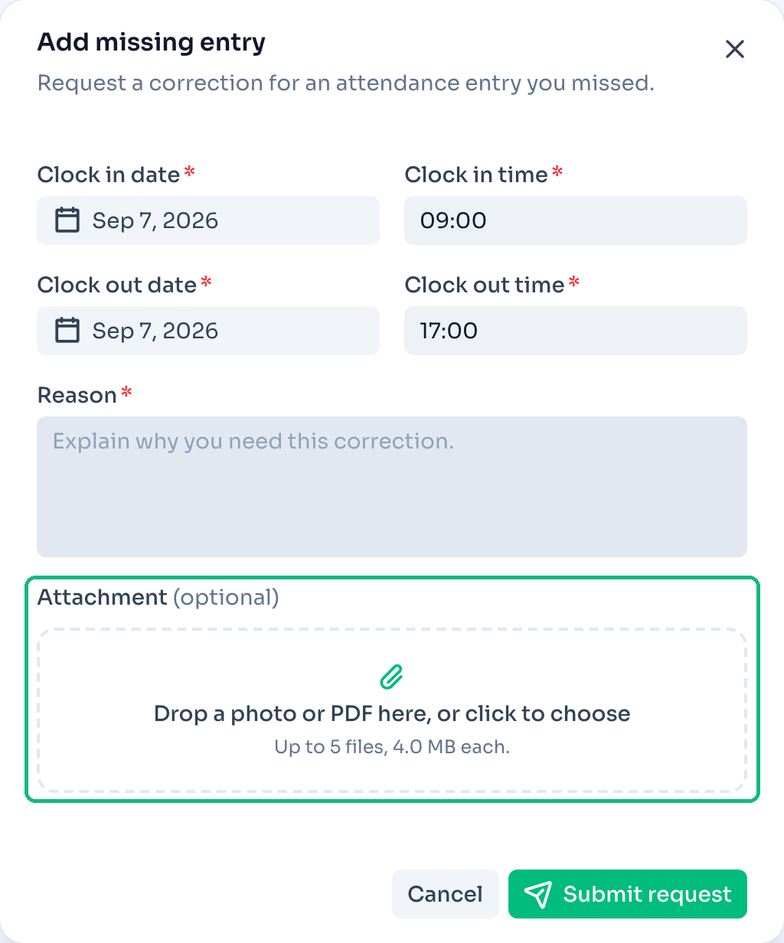
- Attach proof to a request. Up to five photos or PDFs on a correction, an overtime request or leave.
- A half day says which half. Named from that person's own shift, on every screen that shows the leave.

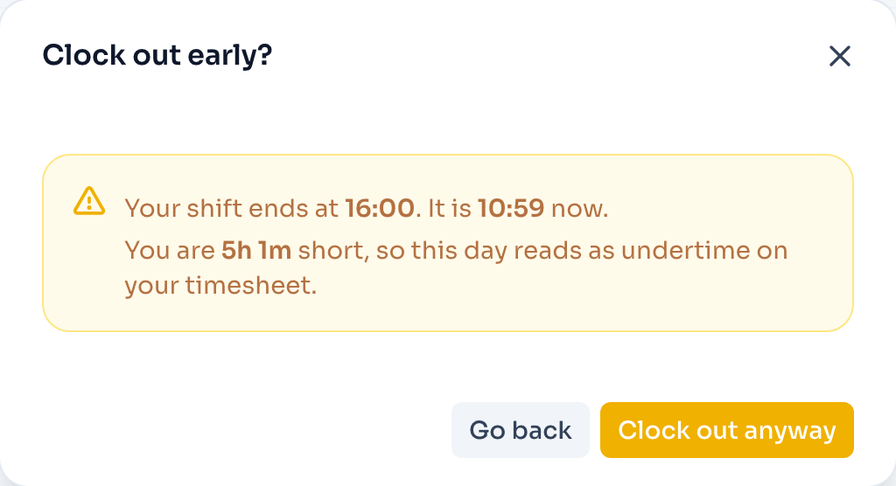
- Clocking out early asks first. The clock names the shift end and how short the day falls.
- Fixes. A co-owner can decide a time correction again, and a link from an email opens the queue on the right location.
August 20, 2026
Payroll, end to end
The payroll page and what it prices, setting an employee's rate, the attendance and payslip tabs, and the four settings behind every figure.
- Payroll now works out what to pay, not just the hours worked. The Payroll page prices every approved hour against each person's rate and shows their gross pay for the cut-off — overtime, rest-day, night and holiday premiums included, under Philippine rules. Set someone's rate from their own card: tap the rate beside their name and pick hourly, daily or monthly.
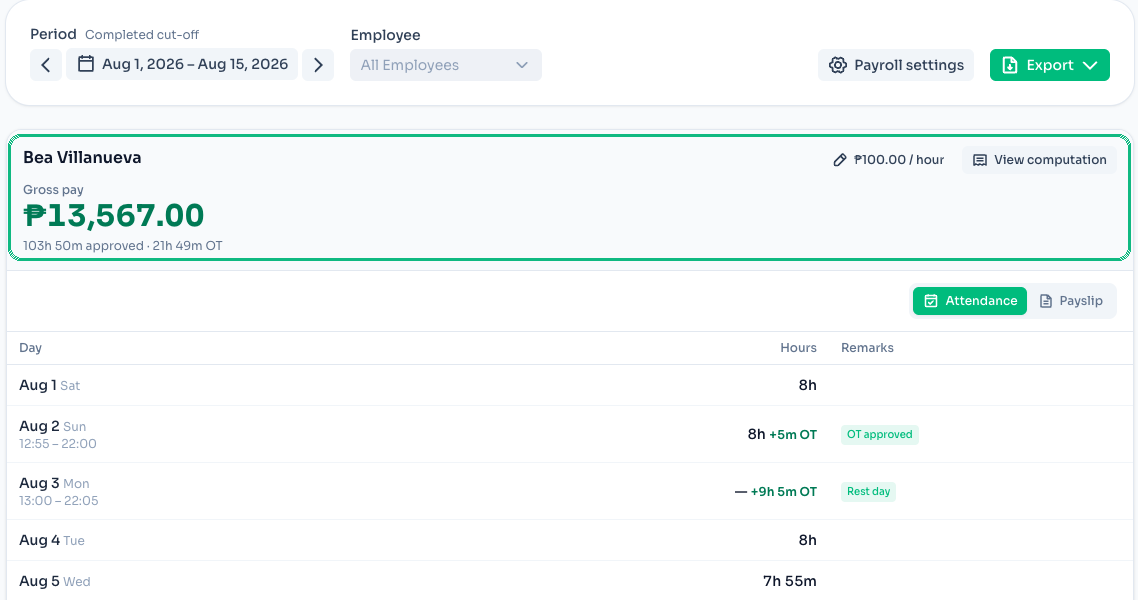
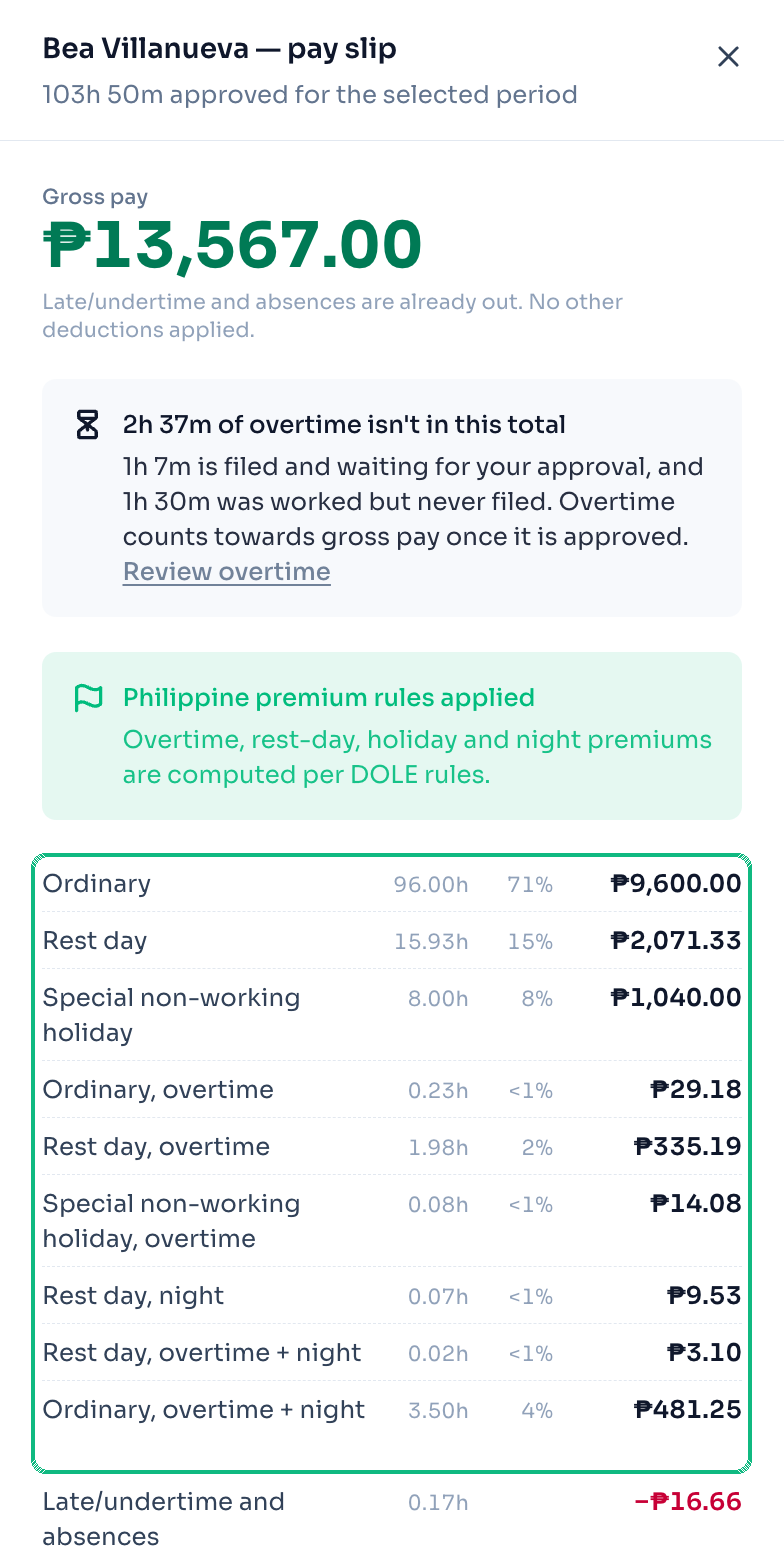
- See where every peso came from. View computation opens the whole breakdown — ordinary, rest day, holiday, night and overtime, each with its hours and amount, and late or undertime taken back off the end. Overtime nobody approved is named and left out, with a link to review it, so the figure on screen is the one you agreed to pay. The same hours regrouped by day type sit under Pay Categories on every employee now, instead of behind a setting you had to switch on.
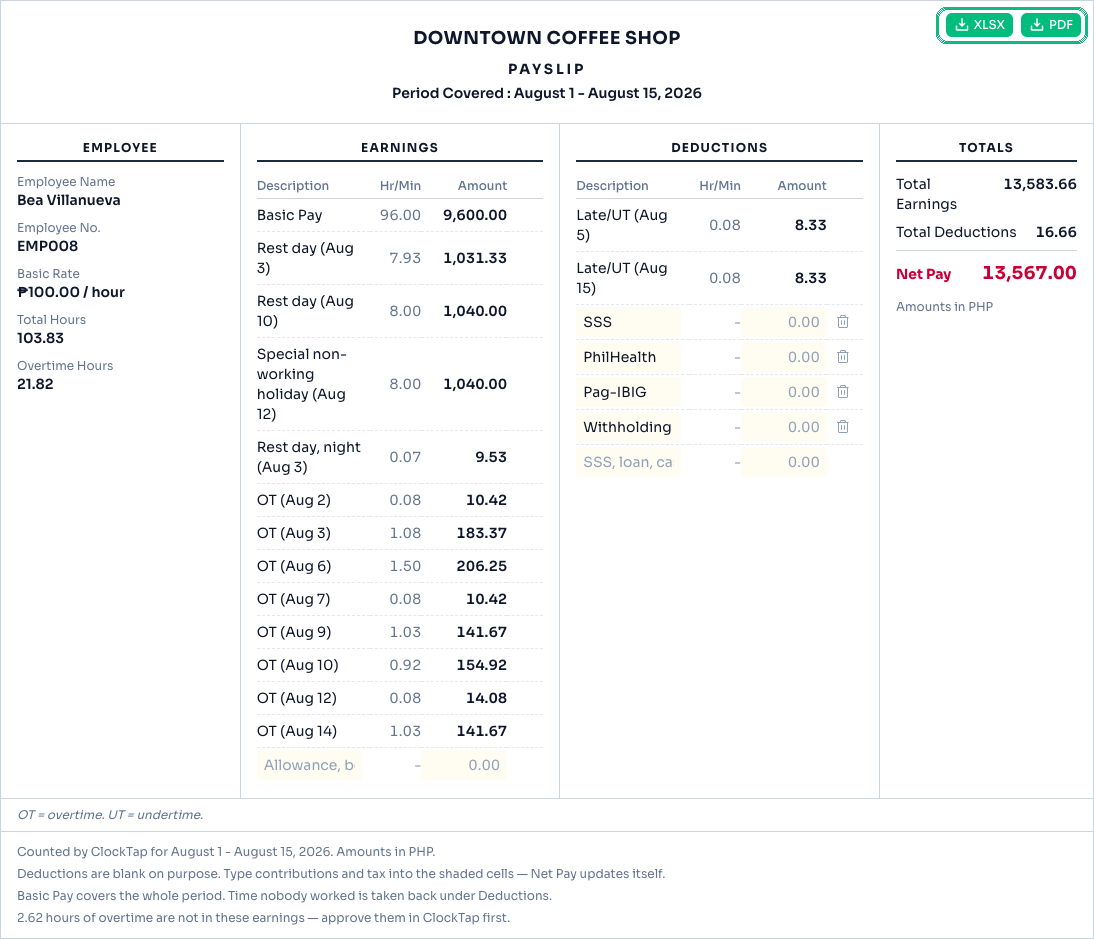
- Download a payslip for each employee. Anyone's Payslip tab holds a finished payslip — hours, earnings, deductions, net pay — that downloads as XLSX or PDF. Type in an allowance, a bonus, a contribution or a cash advance and the totals follow: ClockTap prints the deduction rows and leaves the amounts to you, because it computes no contribution and no tax. The company name and the deduction rows come from Location Settings → Payroll.
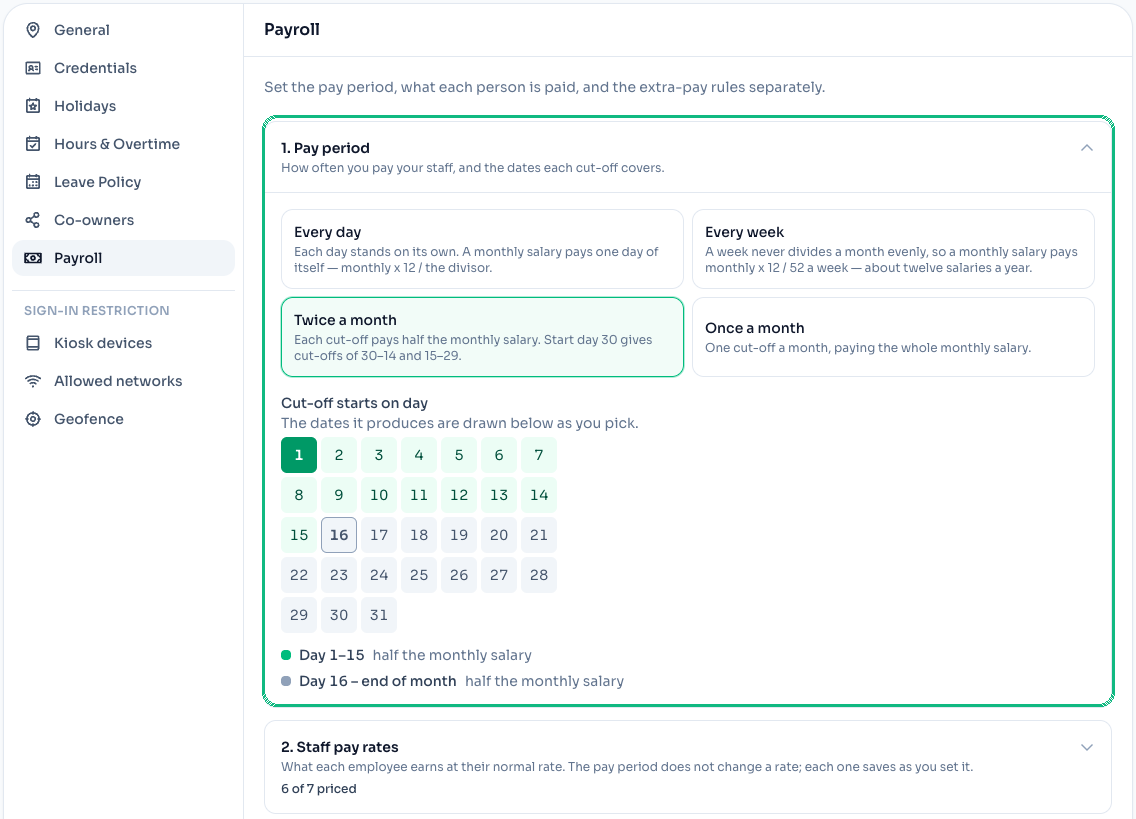
- Your cut-off is a setting now, and Payroll browses by it. Say how often you pay — every day, every week, twice a month, once a month — and which day a cut-off starts on; the dates it produces are drawn as you pick. Payroll then opens on the cut-off you're about to pay, with arrows to step through the others. Monthly staff get a workday basis too, including the 26- and 22-day factors, and ClockTap says so when that basis and the recurring shifts disagree about how many days a week are paid.
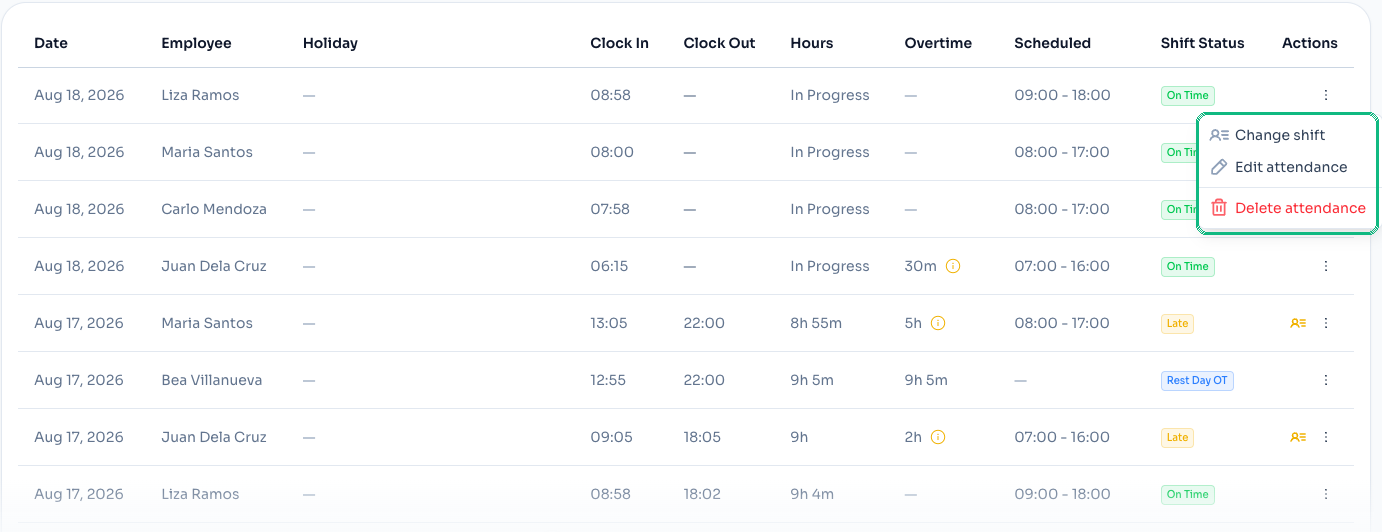
- Fix a wrong entry — or delete it. Every row on Attendance now offers Change shift, not only the rows whose times drifted from the schedule. Delete attendance sits beside it, and asks you to type the employee's name and the date before the entry goes.
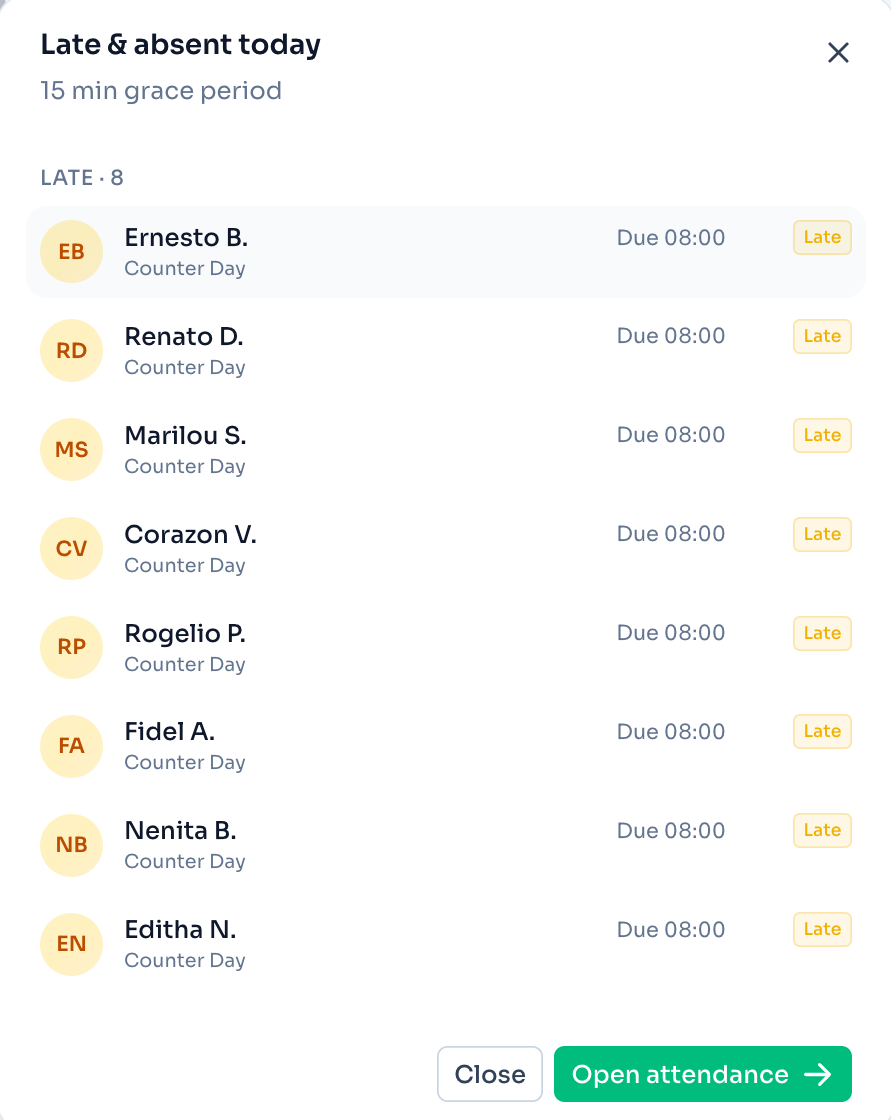
- The dashboard answers "who", not just "how many". Click Late & absent — or either of its counts — and the names open right there, instead of sending you to the attendance table to find out. Today's Attendance is clickable now too.
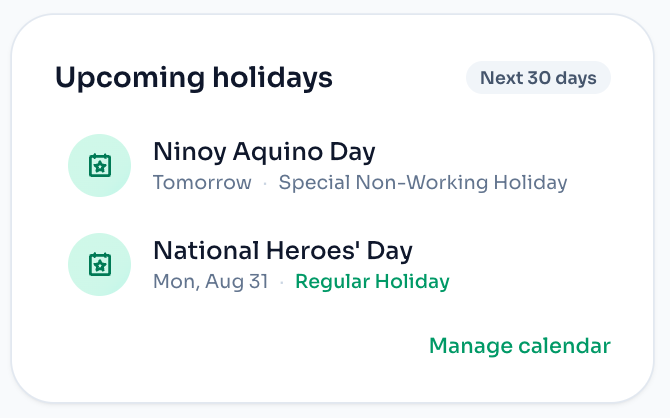
- Holidays you can see coming. An Upcoming holidays card lists the next 30 days for any location on a holiday calendar, so a regular holiday stops being a payday surprise.
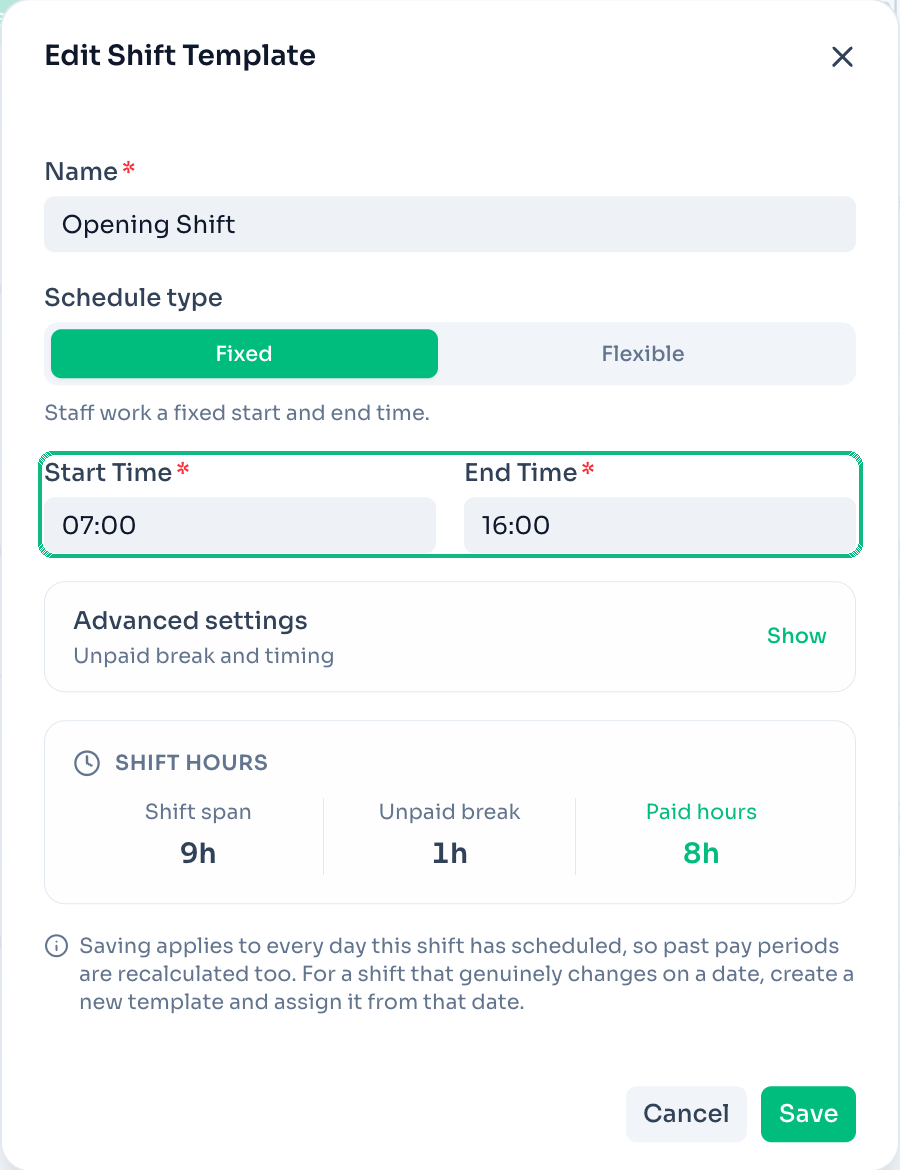
- A mistyped shift template is fixable again. Editing a template's start, end or unpaid break used to be refused once anyone was assigned to it — you had to build a replacement. Timing is a plain setting now: save it, and every day that shift has scheduled is repriced with it. On a laptop or a phone, Templates reads as a card per shift instead of a table with its last columns cut off.
- All Locations works on the shift and employee screens. Templates, Recurring Shifts, Team Planner and Add Employee used to stop at "pick a location first". They now cover every location you manage, so a two-branch owner can see the whole setup at once.
- A free holiday pay calculator, open to anyone. ClockTap Toolkit has a DOLE-rate holiday pay calculator and the Philippine holiday calendar year by year — no account needed, and nothing to install.
- Fixes. A kiosk clock-in that clashes with an entry already on file now names that entry and its times, instead of "conflicts with another record". The kiosk's "Are you still there?" prompt no longer interrupts someone scrolling. The clock button can't stay stuck for staff clocking in from their own phone. And adding an employee whose email is already taken keeps the address, names who holds it, and offers to free it when that person has been deactivated.
August 6, 2026
Plan your team's week
Drag someone from the roster onto a day and pick their shift, then open a shift card and move one person off it — both changes carry into the weeks that follow.
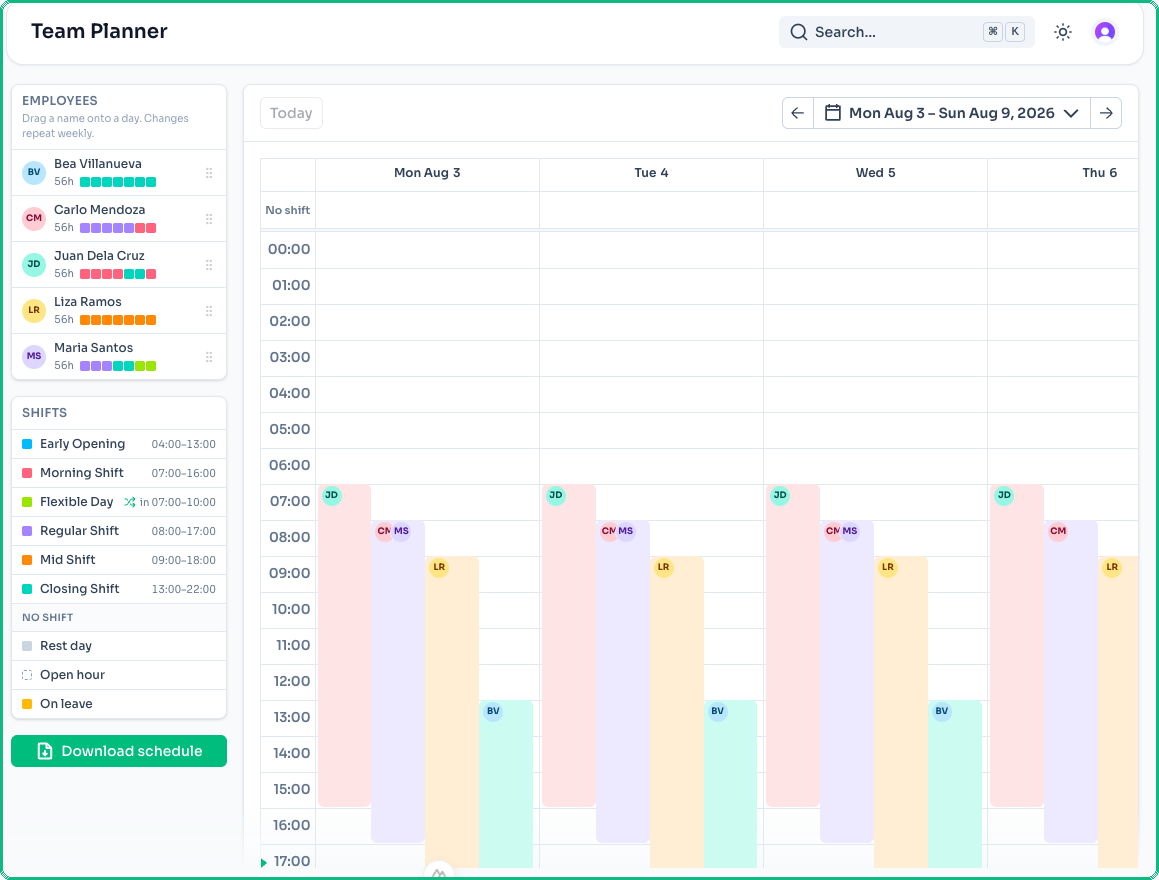
- Plan the whole team's week on one grid. The new Team Planner under Shifts lays your crew's whole week out on a grid — every employee down the side, the week across, the clock down the middle. Drag a name onto a day to assign a shift, or drop it on No shift to make that day a rest day. Click a shift block to change who's on it. Either way, the change repeats every week from the day you made it — past weeks keep the old plan — and every confirmation comes with an Undo.
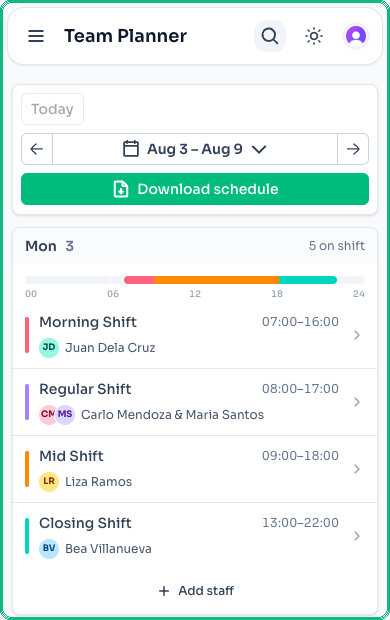
- The planner fits on a phone. Below desktop width, Team Planner reads the week as a list of day cards instead of a grid, since a drag doesn't work well across two scrolling axes. Tap a shift to change who's working it, or Add staff to put someone new on a day.
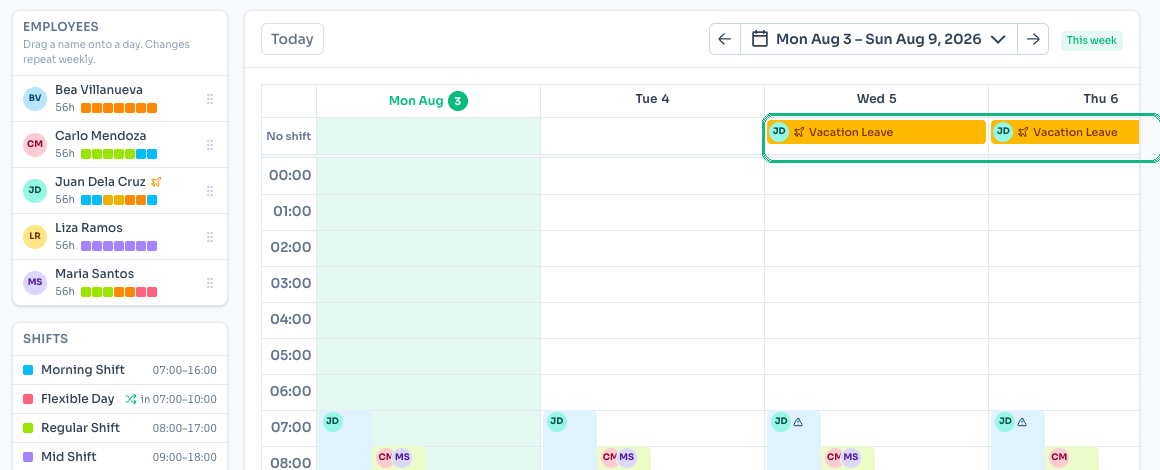
- Approved leave shows up on the schedule. Leave now appears on both the Team Planner grid and the Recurring Shifts calendar, with an icon for the leave type. If someone's approved leave lands on a day they're also scheduled to work, that day is flagged so it doesn't slip through.
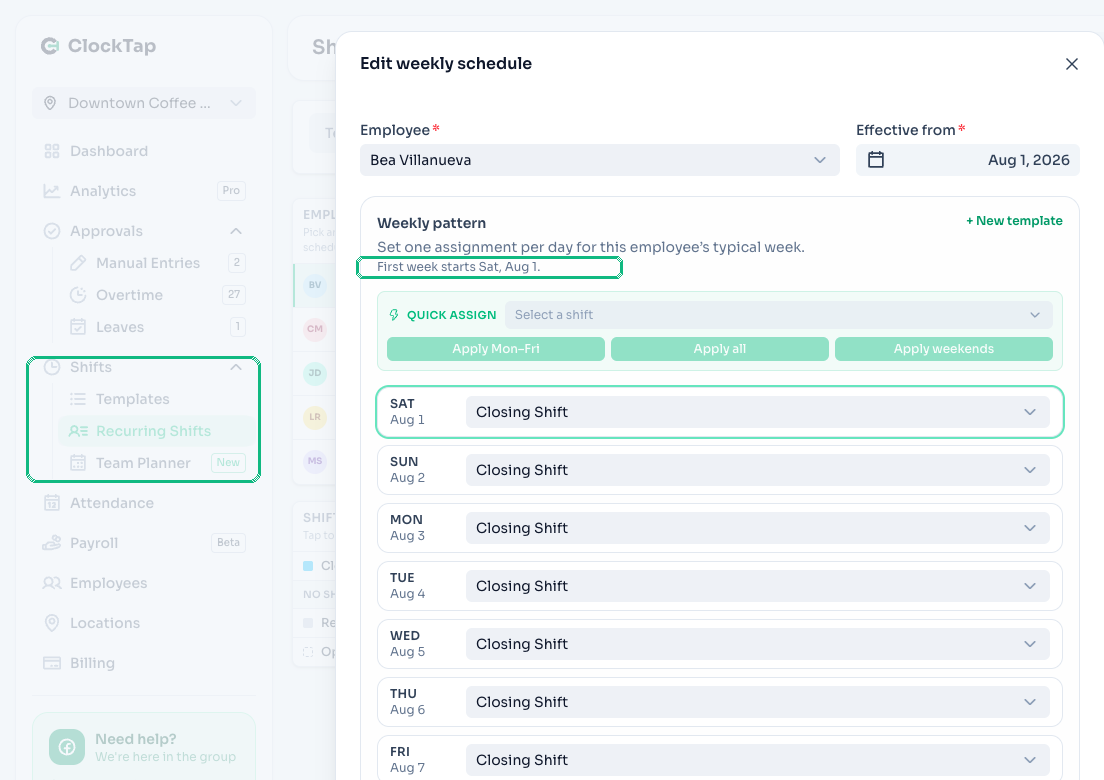
- Assignments is now Recurring Shifts. The Shifts section in the sidebar is now Templates, Recurring Shifts, and Team Planner. In the weekly schedule editor, each day now shows its real date, with a First week starts note so it's clear which week a pattern begins from.
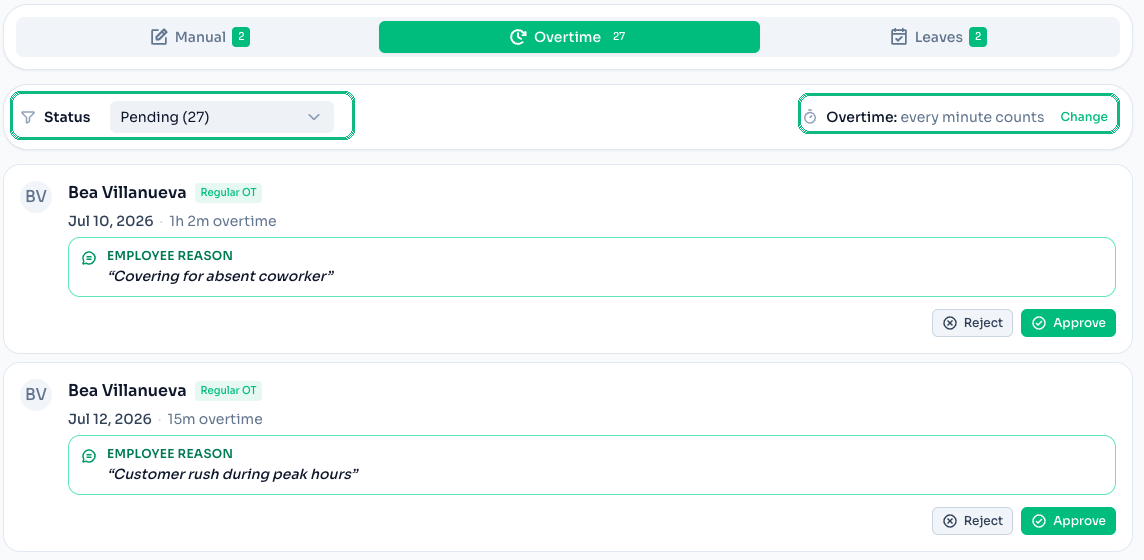
- The status filter is a single dropdown now. Pick All requests to see everything at once, or narrow to just Pending, Approved, or Rejected — Pending shows a live count. Request cards are rebuilt to hold up better on a phone. Overtime responses now show the location's minimum and rounding rules right beside the filters, with a Change link straight to the setting.
- New videos in the Shifts guide. The Shifts guide has a new section on planning the whole team's week, and both Shifts pages now have a Watch tutorial button that plays a short walkthrough without leaving the app.
August 5, 2026
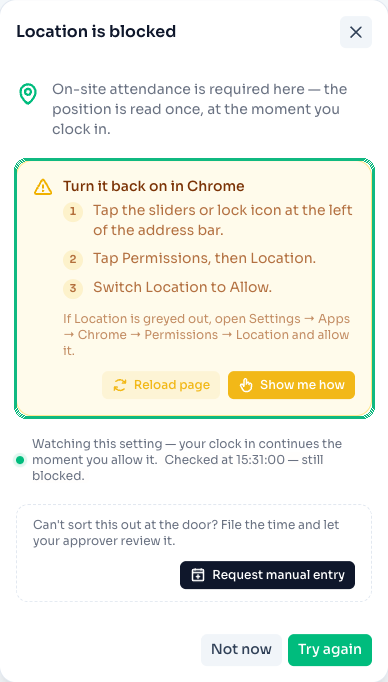
- A blocked location no longer traps a clock-in. If a browser has blocked location access, the clock-in screen now walks through the exact taps to fix it — separate guides for Android Chrome and iPhone Safari — and keeps watching in the background so the clock-in picks up on its own the moment permission is restored. Can't sort it out at the door? Request manual entry files the time for an approver to review instead.
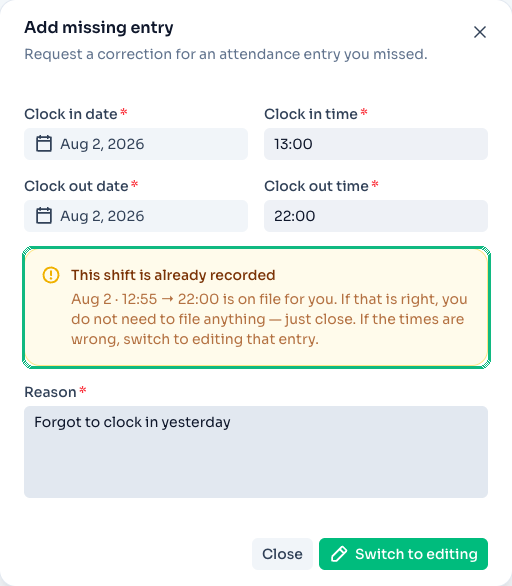
- Filing a correction for a shift already on file is caught immediately, not after approval. The manual entry form now checks for a clash with an existing entry while you're still filling it in, and offers to switch straight to editing that entry instead of submitting a duplicate. Approvals also apply the moment you tap Approve or Reject, instead of blanking the whole queue while it reloads.
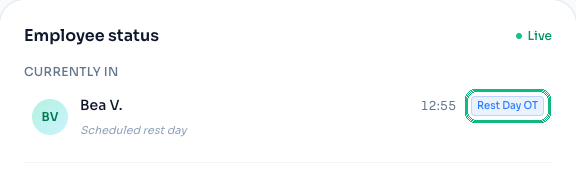
- A clock-in on a scheduled rest day now reads as overtime. The dashboard's Employee status and Clocked out lists used to guess On Time or Late with no shift to measure against; an employee working their day off now shows a Rest Day OT badge instead.
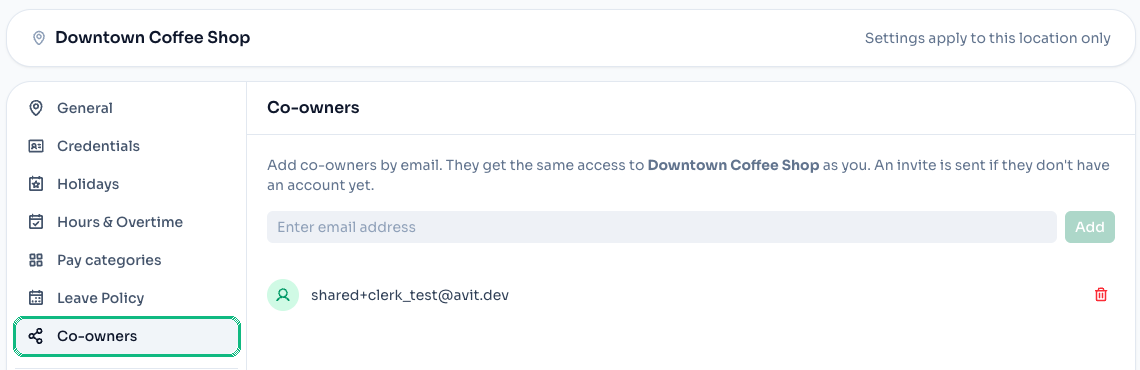
- Co-owners have their own settings section now. Sharing a location used to be reachable only from the Locations list. Location Settings → Co-owners now covers the same add-by-email flow, so it sits alongside the rest of a location's settings.
- The sidebar no longer clips on short screens. Nav, settings, the support card, and the profile menu now scroll together as one region instead of being cut off outside the visible area.
August 3, 2026
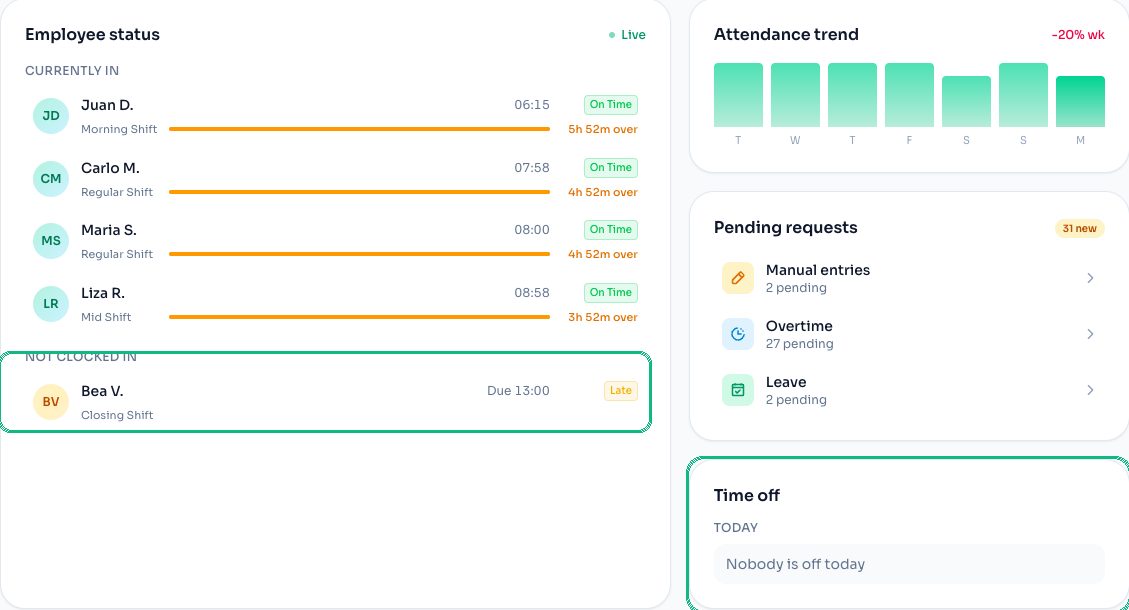
- See who hasn't clocked in — and who's on leave — right from the dashboard. The Employee status card now groups everyone still due in today under Not clocked in, tagged Upcoming, Late, or Absent depending on how far past their shift they are — nobody is marked absent while there's still time on the clock. A new Time off card lists who's on approved leave today, so leave stops getting counted as a no-show.
- The Late Today card tells you what "late" means. It now names the grace period behind the count — for example "15 min grace period" — with a Change link straight to Hours & Overtime for that location.

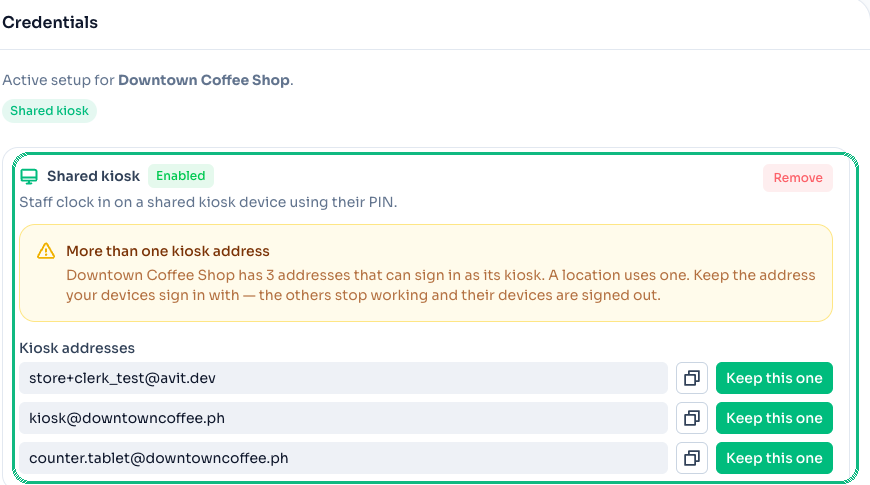
- Kiosk sign-in moved to its own settings page — with a fix for duplicate logins. Scanning the kiosk QR code now activates the device immediately, without waiting on the invite email to be opened and accepted first. Kiosk credentials also moved out of the old settings modal into a dedicated Credentials page in Location settings, and if a kiosk somehow ends up signed in under more than one address, the page flags it and lets you pick which one to keep — the others are signed out automatically.
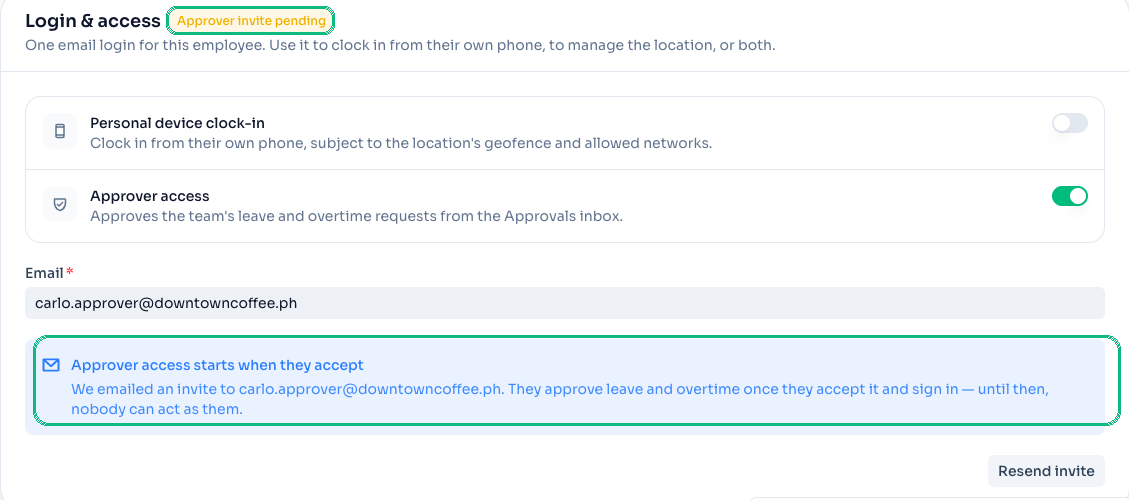
- Approvers accept an invite instead of being handed a password. Turning on Approver access for an employee now emails them an invite — the same flow staff already use for personal-device clock-in — so they sign in on their own, and nobody else ever holds their credential. Approvers can also clock in for themselves at a personal-login location, the same as any other staff member.
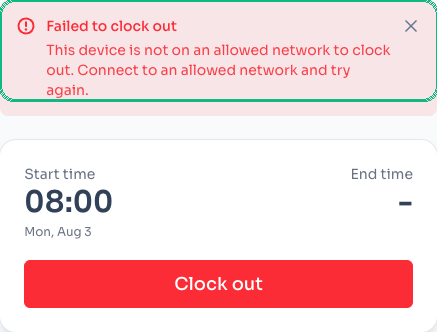
- A refused clock-in stays on screen instead of flashing past in a toast. If a clock-in or clock-out is refused — say, the device isn't on an allowed network — the reason now shows as a message that stays put until the next attempt, instead of a toast that can disappear before anyone reads it. Applies on the kiosk and from a personal phone alike.
- The docs site now matches your theme, and videos play properly.
/docsused to force dark mode no matter how the rest of the app was set; it now follows your light/dark preference, with the toggle right in the header. Docs videos open in a proper player too — a modal on desktop, fullscreen automatically on phones — instead of a cramped inline clip.
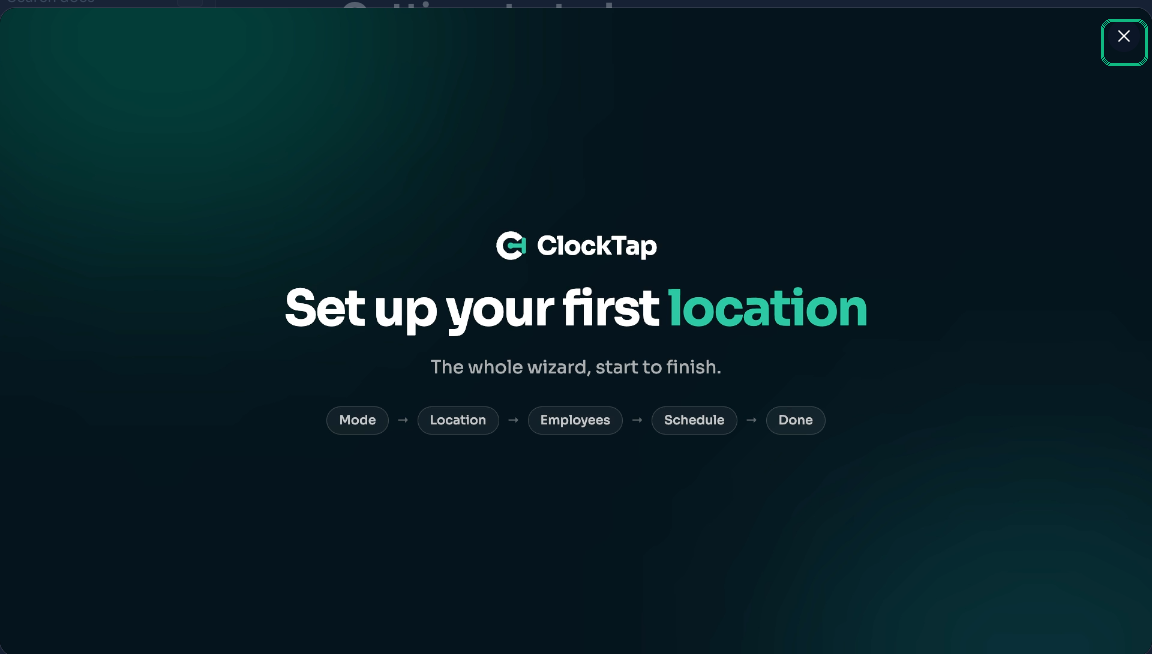
- A rewritten guide to getting started. Getting started now follows the real shape of setup — before you start, the five wizard steps, getting the team clocking in, reviewing attendance — with a kiosk-vs-personal-login comparison and a fresh set of short clips for each step.
- Payroll's employee cards are the whole story now. The summary tiles and colour legend that used to sit above the per-employee list are gone — the breakdown itself already carries approved hours, overtime, and status, so the extra summary was one more thing to read before getting to what mattered.
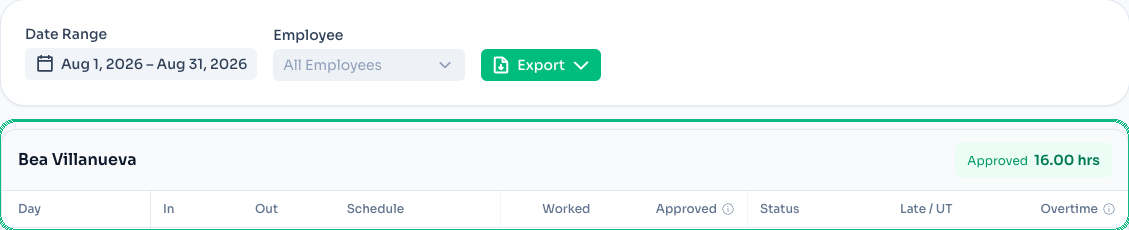
- The date range filter lives in the main filter bar. On Attendance, Date Range now sits next to Employee and Export instead of being tucked inside a collapsible "more filters" panel — one less click to change the period you're looking at.

- Login conflicts now name who's holding the address. Inviting a self-login to an email that's already someone's login used to return a bare "already taken" message with no way to act on it. It now names the employee and location and links straight to their page — as long as you manage that location.

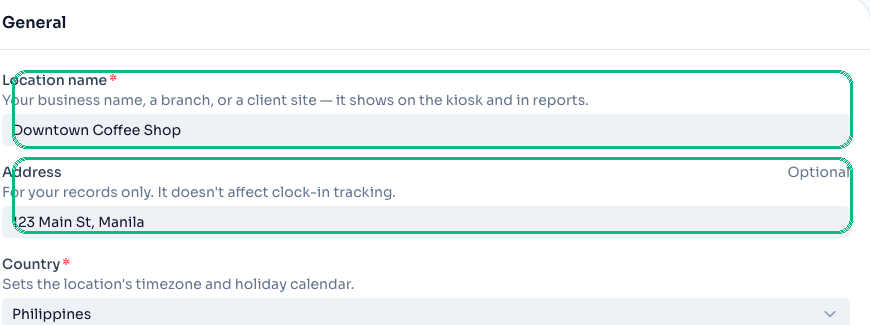
- Location name and Address, clarified. Both fields now carry their own helper text in onboarding and in the location form — Location name is your business name, shown on the kiosk and in reports; Address is for your records only and never affects clock-in tracking.
- Only active employees count against your plan limit. Deactivating a departed employee now frees their seat right away — the count used to include deactivated employees, so an owner with any turnover could get stuck behind the upgrade prompt even while under their actual limit.
July 25, 2026
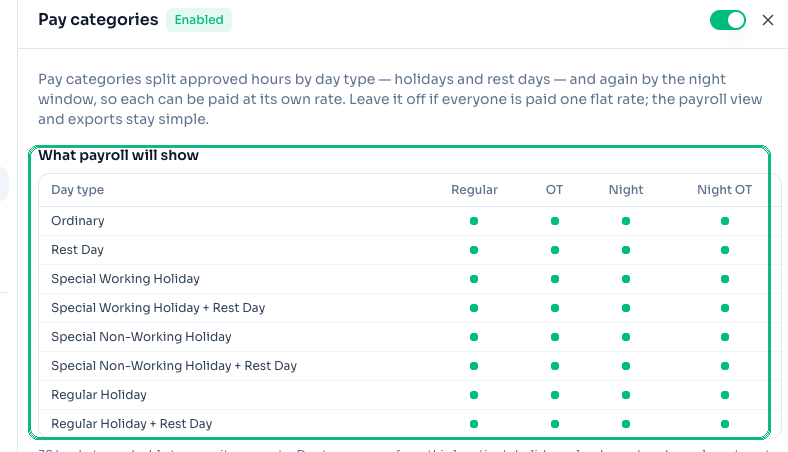
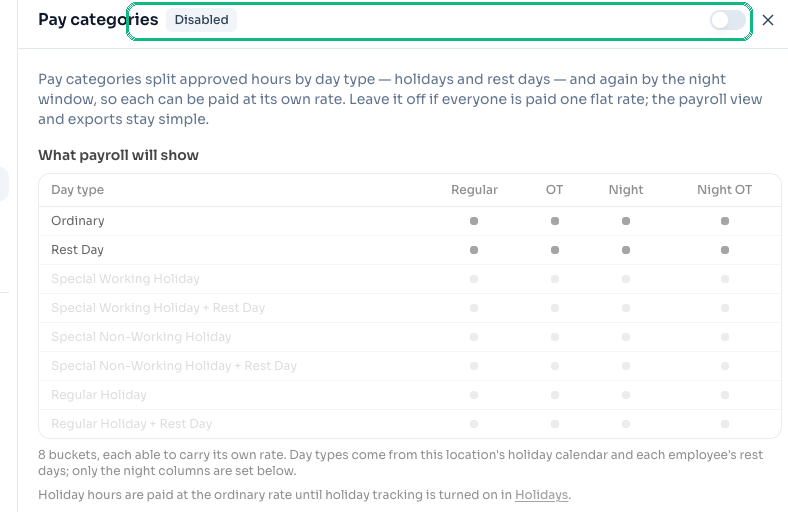
- Pay approved hours by day type. Turn on Pay categories in Location settings to split each employee's approved hours across up to 32 buckets — Regular, Overtime, Night, and Night OT, each on Ordinary, Rest Day, Special / Regular Holidays, and their combinations — so payroll matches how you actually pay. Leave it off if everyone is paid one flat rate; the payroll view and exports stay simple.
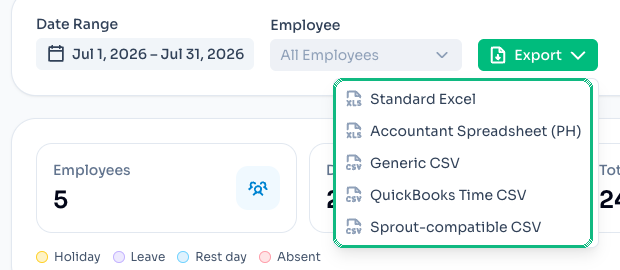
- One-click export in your accountant's format. The Payroll Export menu now ships four presets alongside Standard Excel: Accountant Spreadsheet (PH), Generic CSV, QuickBooks Time CSV, and Sprout-compatible CSV — pick the one your accountant asks for and skip the reformatting.
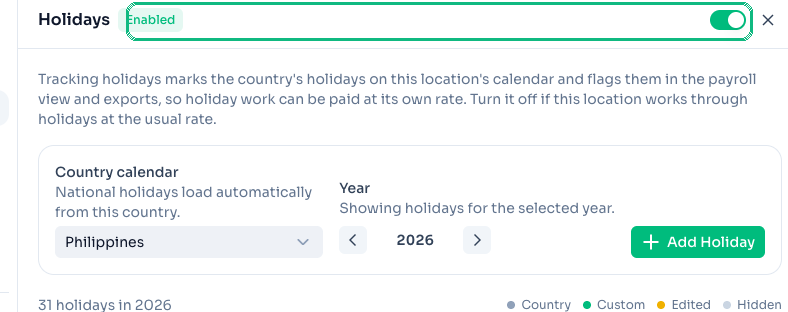
- Holidays are now per location. Each location has its own Track holidays switch in Location settings → Holidays, and the country's calendar lives there too. Turn it off for a location that works through holidays at the usual rate, and holidays disappear from that location's dashboard, attendance, and payroll everywhere in the app.
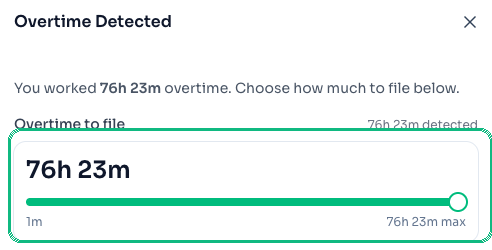
- File overtime with a slider. Staff filing overtime from the kiosk or their phone now drag a slider between the minimum and the counted maximum, instead of tapping a stepper — much quicker on a phone when the counted overtime spans hours.
- See what a feature does even when it's off. Sections you've turned off — Pay categories, Leave Policy, Holidays — now stay in the modal, grayed out, with the on/off switch in the header. So you can preview what enabling it looks like without going hunting.
- Hours & Overtime, in one place. Grace period, overtime block rounding, and minimums now live under a single Hours & Overtime section, and Kiosk login is folded into Clock-in methods — one place per topic.
July 20, 2026
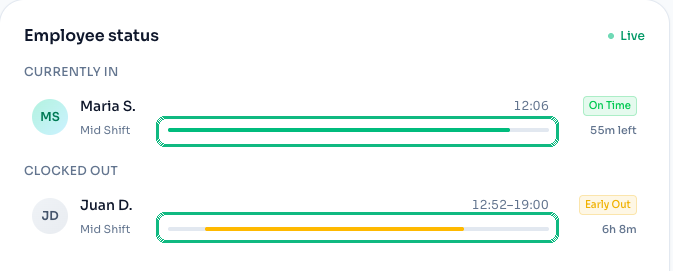
- See who's on shift, right from the dashboard. Every row on the Employee status card now carries a bar for that person's scheduled shift. For anyone still clocked in, the bar fills as their shift runs and turns amber once they're past shift end — so it's obvious who's about to finish and who's stayed on without clocking out. For anyone already clocked out, the bar sits inside their shift window, so a late start or an early finish shows up as a gap. The card refreshes on its own every 30 seconds.
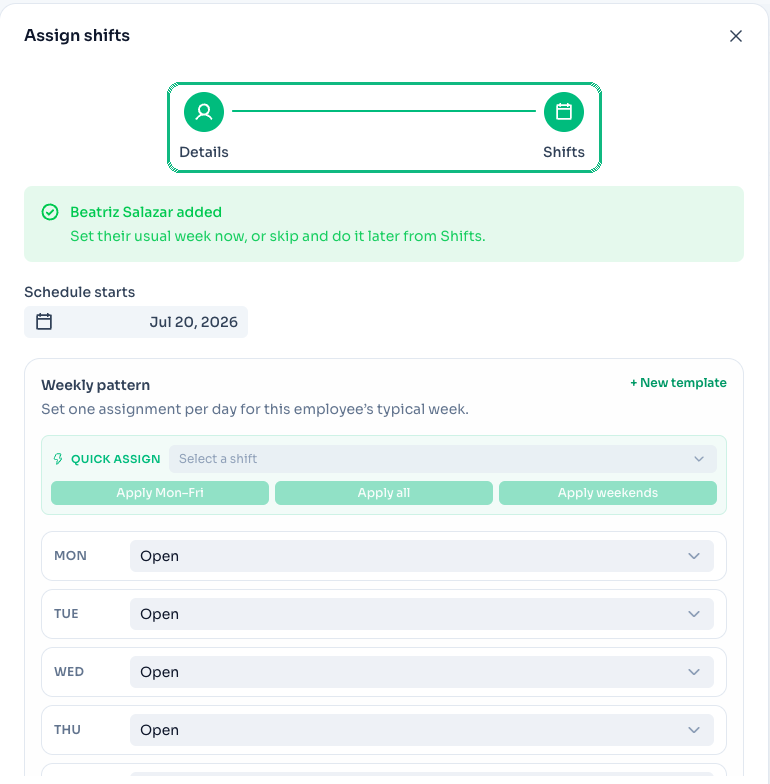
- Set a new hire's weekly schedule while you're adding them. Add Employee is now two steps: their details, then their usual week. The employee is created as soon as you finish the details, so you can skip the schedule and come back to it later from Shifts — and their PIN is still shown last, once you close the wizard.
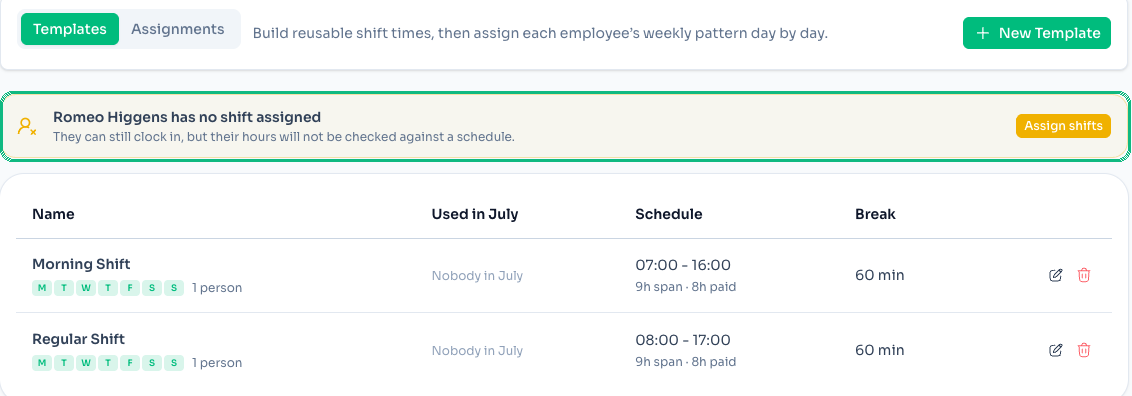
- Shift templates show the week they actually cover. Each template on the Templates tab now shows the weekdays it runs and how many people work it, in place of the old assignment count — which counted schedule rows, not people, and read as "5 active assignments" for a single employee working five days. Alongside it, Used in July shows who worked the shift this month and how many times.
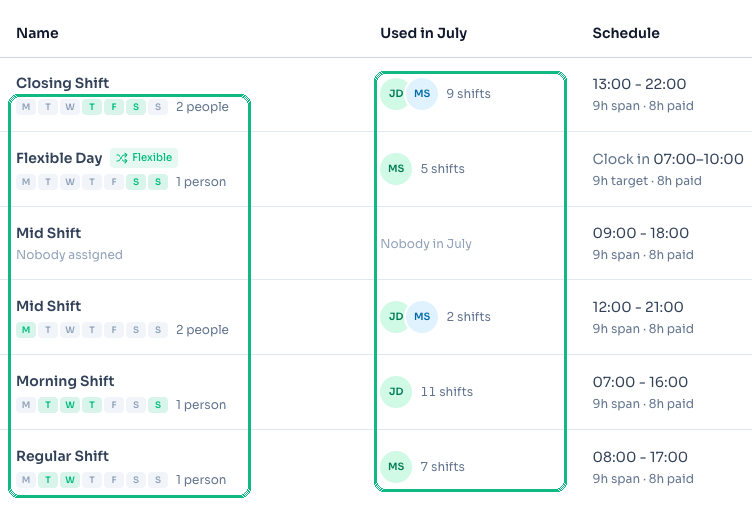
- Spot anyone who isn't on the schedule. If someone has no shift assigned, the Templates tab now says so and links straight to assigning them. They can still clock in — their hours just aren't checked against a schedule.
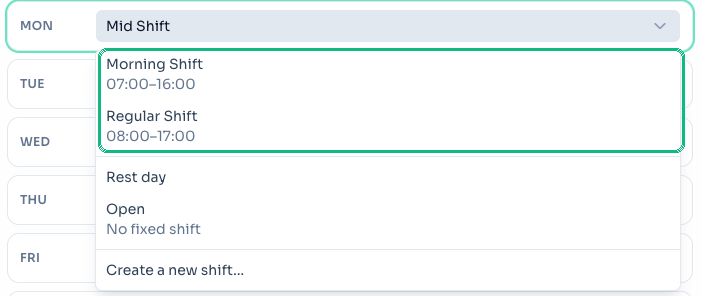
- The shift picker leads with your own shifts. When you pick a shift for a day, your templates come first in alphabetical order, with Rest day, Open, and Create a new shift below a divider.
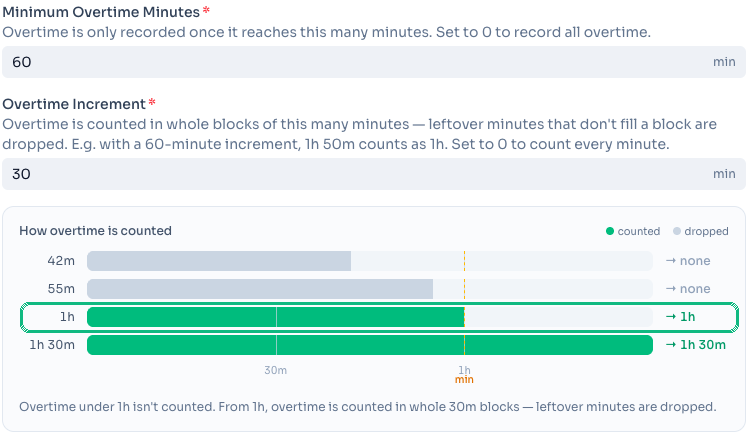
- Overtime that exactly reaches your minimum now counts. With a 60-minute minimum, exactly one hour of overtime used to be dropped, even though the setting reads as "under 1h isn't counted". Reaching the minimum now counts. Check how your thresholds behave under Grace Period/OT in Location settings.
- A new guide to overtime. Overtime walks through how staff file overtime from the kiosk or their phone, and how the grace period and thresholds for a location fit together — with a short video of both filing paths.
July 16, 2026
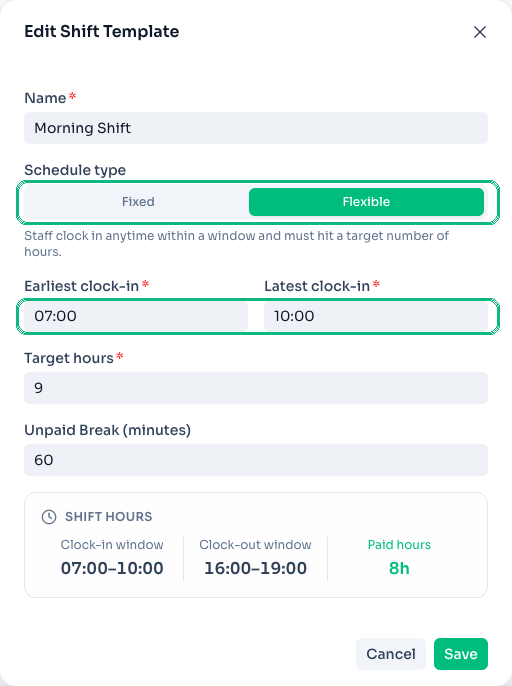
- Flexible clock-in windows on shift templates. A shift template can now open an early clock-in window instead of a single fixed start time — staff who arrive within the window are still counted on time. Set the window when you create or edit a template.
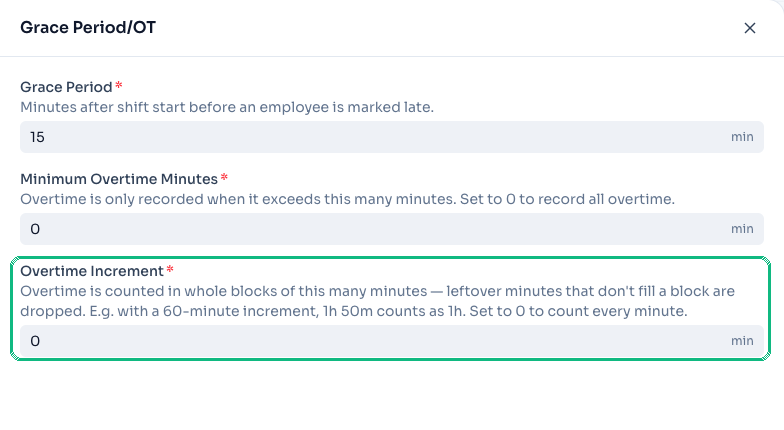
- Overtime counts in whole blocks — and staff can file part of it. Overtime now accrues in whole-block increments per your location's setting, and staff can file just part of their detected overtime with a reason. Configure the block size under Grace Period/OT.
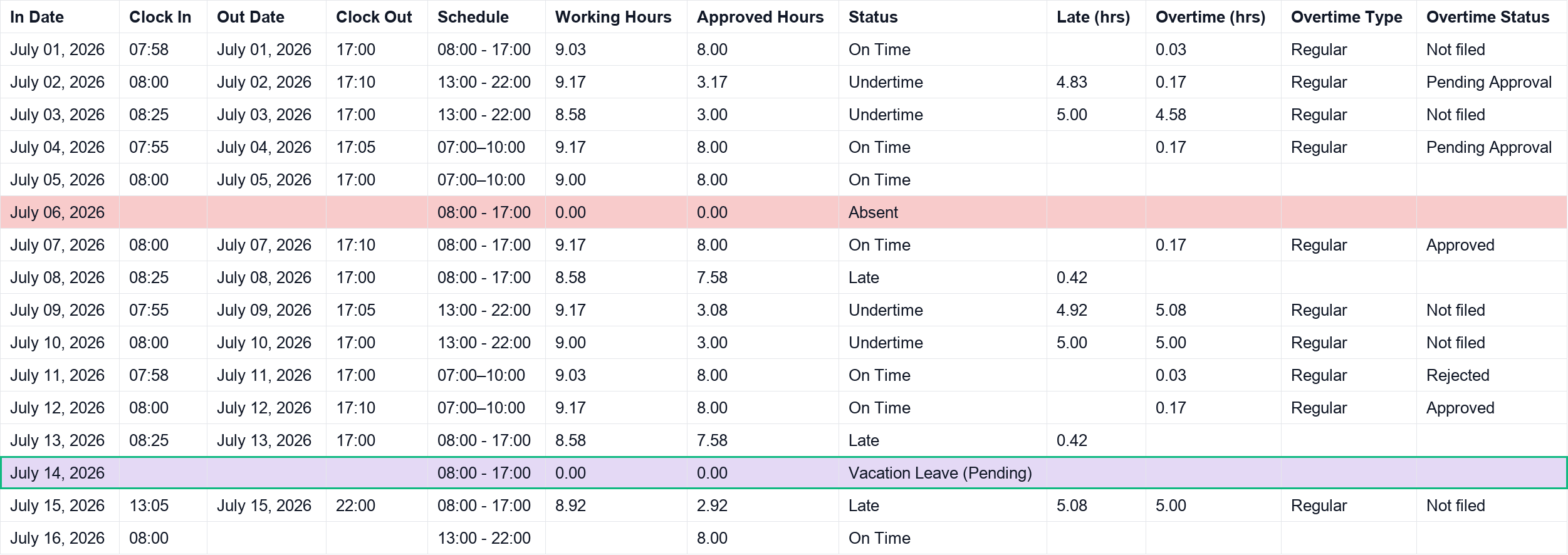
- Leave days stand out in payroll exports. Excel exports now highlight leave days so they're easy to spot, and empty overtime cells are left blank instead of showing a zero.
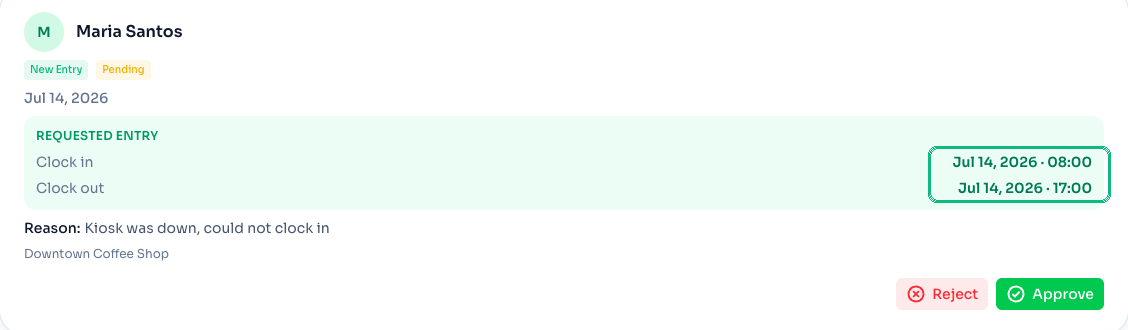
- Approval cards show the clock in and out times. Correction and overtime request cards in the Approvals inbox now display the full clock in/out date and time, so you can review a request without opening the entry.
July 9, 2026
What's new — Shift Alignment and Payroll (beta)
Correct an entry that doesn't match the schedule, then review approved hours and approved overtime per employee and export the period to Excel.
- Shift Alignment — fix the shift, not the timesheet. When a completed entry drifts more than an hour from its scheduled shift, ClockTap flags it and offers a Change shift action. The modal has already picked the best-matching shift for you, and shows the status and overtime each option would produce — or you can create a new template on the spot. Apply it to just that day, or to every matching weekday from then on. Status and overtime re-derive instantly.
- Payroll now has its own page — in beta. The payroll breakdown moved out of Attendance and into Payroll in the sidebar. Each employee's card totals their approved hours and approved overtime for the period, with a day-by-day breakdown of status, late/undertime, and overtime. Export the whole period to Excel in one click.
- Overtime is filed, then approved. At clock out, staff are prompted to file any detected overtime with a reason — pick a preset or write your own. Owners review it from the Attendance page or the Approvals inbox, and each entry reads Approved, Pending Approval, Rejected, or Not filed. Only approved overtime counts toward the payroll total, so the Approved Overtime tile always matches the per-employee badges.
- Trivial overtime stays out of the way. Unfiled overtime at or below the location's minimum-overtime setting is no longer shown, and no longer counts toward the overtime summary. The setting that controls it now lives under Grace Period/OT.
July 3, 2026
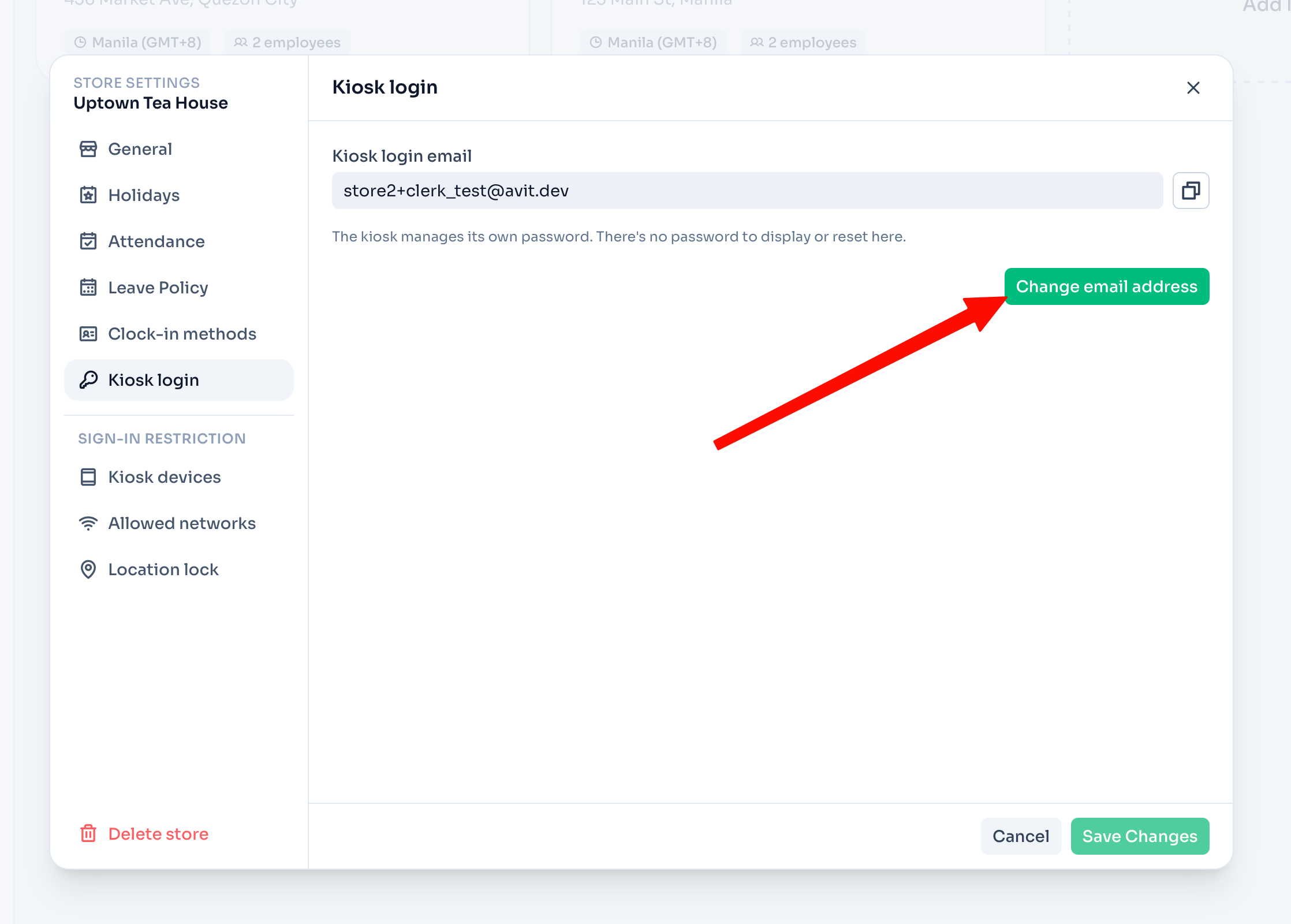
- Change your kiosk login email. Update the email a location's kiosk signs in with, right from Location settings → Kiosk login.
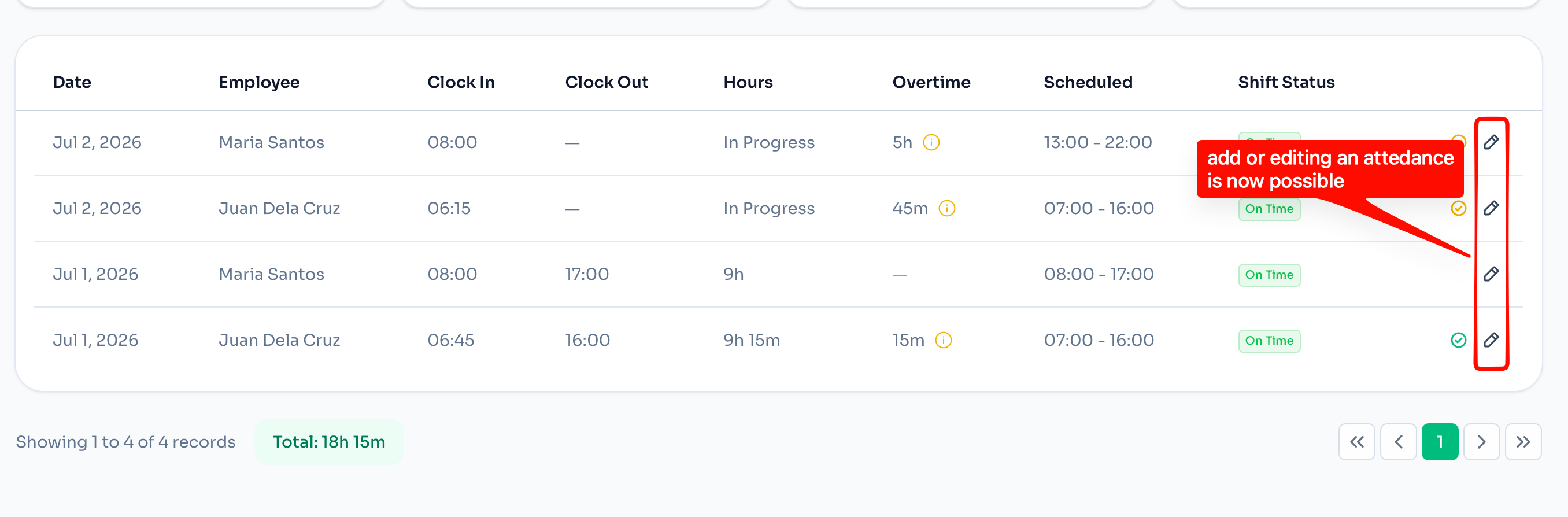
- Add and edit attendance records. Owners can now create a missing entry or correct an existing one directly from the Attendance page — including clock in/out, scheduled shift, and overtime — instead of waiting on a correction request. Overlapping records are prevented automatically.
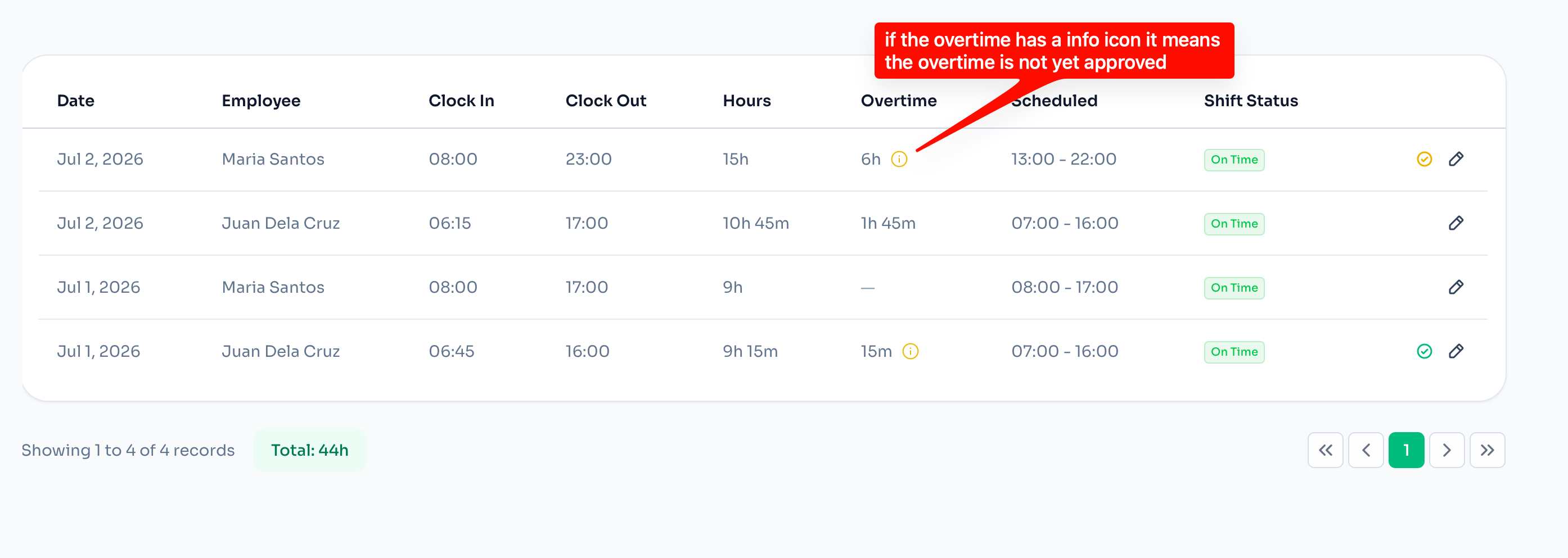
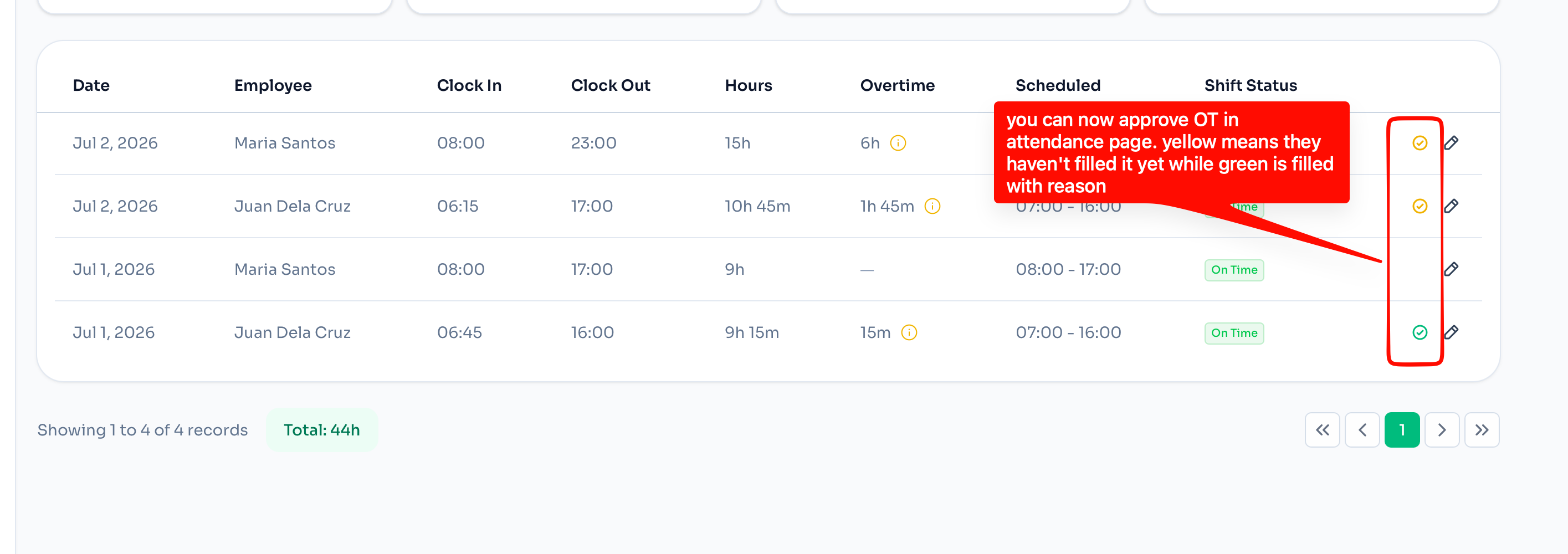
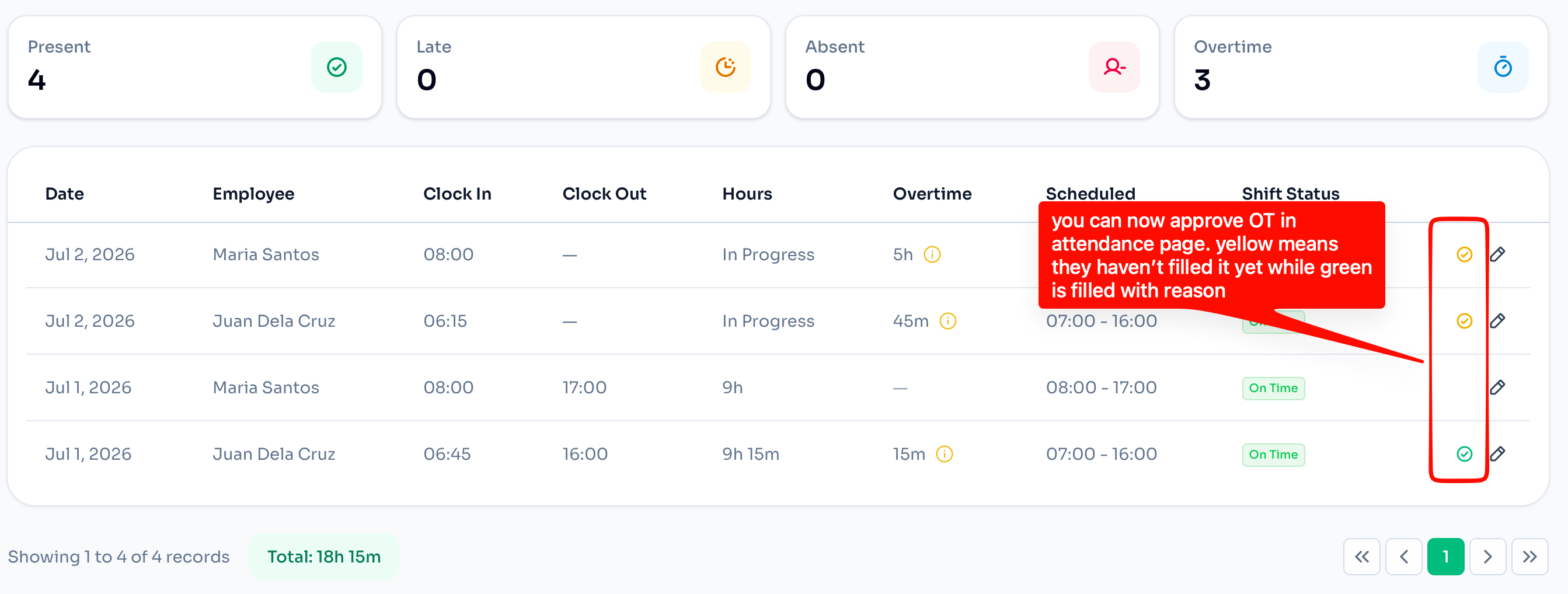
- Approve overtime from the Attendance page. Overtime shows an info icon while it's still pending approval. You can now approve it inline: the approval indicator is yellow when no reason has been filled in yet, and turns green once a reason is recorded.
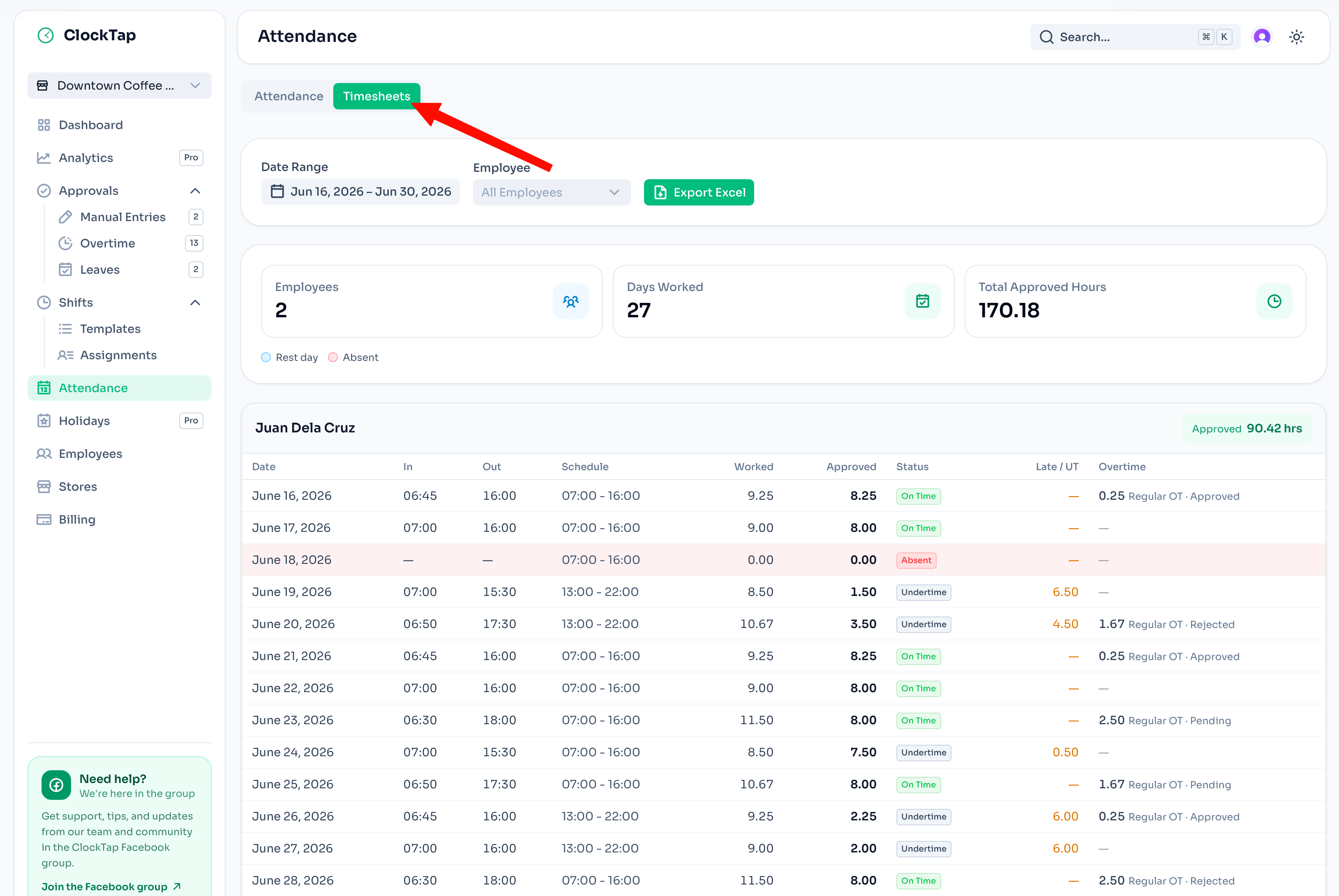
- New Timesheets view for payroll. A Timesheets tab summarizes each employee's worked vs. approved hours, days worked, late/undertime, and overtime status (approved, rejected, or pending) across a date range — and exports straight to Excel.
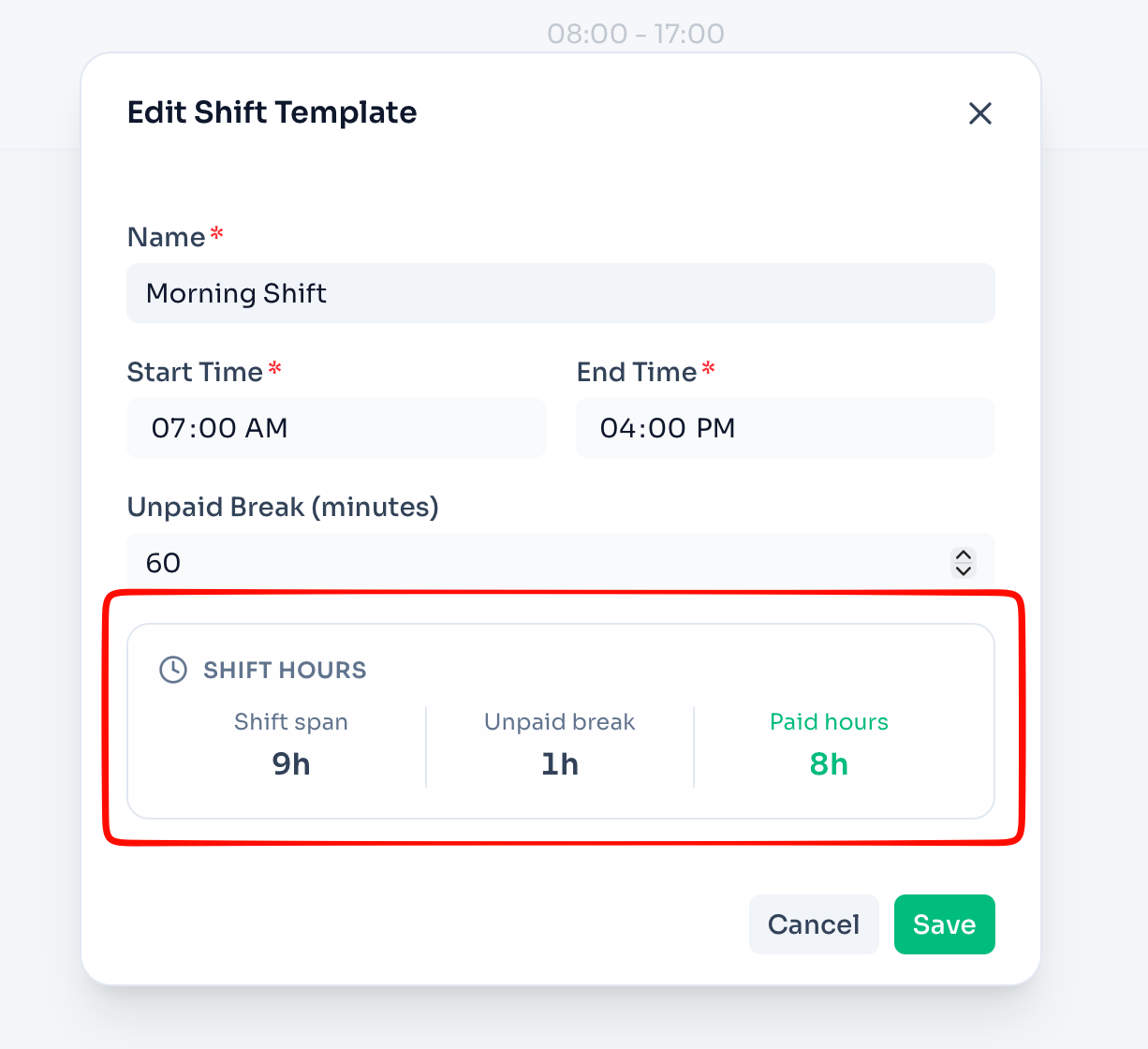
- See paid hours on shift templates. The shift template editor now breaks down shift span, unpaid break, and paid hours, so you know exactly what a template pays before assigning it.
- Quick-assign schedules to employees. Assigning shift templates is faster, with a refined schedule step in setup and assignments.
- Release updates on your dashboard. Owners now see a dated announcement when new ClockTap improvements are available. Open the release notes from the alert, or dismiss it permanently once you've read it.
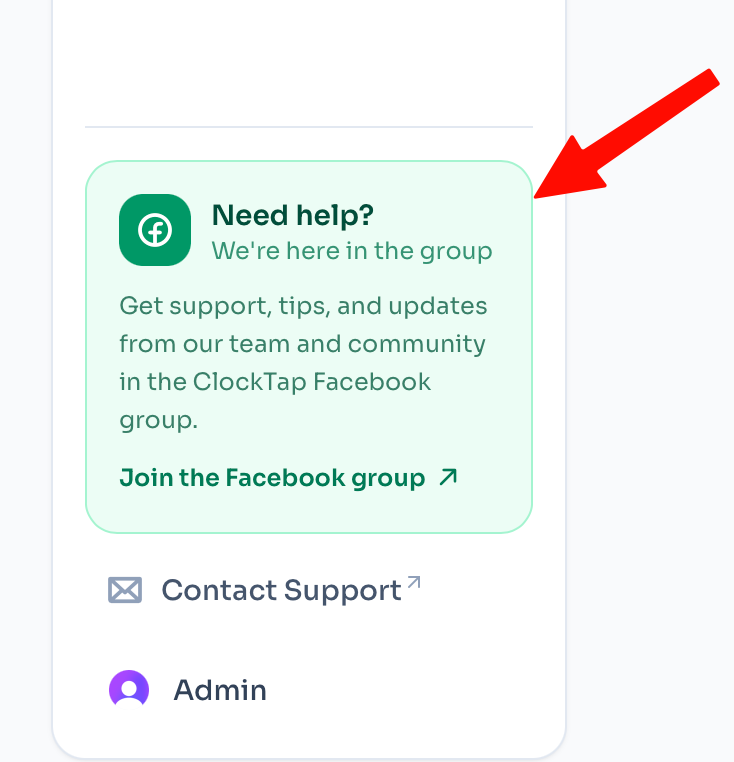
- Faster access to support. Open the ClockTap Facebook support group directly from the app sidebar when you need help or want to connect with other users.
- Safer setup. Onboarding now prevents reusing the owner's email for an employee login, avoiding sign-in conflicts.
June 2026
- Choose how your team clocks in. Setup now starts by picking a clock-in method — a shared Kiosk or Personal devices. Change it any time from location settings, or turn on the other method to run both at once.
- Clock in from your own phone. Staff can now clock in and out from their personal device, with the same geofencing and WiFi security as the kiosk. No shared tablet required. See Personal Login.
- One place for staff self-service. Clocking in, viewing shifts, checking attendance, and filing corrections/overtime/leave requests now live together on the My Clock page at
/app/clock. - Faster guided onboarding. The setup wizard walks you through clock-in method, location, employees, and schedule, so a new location is ready in minutes.
- Attendance export to Excel. Export your attendance range to a spreadsheet for payroll, with absent days highlighted.
- Stronger kiosk security. Added rate limiting on kiosk PIN sign-in to protect against repeated guesses.
Earlier
- Public documentation section launched at
/docs. - Approvals inbox with manual correction, overtime, and leave request flows.
- Multi-location attendance dashboard with CSV export.
- Kiosk PWA with offline-tolerant clock-in.
- Per-location kiosk pairing and PIN sign-in.