Sharing a Location
Add a co-owner to run a location with you, or give an employee a bigger role.
Sharing a Location
A co-owner runs a location with you and has the same access you have. A supervisor or a manager is one of your employees with a bigger role. Each person reaches only the locations you give them.
Add a co-owner
Open Location Settings → Co-owners. Only the location's owner sees this section.
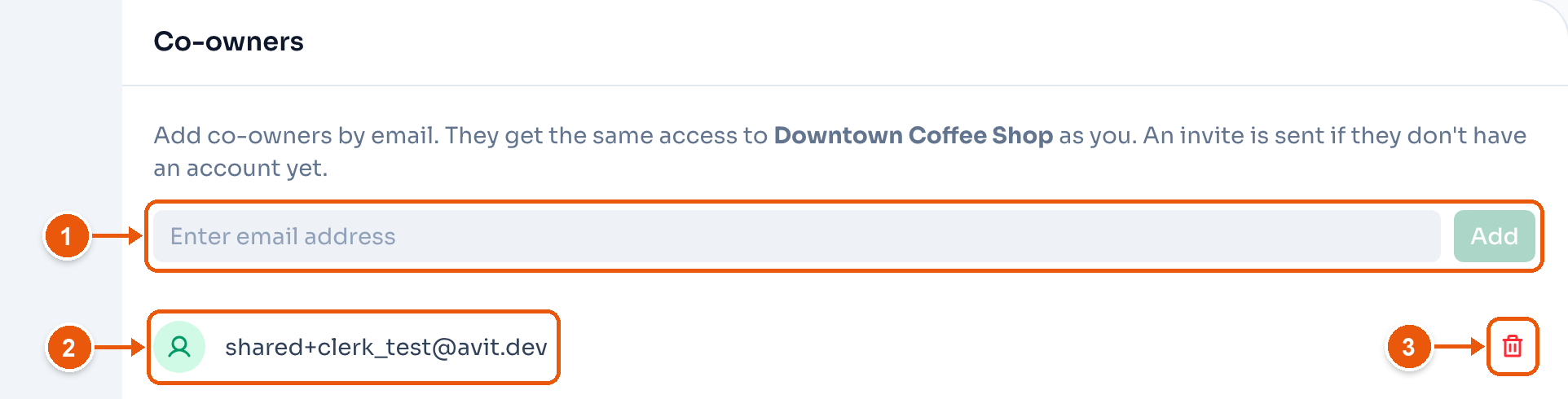
- Type their email and click Add. If they already have a ClockTap owner account, they get access right away. If not, ClockTap emails them an invite.
- Each co-owner is listed by email. An invite that is not accepted yet says Invite sent. Copy invite link beside it gives you the link to send yourself, if the email does not arrive.
- Remove the co-owner. Their access ends right away. On an invite, this cancels it.
The invite link works for 14 days. They must sign in with the email you typed.
Locations has the same list. Click the share button on the location's card.
Only an owner account can be a co-owner. To give an employee more access, give them a role.
What a co-owner can do
A co-owner has the same access as you at that location: employees, shifts, attendance, approvals, payroll and settings. The location stays on your plan, so they pay nothing.
Two things stay with you: the Co-owners list and Delete location.
Sharing is per location. A co-owner of one location does not see your others. Share each one they help run.
Give an employee a role
Open the employee from Employees, then Login & access.
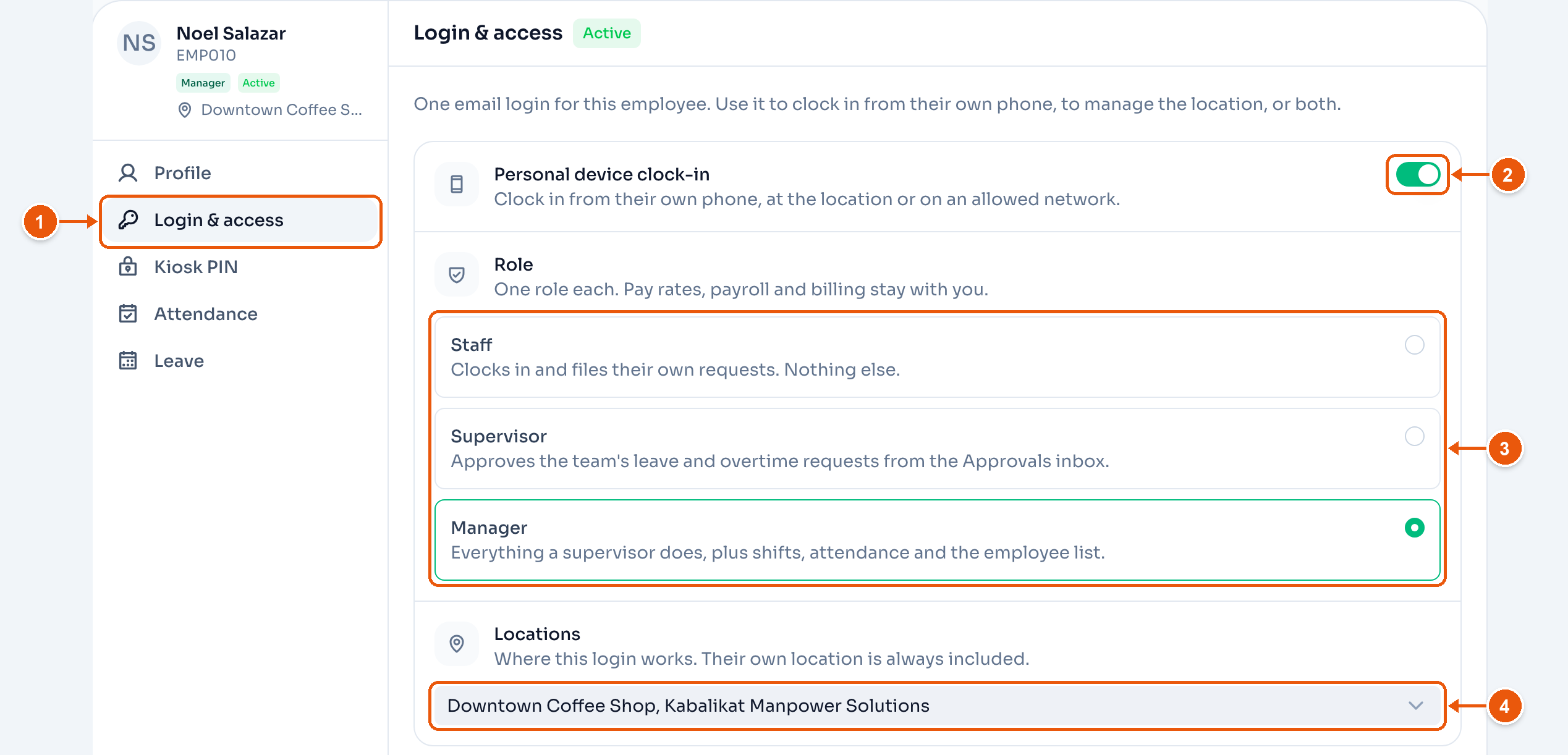
- Login & access. Only owners see this tab.
- Personal device clock-in. Lets them clock in from their own phone. It does not depend on the role.
- Role. Pick one. Here, Manager.
- Locations. Where this login works. Their own location is always included. Here, Downtown Coffee Shop and Kabalikat Manpower Solutions. It shows for a supervisor or manager when you have more than one location.
The three roles:
- Staff clocks in and files their own requests. Nothing else.
- Supervisor approves leave and overtime requests from Approvals.
- Manager does what a supervisor does, plus shifts, attendance and the employee list.
Pay rates, payroll and billing stay with you. A manager sees no pay.
A role needs an email login. If the employee has none, ClockTap emails an invite. The role starts when they accept it.
A supervisor sees only the requests of the employees they approve. Set that in the employee's Profile → Approver. You and your managers can approve anyone at the location.
To take a role away, pick Staff. ClockTap asks you to confirm.