Payroll
Work out pay from approved hours and each employee's rate, finish the payslip, and set the pay period, rates and premium rules.
Payroll
ClockTap turns approved hours into pay at each person's rate. It fills in SSS, PhilHealth and Pag-IBIG on a payslip that you finish. You still file and pay the government yourself.
Payroll is in beta. Open it from Payroll in the sidebar.
The payroll page
The page opens on the last cut-off that ended.
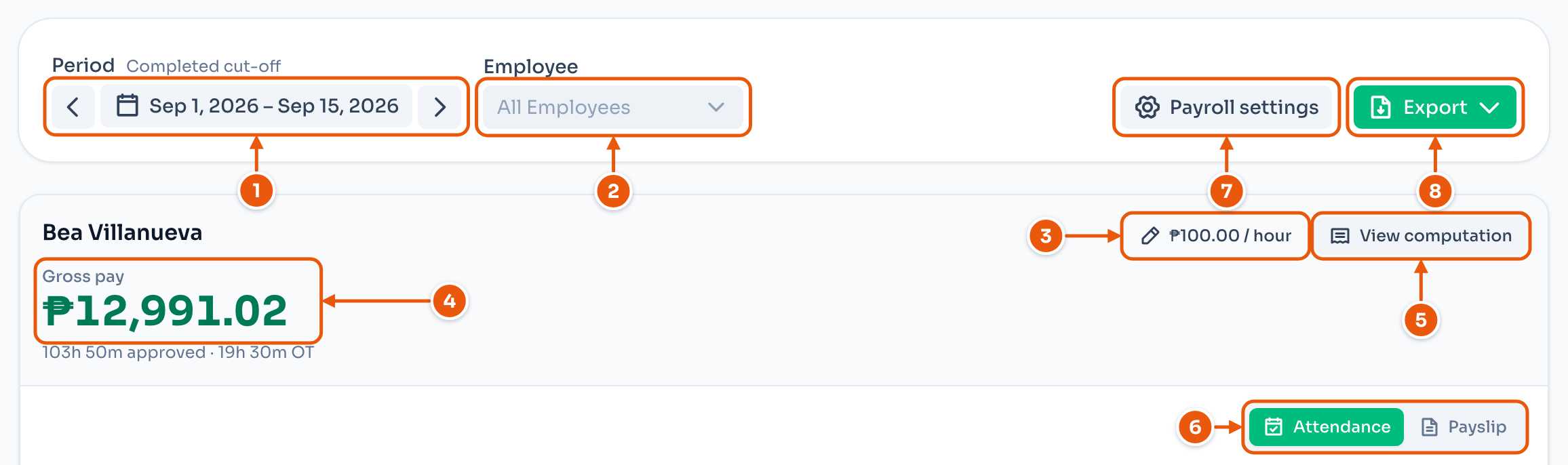
- Move one cut-off at a time, or pick dates on the calendar.
- Show one employee or everyone.
- The pay rate. Tap it to change it.
- Gross pay, with the approved hours under it.
- View computation shows how gross pay adds up.
- Switch between Attendance and Payslip.
- Payroll settings.
- Export downloads the cut-off. See Payslip and export.
Overtime counts only after it is filed and approved. See Overtime.
Set a pay rate
An employee shows no pay until they have a rate. Tap the rate on the card, or Set a rate.
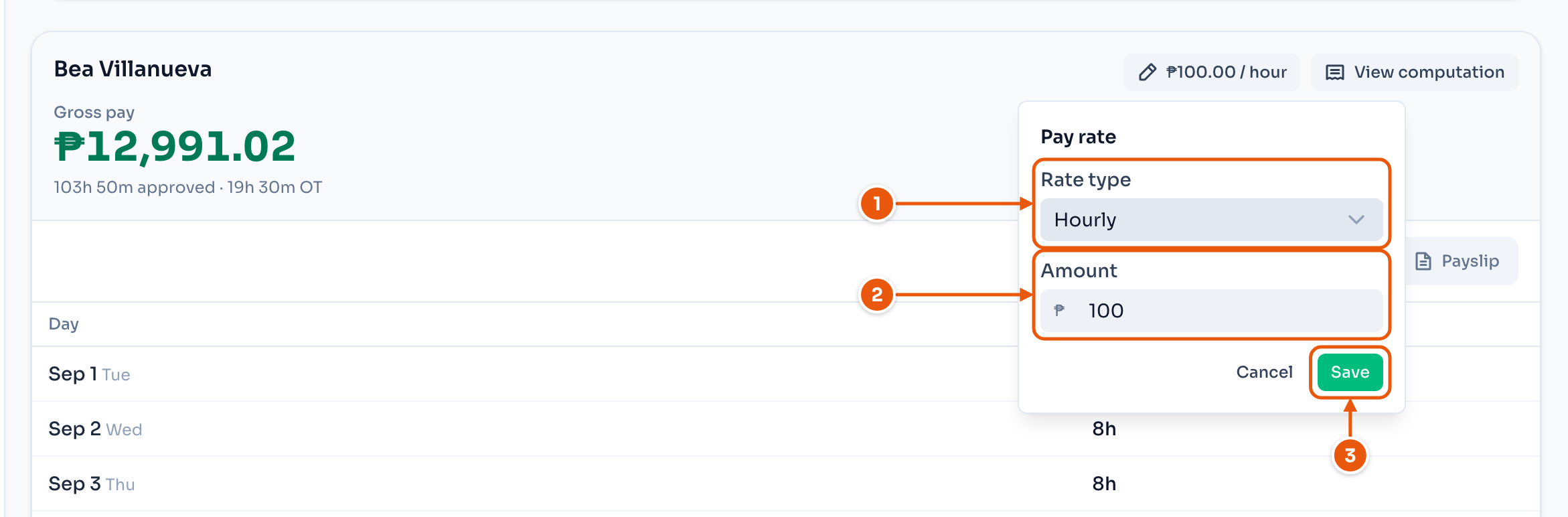
- Hourly, Daily (per day worked) or Monthly (a salary).
- The amount.
- Save.
Pay updates for the whole period, days before the change included. To set every rate from one list, see Payroll settings.
The computation
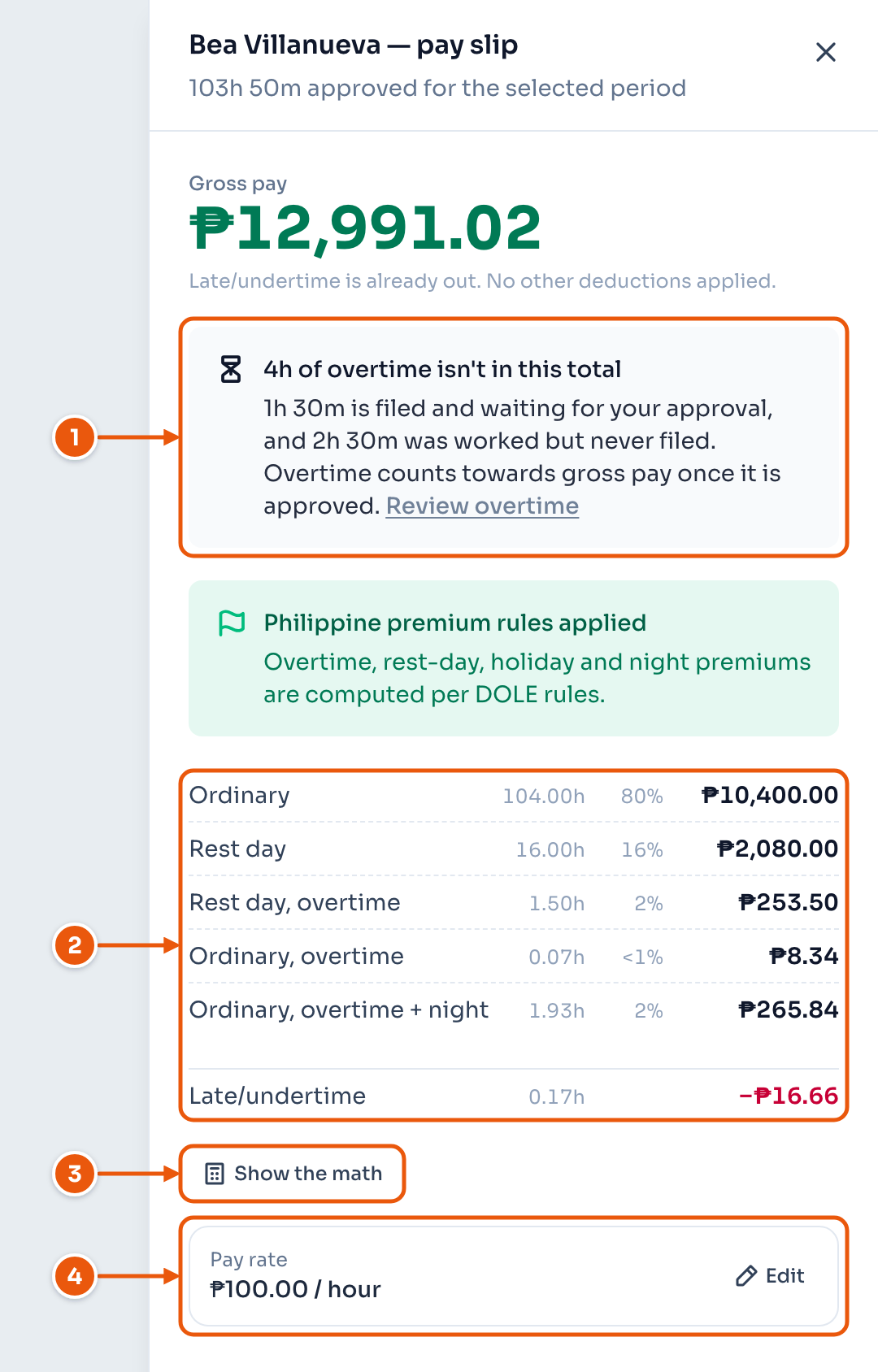
- Overtime that is not approved yet. It is not in the total.
- One line per pay type: ordinary, rest day, holiday, night and overtime. Late and undertime come off at the end.
- Show the math shows hours × rate = amount.
- The rate used. Edit changes it.
What ClockTap does not do
- File or pay SSS, PhilHealth, Pag-IBIG or BIR.
- Work out withholding tax. You type it on the payslip.
- Lock pay periods. Change a rate or a rule, and every period updates.
More on payroll
- Payslip and export — Finish the payslip, repeat an allowance, and download the cut-off.
- Contributions — How ClockTap works out SSS, PhilHealth and Pag-IBIG.
- Payroll settings — The pay period, pay rates, premiums, allowances and deductions.