Managing approvals
Approve or reject manual entries, corrections, overtime and leave in one inbox.
Managing approvals
Employees file requests from the kiosk or their own phone. Each one waits in Approvals until someone approves or rejects it. Owners, managers and supervisors can open it.
The inbox
Open Approvals.
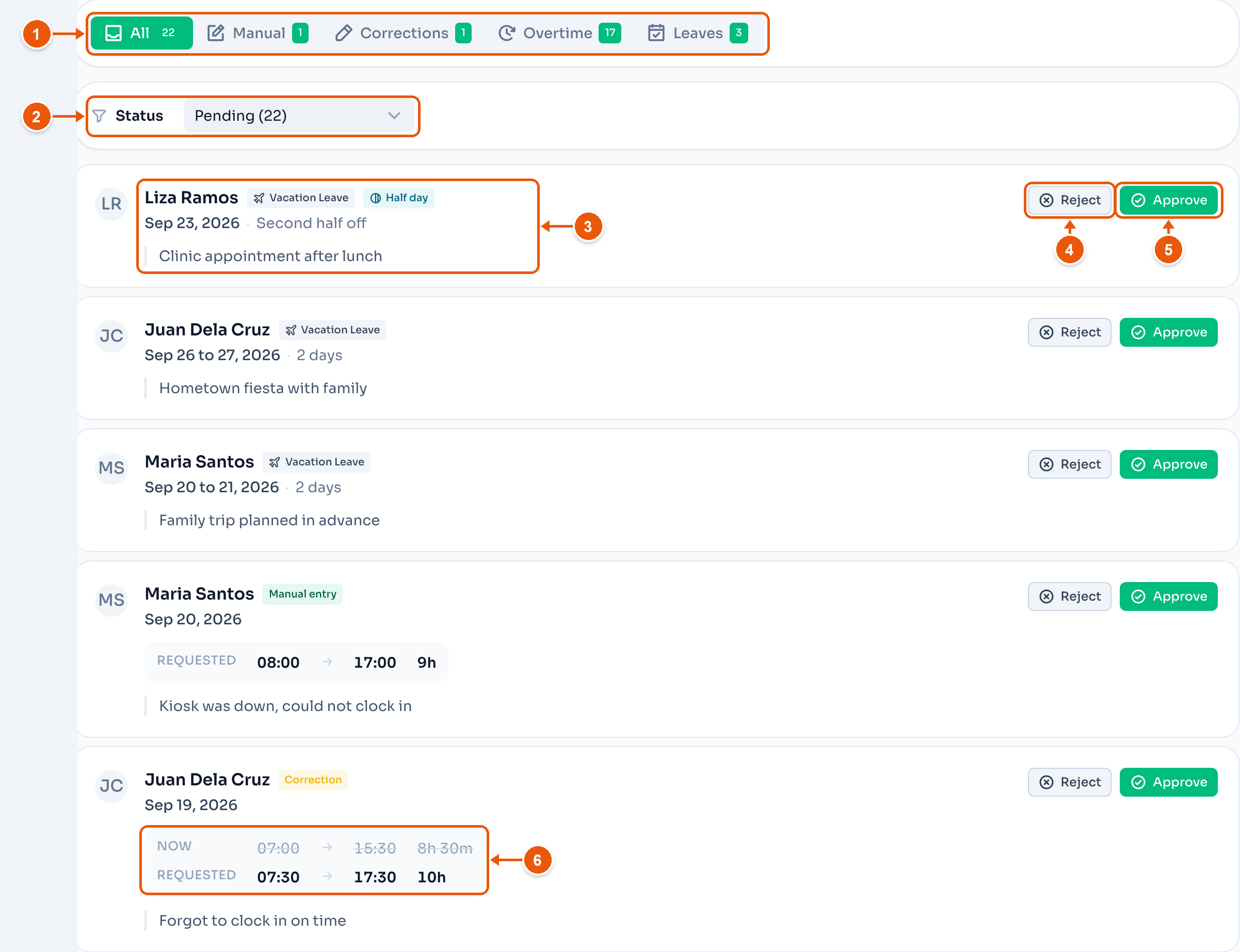
- The tabs sort requests by kind: All, Manual, Corrections, Overtime and Leaves. The number is what still waits. Owners also get Work zones where the location uses employee work zones.
- Status. Pending by default. Pick Approved, Rejected or All requests to look back at past decisions.
- Who filed, what kind, the date, and their reason. Here, Liza Ramos asks for the second half of Sep 23 off.
- Reject opens a dialog. See below.
- Approve decides it at once. There is no second step.
- A Correction shows the times on record, Now, above the times the employee asks for, Requested. A Manual entry is a day with no clock-in at all, so it shows only Requested.
What approving does:
- Manual entry and Correction. The attendance record takes the requested times.
- Overtime. The hours count as paid overtime. ClockTap counts them again against the clock times and the overtime rules. If the clock times cover less than was filed, the smaller number is approved and a message says so.
- Leave. The days come off the employee's balance and show on the timesheet.
Reject a request
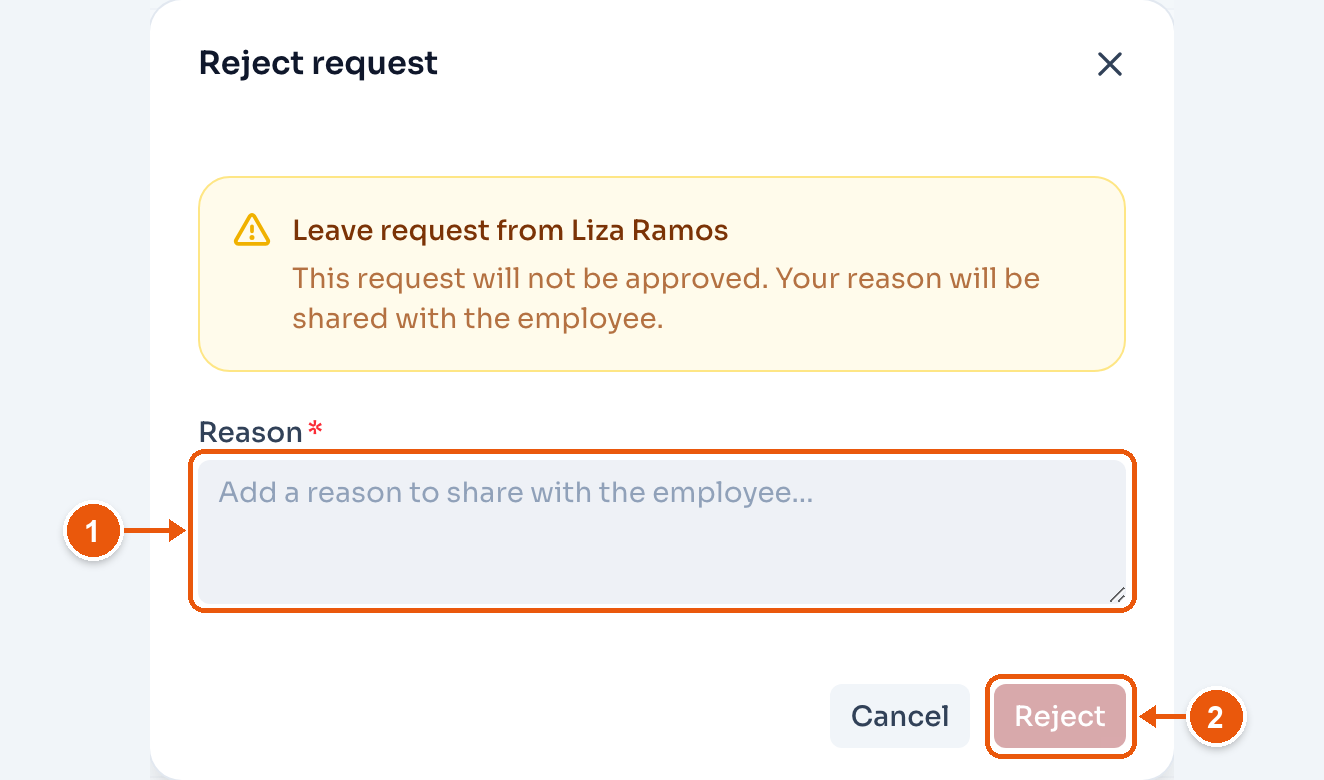
- Reason. The employee sees it. The request cannot be rejected without one.
- Reject. The request closes. The attendance record does not change.
Take back an approved leave
A leave you approved can still be undone. Other approved requests cannot.
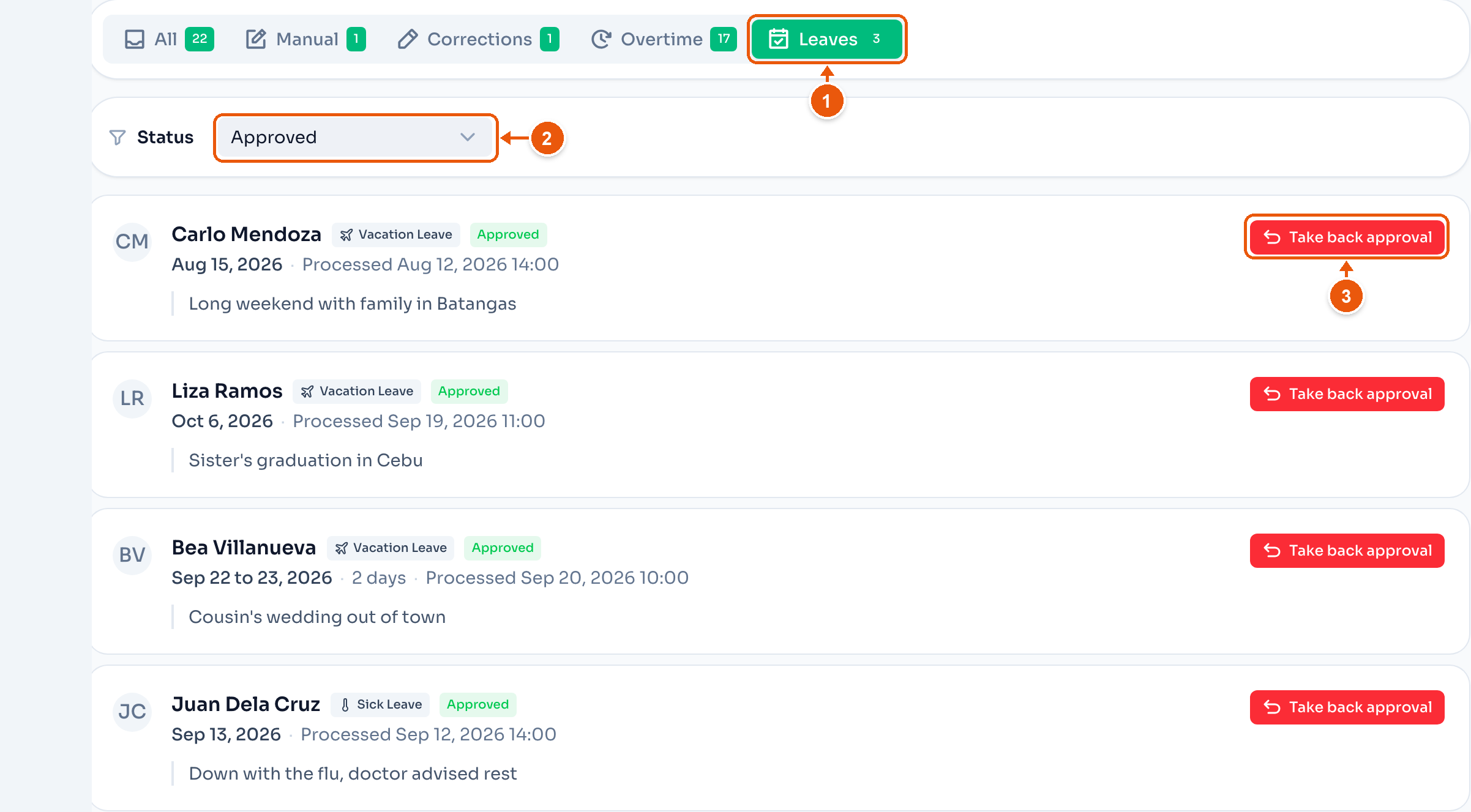
- Leaves.
- Status set to Approved.
- Take back approval asks for a reason, the same as Reject. The days go back to the employee's balance and come off the timesheet.
Who gets each request
Each employee has one approver. Open the employee from Employees. The approver is on Profile.
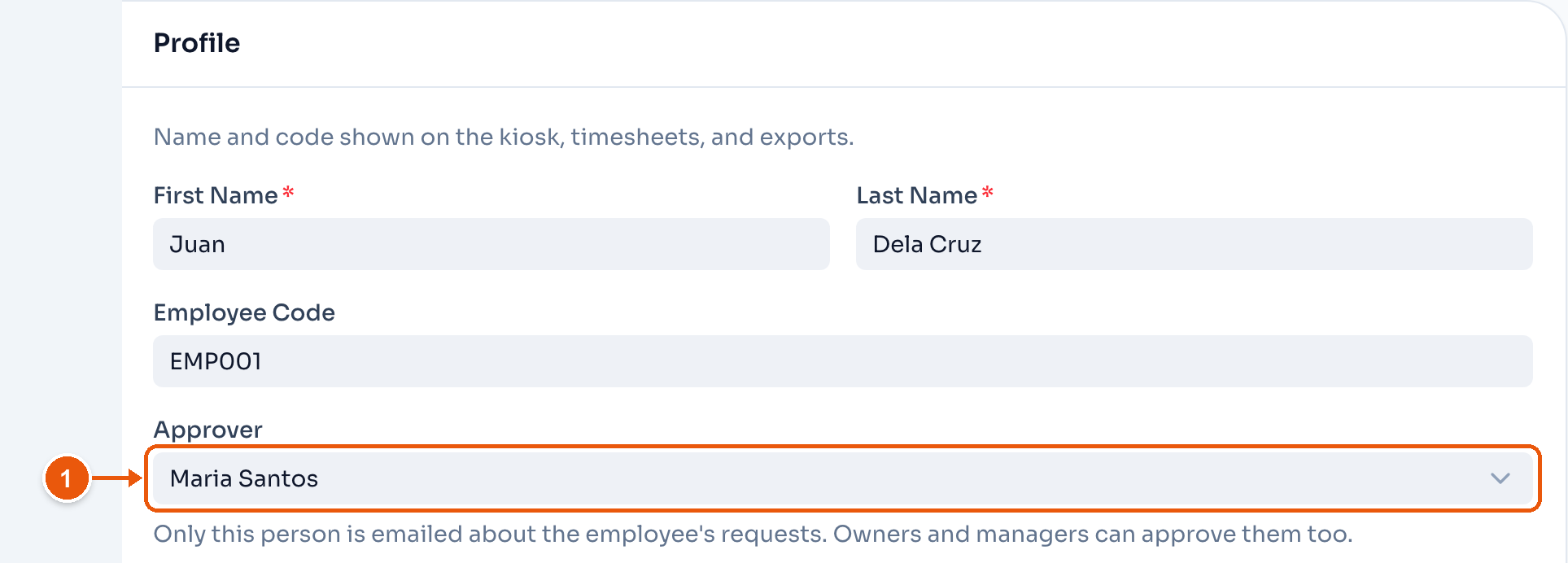
- Approver. Here, Maria Santos. Only this person gets an email about the employee's requests. Owners and managers can approve them too.
A new employee starts with one approver:
- Staff go to the location's only supervisor. With no supervisor, or more than one, they go to the location's only manager. If neither fits, they go to you.
- A supervisor goes to the location's only manager. Otherwise, to you.
- A manager goes to you.
A supervisor sees only the requests of the people who report to them. Nobody approves their own request.
Adding a supervisor later moves nobody. To move an employee, change Approver on their profile. If an approver is deactivated or loses their role, their people follow the same order until you pick someone new.
What the employee sees
The employee sees each request's status on the kiosk and on My Clock. If they have an email login, they also get an email when you decide.