Shared Device
Set up a shared device where your team clocks in and out with a PIN.
Shared Device
The kiosk is one shared device at your location: a tablet on the wall, a phone on the counter, or a computer with a browser. Employees tap their name, type their PIN, and clock in or out. There is nothing to install.
Set up the kiosk
Until the kiosk signs in, the dashboard shows Set up your kiosk with a QR code. Scan it with the device you will leave at the counter. That device signs in as your kiosk, with nothing to type.
- Do not scan the code on your own computer. It signs you out of admin there.
- Copy kiosk link does the same for a device that cannot scan. Open the link on that device.
- The invite email works too. Open it on the kiosk device and set a password.
When the kiosk is in, the card reads Your kiosk is ready. See Dashboard.
To open the kiosk full screen from the home screen, use the browser's Install app or Add to Home Screen.
Kiosk settings
Open Location Settings → Shared device.
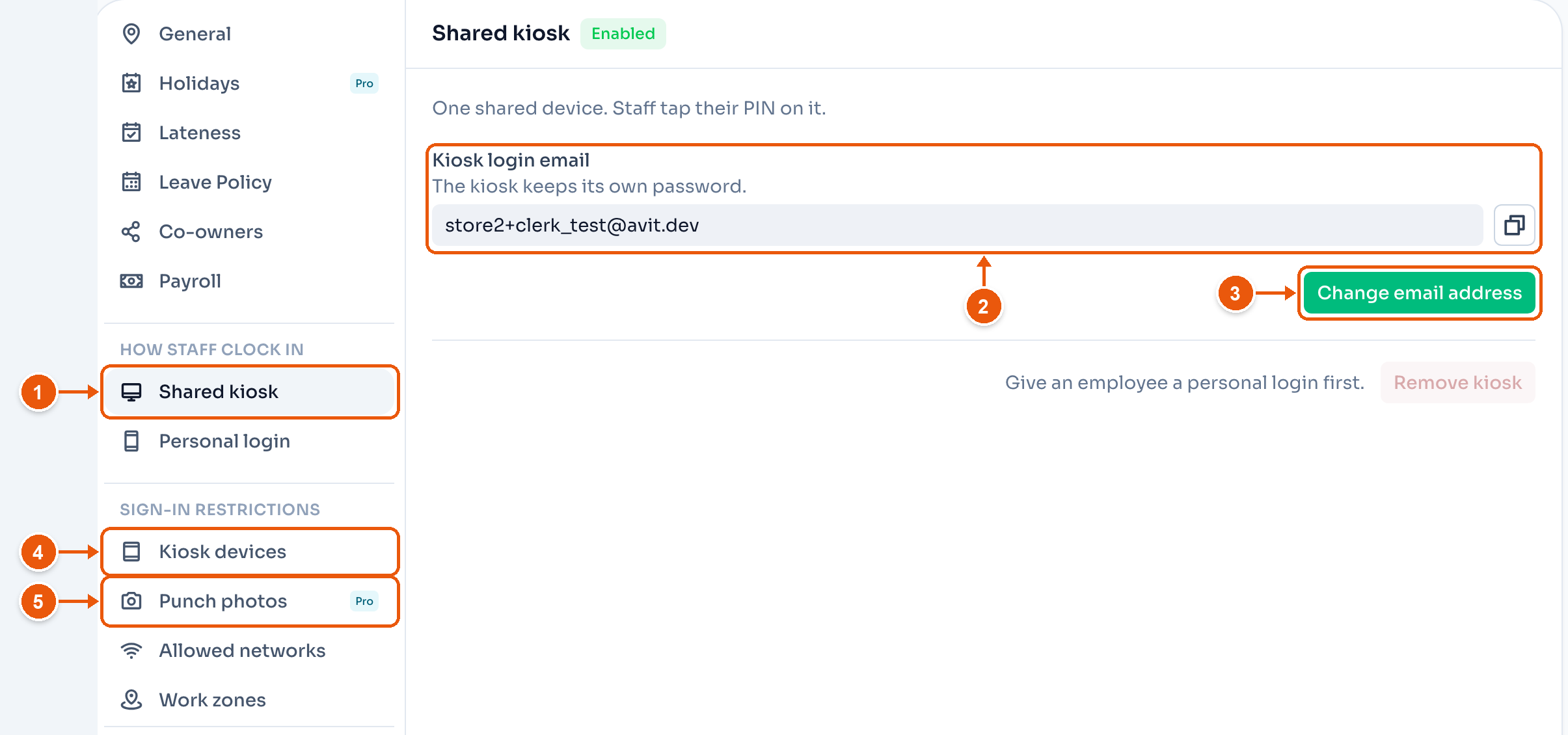
- Shared device.
- Kiosk login email. The address the kiosk signs in with. The kiosk has its own password.
- Change email address. Tick Sign out all kiosk devices to sign out every device that uses the old address. The password stays the same.
- Kiosk devices. Only devices you pair can use the kiosk. See below.
- Punch photos. A photo at every clock-in and clock-out. See below.
Pair a device
Turn on Kiosk devices, then tap Generate code. On the kiosk, type the 6-digit code under Pairing code and tap Pair device. The device stays paired until you Revoke it from the device list.
Trust under Trust currently active kiosks saves a trip. Kiosks already in use pair themselves the next time they connect, within 24 hours.
Clock in or out
The kiosk opens on Select staff. The employee taps their name, and the PIN pad opens.
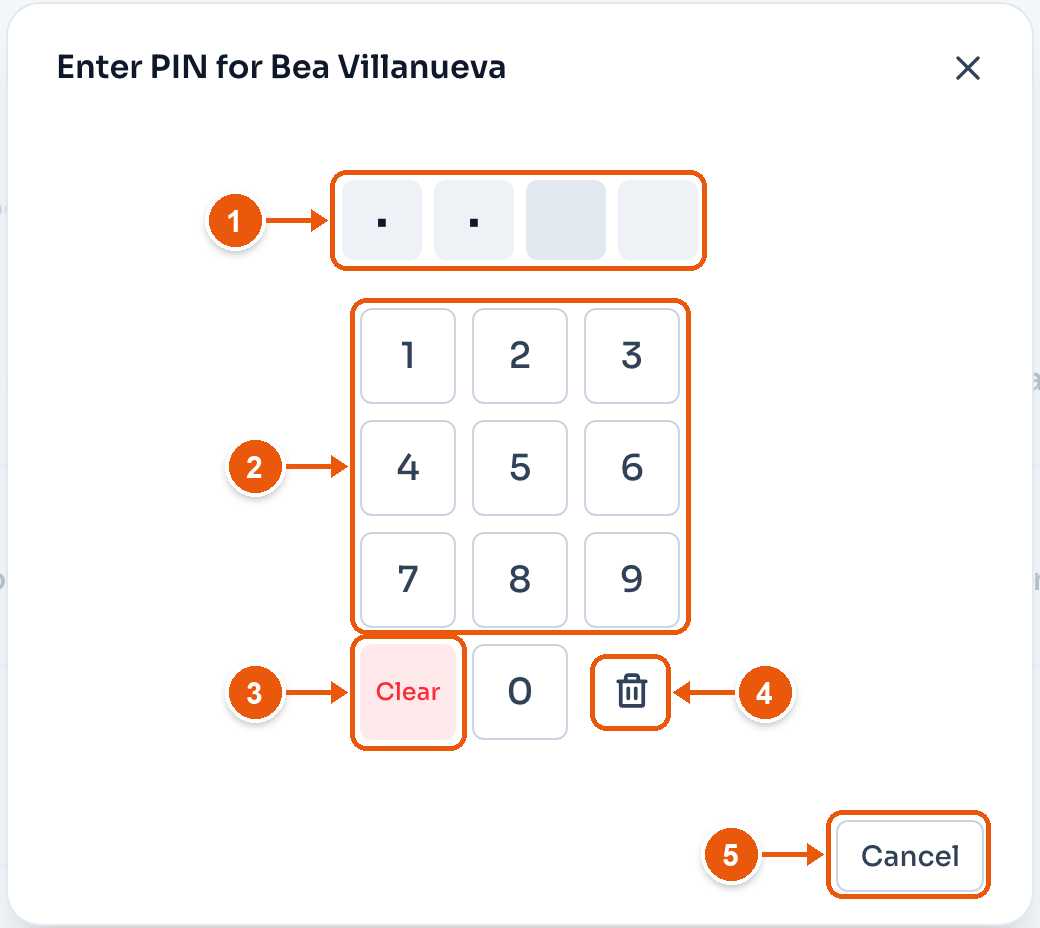
- One box per digit. The PIN has 4 digits. The fourth digit checks it, with no button to tap.
- Tap the numbers, or type them on a keyboard.
- Clear removes every digit.
- Removes the last digit.
- Cancel goes back to the names.
You set each employee's PIN in Employees. After too many wrong PINs, the pad locks for a few minutes.
The employee's screen
A correct PIN opens the employee's own screen.
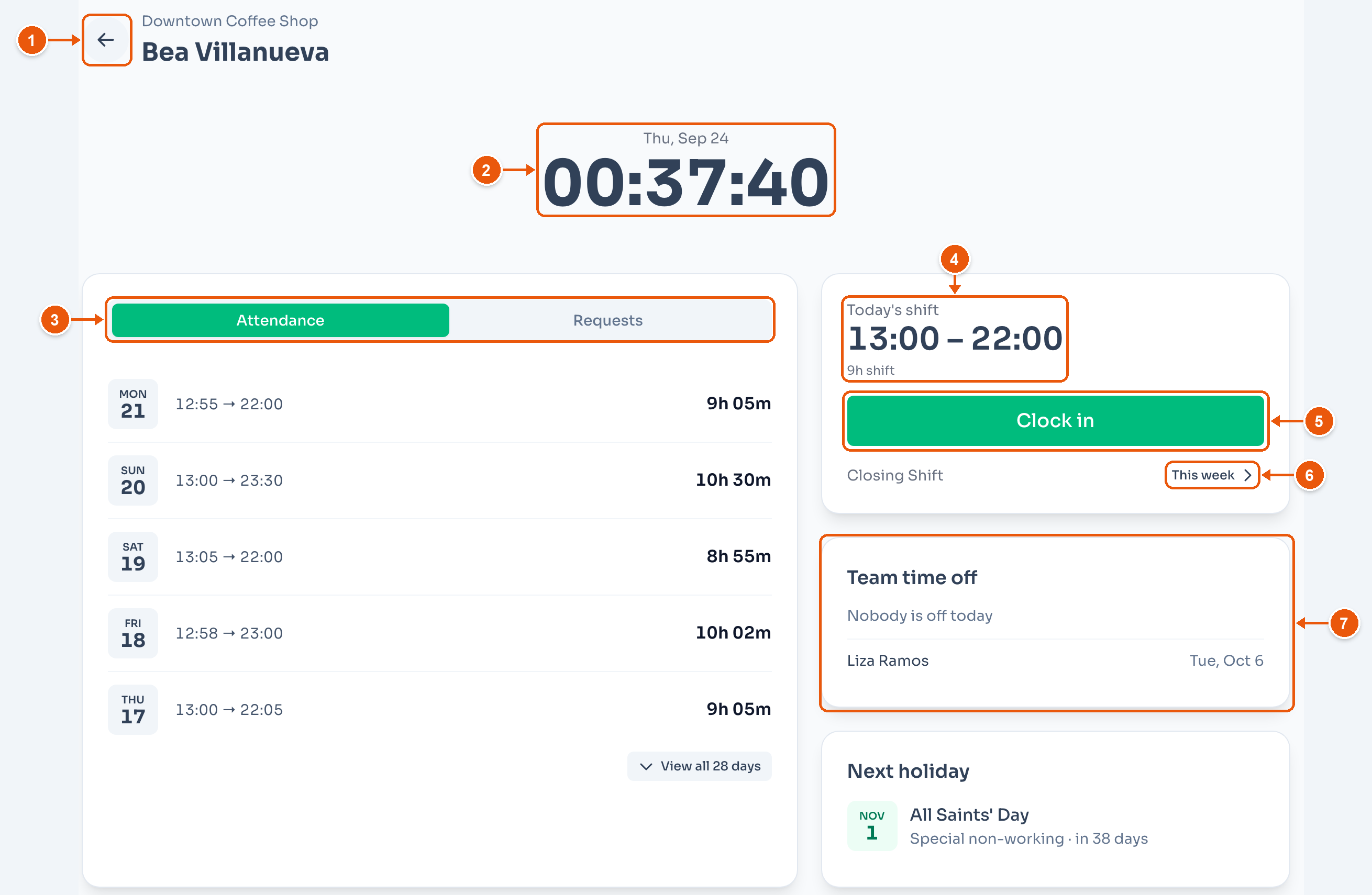
- Back to the names.
- The date and time at the location.
- Attendance lists the last days worked, with the hours. Requests is below.
- Today's shift. Here, 13:00 – 22:00.
- Clock in. When the employee is in, it reads Clock out.
- This week shows their shifts for the next 7 days.
- Team time off. Who is on leave. Here, Liza Ramos on Tue, Oct 6. Next holiday is below it.
After a clock-in or clock-out, the kiosk goes back to the names in 10 seconds. With no tap for 20 seconds, it asks Are you still there? and goes back 10 seconds later. Stay keeps the screen open.
Requests
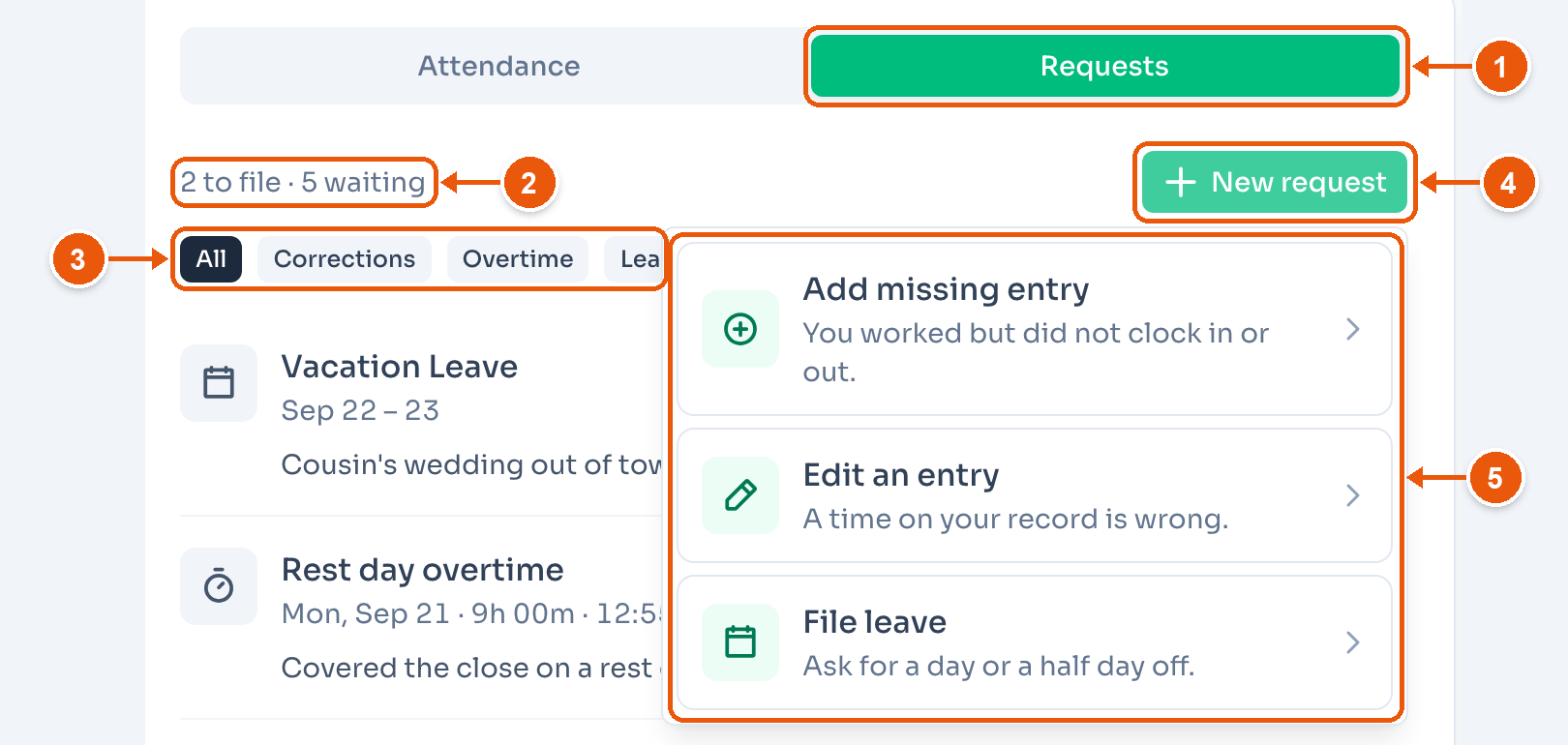
- Requests.
- What is left. Here, 2 to file · 5 waiting: two overtime shifts not filed, and five requests waiting for an approver.
- All, Corrections, Overtime and Leave filter the list.
- New request.
- Add missing entry, Edit an entry, or File leave.
Requests go to Approvals. For overtime, see Overtime.
Clocking out early
If an employee taps Clock out before their shift ends, the kiosk asks Clock out early? It shows when the shift ends and the time now. If the day counts as undertime, it also shows how short the day is. Nothing is saved until the employee answers.
- Go back closes the question. The employee is still clocked in.
- Clock out anyway clocks them out.
The question shows only on a scheduled day. A rest day or a shift with no end time has nothing to compare against.
Photo at every punch
ClockTap can take a photo at every clock-in and clock-out. The photo shows beside that day's entry on the attendance page. Tap it to see it full size.
Open Location Settings → Punch photos and turn it on. Photos are a Pro feature. The setting covers the kiosk and staff who use personal login. With it on, the button reads Clock in with photo.
Read these before you turn it on:
- An employee who blocks the camera cannot clock in. The photo is part of the punch. If the browser blocks the camera, the kiosk shows how to turn it back on. Tell your team first.
- ClockTap does not match faces. The photo is for you to look at.
- Photos are deleted after 90 days. This still happens if you turn the setting off later. Attendance records do not change.