Personal Login
Let employees clock in from their own phone, and see what they get there.
Personal Login
With personal login, an employee clocks in and out from their own phone. Each person gets their own email login. They see only their own shifts, hours and requests. A location can use personal login, a shared device, or both.
Turn on phone clock-in
Open Location Settings → Personal login.
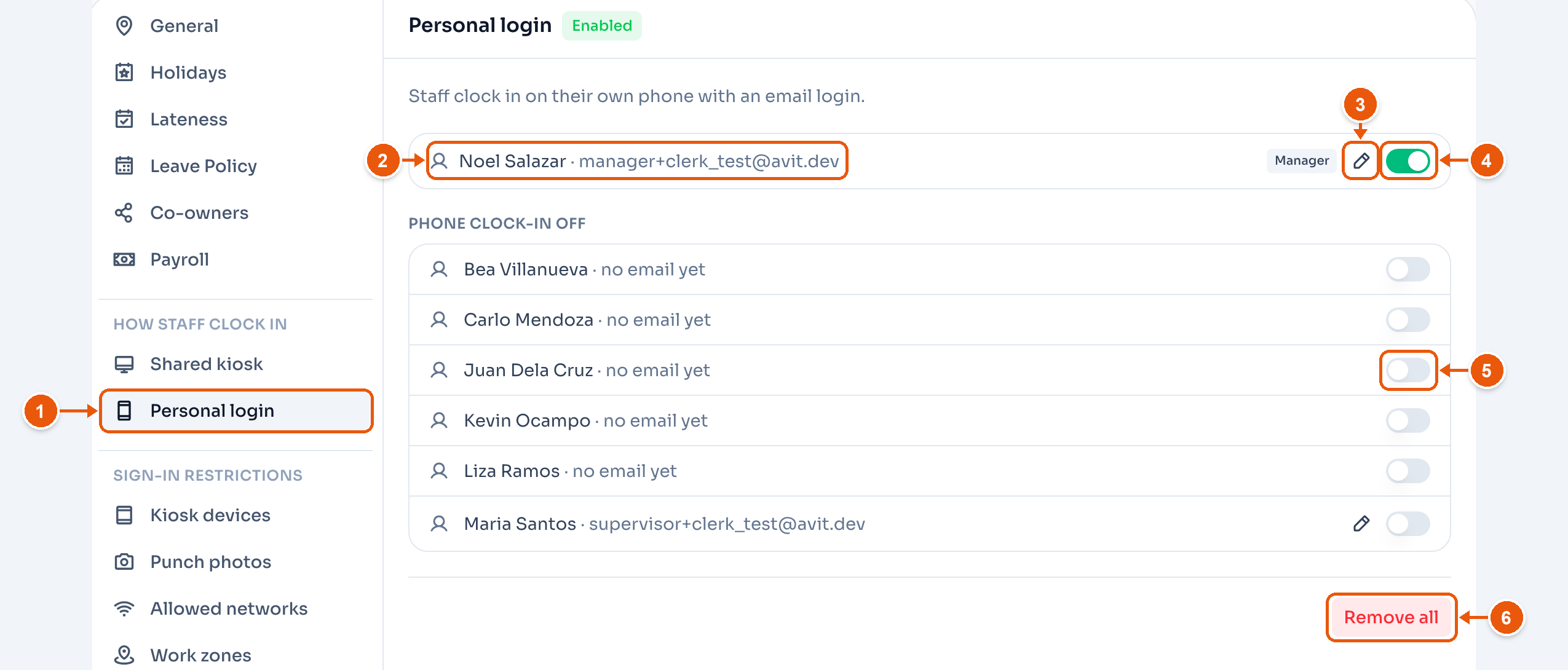
- Personal login in the settings menu.
- Everyone who can clock in from their phone. Here, Noel Salazar. An invite that nobody accepted yet shows Invited, with a button to resend it.
- Change email. A login that is already in use keeps its password.
- Turn it off to stop phone clock-in for this person. They can still tap their PIN on the kiosk.
- Phone clock-in off lists everyone else. Turn a switch on to invite that person.
- Remove all takes away every personal login. It works only when the location also has a shared device.
Send the invite
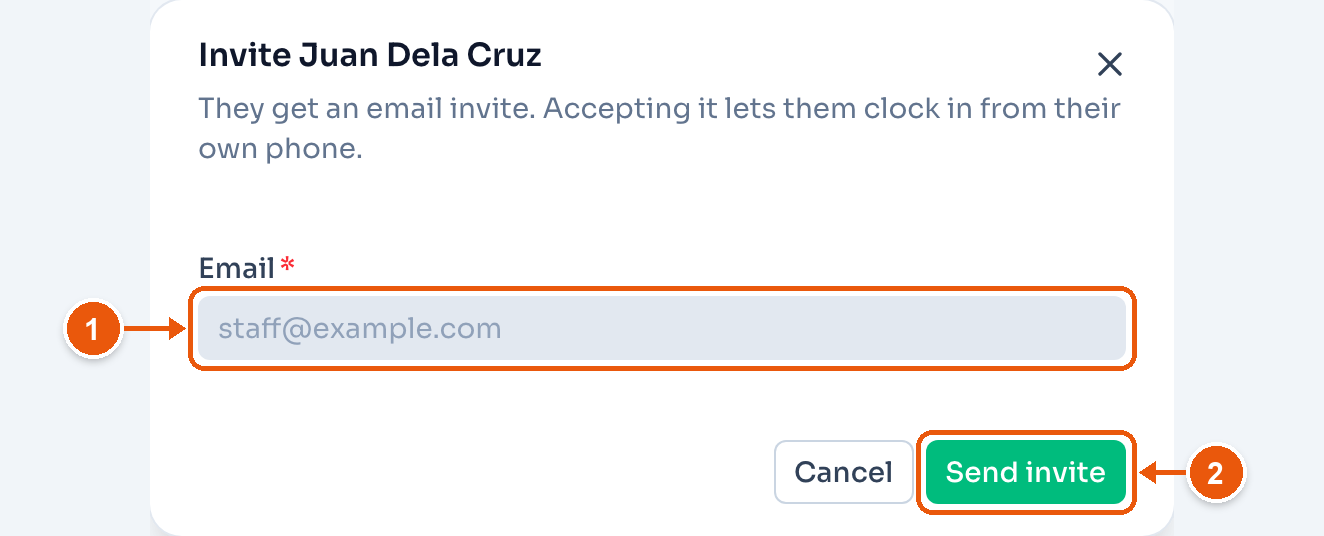
- Email. The employee's own address.
- Send invite. The employee gets an email. When they accept it, they can clock in from their phone.
If the employee already has a login, the switch turns on with no email.
The employee signs in at /app/clock. Tell them to bookmark it or add it to their home screen.
One employee's login
Open the employee from Employees, then Login & access.
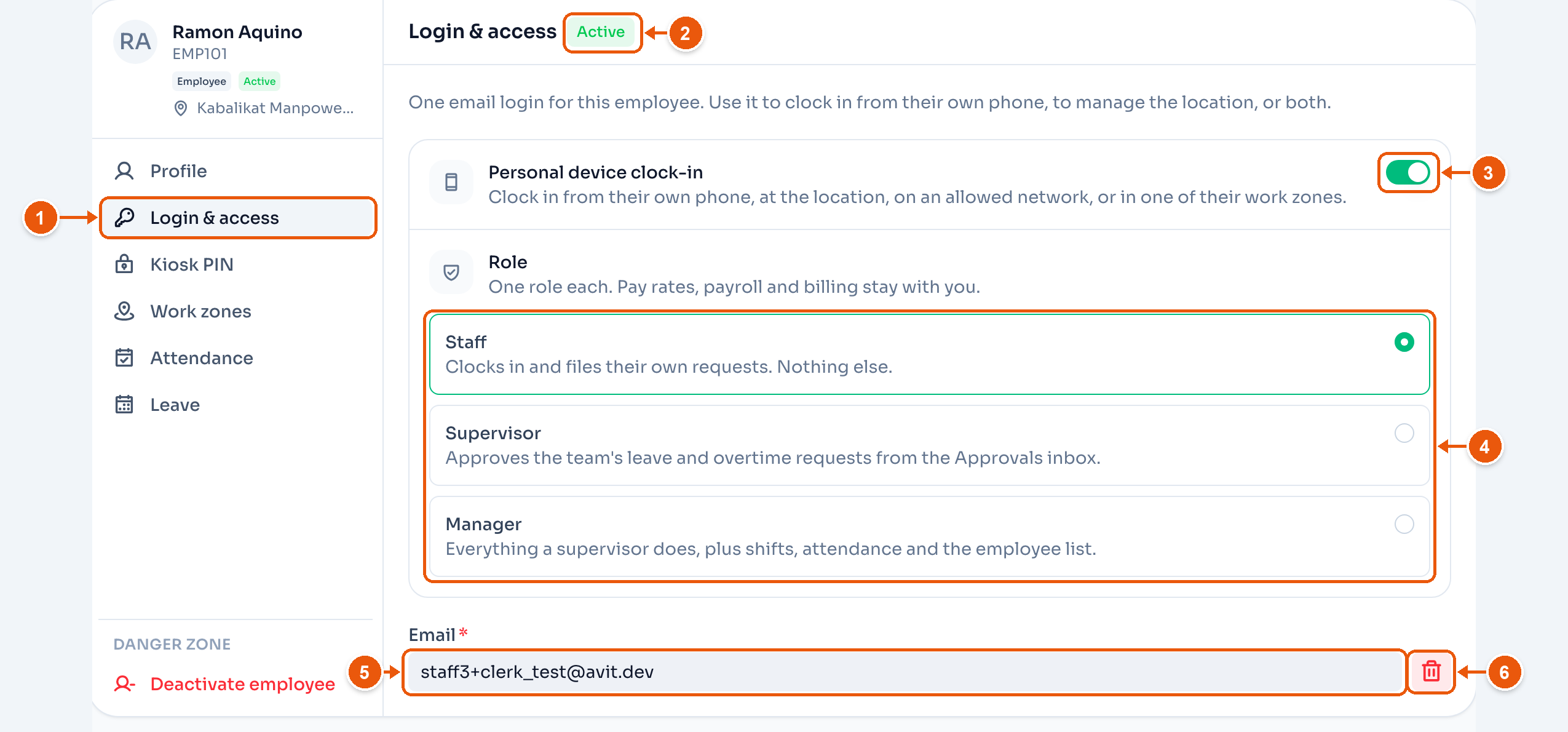
- Login & access. Managers and supervisors do not see this tab.
- The login status: Invite pending, Active or Disabled. Here, Active.
- Personal device clock-in. For someone with no login yet, turning it on shows Email and Send invite.
- Role. Staff, Supervisor or Manager. See Supervisors and managers.
- Email. Type a new address, then Change email. While the invite is pending, Copy invite link and Resend invite show here.
- Remove the login. The employee needs a new invite to clock in from their phone again.
What the employee sees
The employee lands on My Clock.
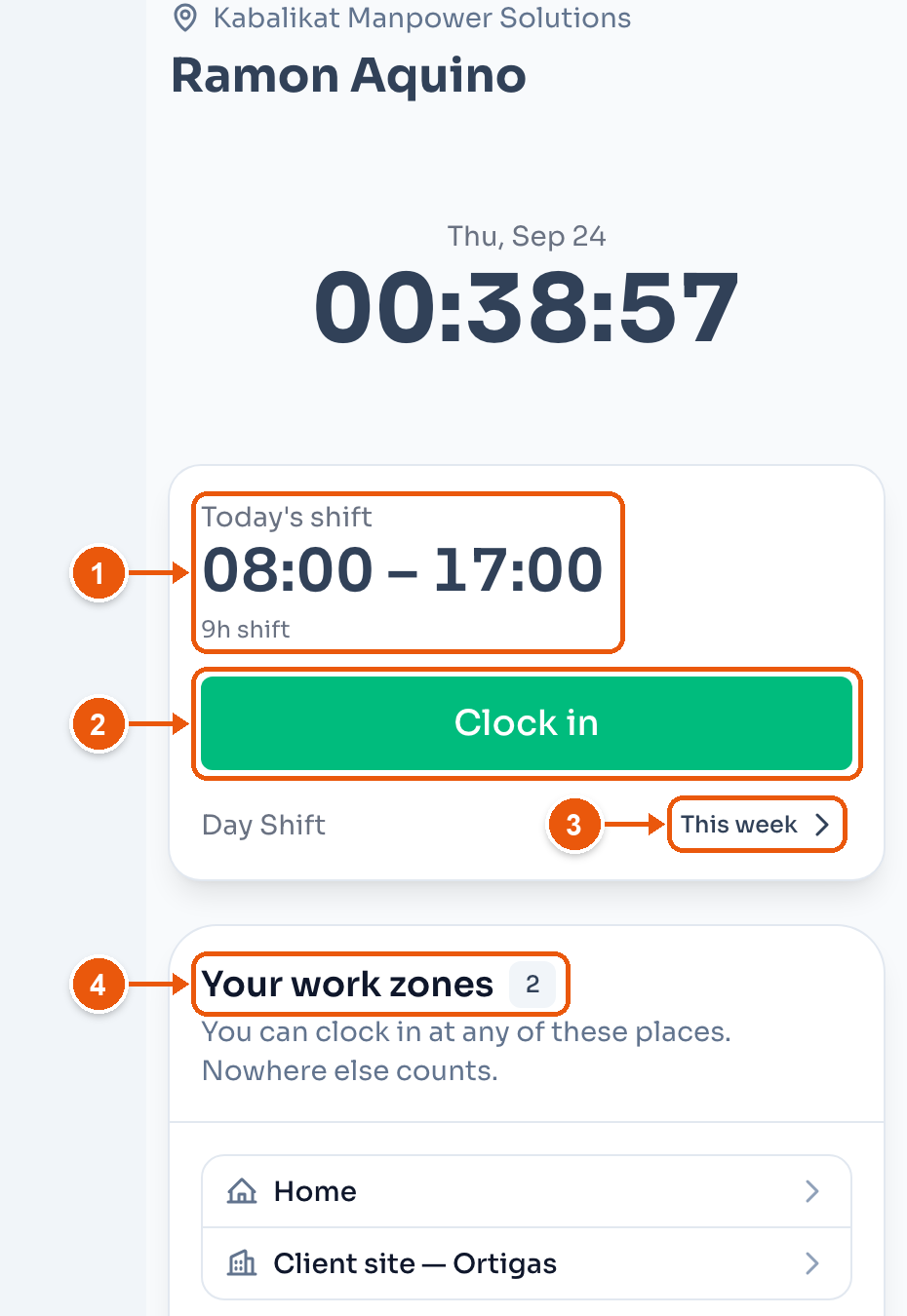
- Today's shift. Here, 08:00 – 17:00.
- Clock in. After they clock in, it reads Clock out.
- This week shows their shifts for the next 7 days.
- Your work zones. The places this employee can clock in from. It shows only where the location uses employee work zones.
Below that are Team time off and the next holiday. Then come their hours and requests.
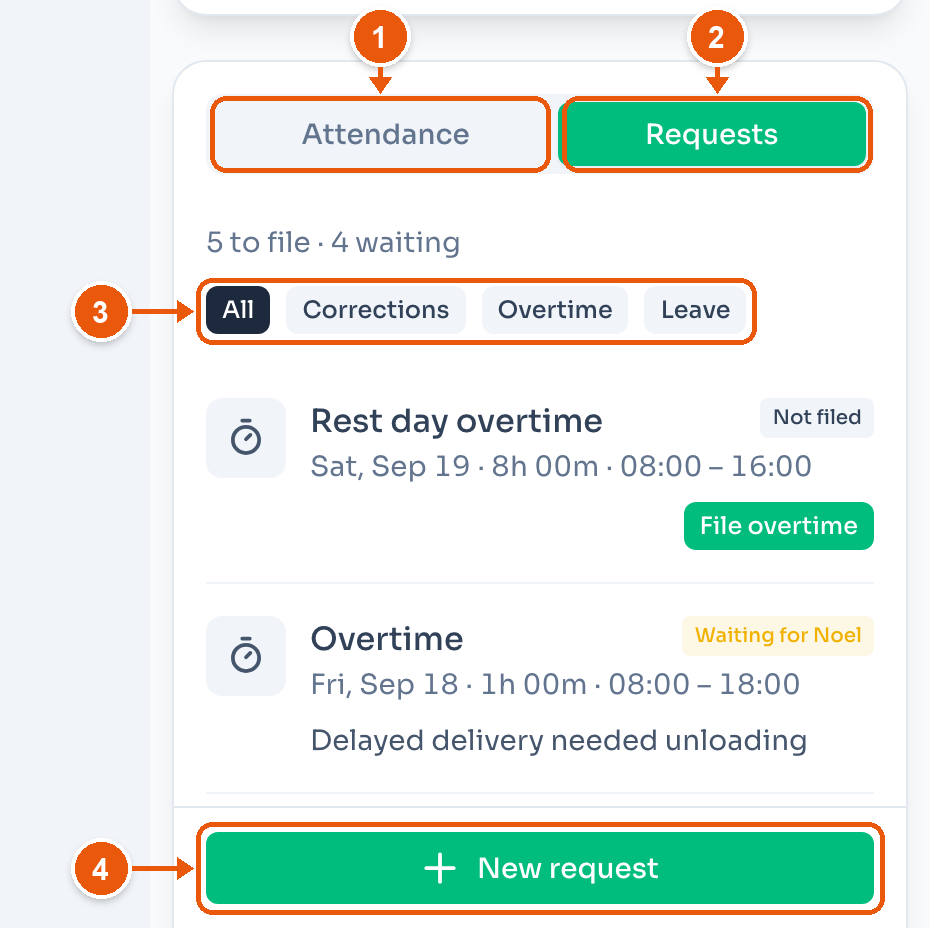
- Attendance. Each day they worked, with the times and the hours.
- Requests. What they filed and what they can still file. Here, 5 to file · 4 waiting.
- All, Corrections, Overtime and Leave filter the list. See Overtime for filing overtime.
- New request offers Add missing entry, Edit an entry and File leave.
The employee can cancel a request while it waits. Each request goes to the employee's approver. See Managing approvals.
Where they can clock in
ClockTap accepts a clock-in from a phone if one of these is true:
- The phone is in one of the location's work zones. Set them in Location Settings → Work zones.
- The phone is on an allowed network. Set them in Location Settings → Allowed networks.
- The phone is in one of the employee's own work zones, where the location uses them.
If the location has none of these, staff can clock in from anywhere. If the location uses employee work zones and has no other rule, the employee must add a work zone before they can clock in.
If Punch photos is on, the phone takes a photo at each clock in and clock out.
Supervisors and managers
The Role on Login & access gives a login more than clock-in.
- Staff — Clocks in and files their own requests. Nothing else.
- Supervisor — Approves the team's leave and overtime requests from the Approvals inbox.
- Manager — Everything a supervisor does, plus shifts, attendance and the employee list.
Pay rates, payroll and billing stay with you. A supervisor or manager gets an email invite, the same as staff. After they accept, a Locations picker shows under Role if you run more than one location. Their own location is always included.
A supervisor or manager clocks in from their phone only when Personal device clock-in is on. Otherwise they tap their PIN on the kiosk.
Turn it off
Turn off Personal device clock-in on Login & access, or their switch in Personal login. They keep their login and can still tap their PIN on the kiosk. Turn it back on at any time.
To remove the login itself, use the remove button next to Email. They need a new invite to come back.