Shifts
Set up shift templates, give each employee a weekly schedule, and plan the team's week.
Shifts
A shift template is a set of shift times you reuse. A recurring shift gives one to an employee on set days of the week. ClockTap checks each clock-in against that schedule to find late arrivals, count overtime and work out pay.
Set up templates first, then give each employee their week.
Shift templates
Open Shifts → Templates.
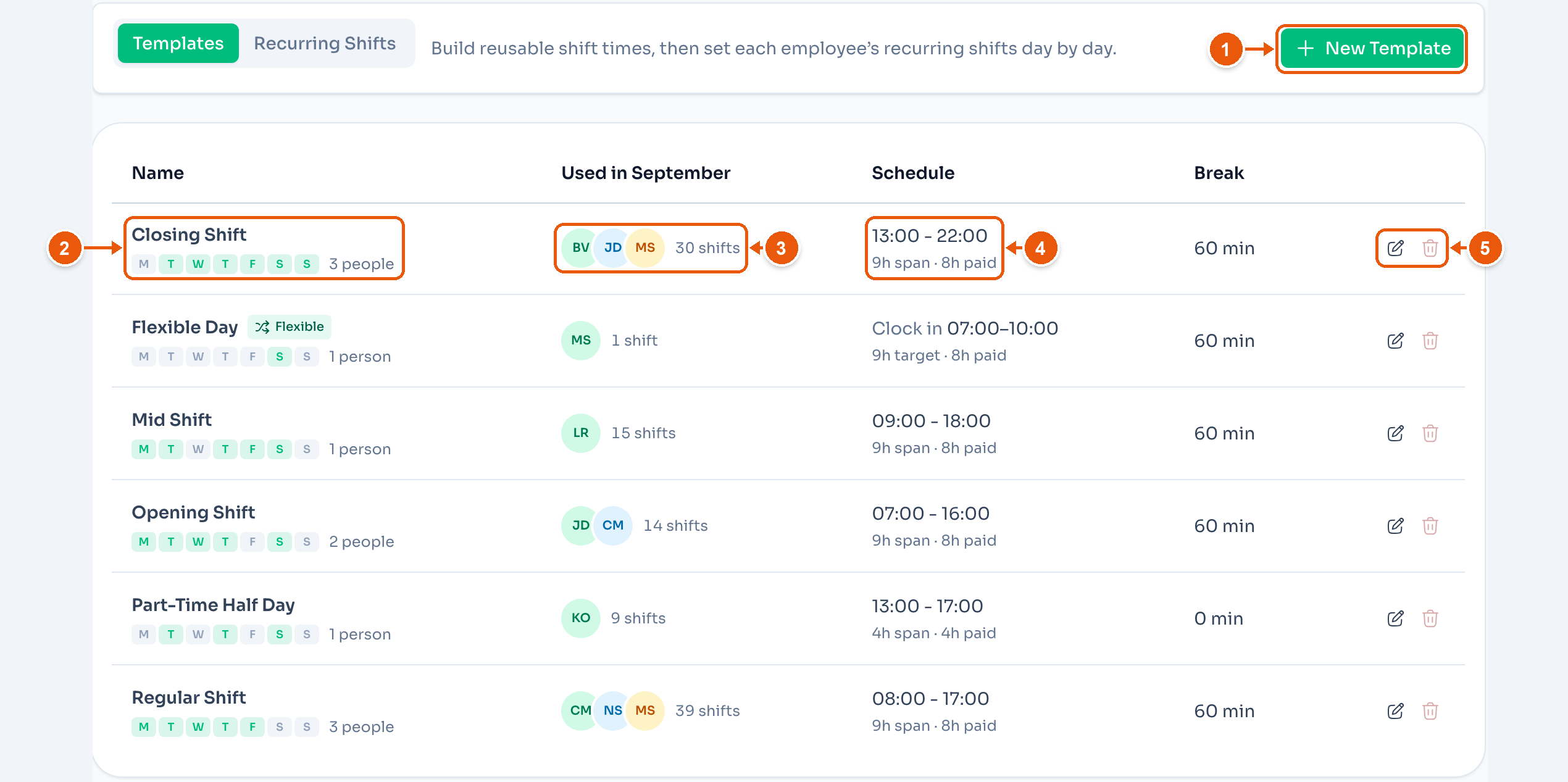
- New Template adds a shift.
- The name, the days of the week it is used, and how many people have it. Here, 3 people.
- Used in September. Who is on this shift this month, and how many shifts that makes. Here, 30.
- Schedule. The start and end time, the length, and the paid hours. Here, 9h span · 8h paid.
- Edit, or delete. You cannot delete a template while anyone has it as a recurring shift.
A shift template
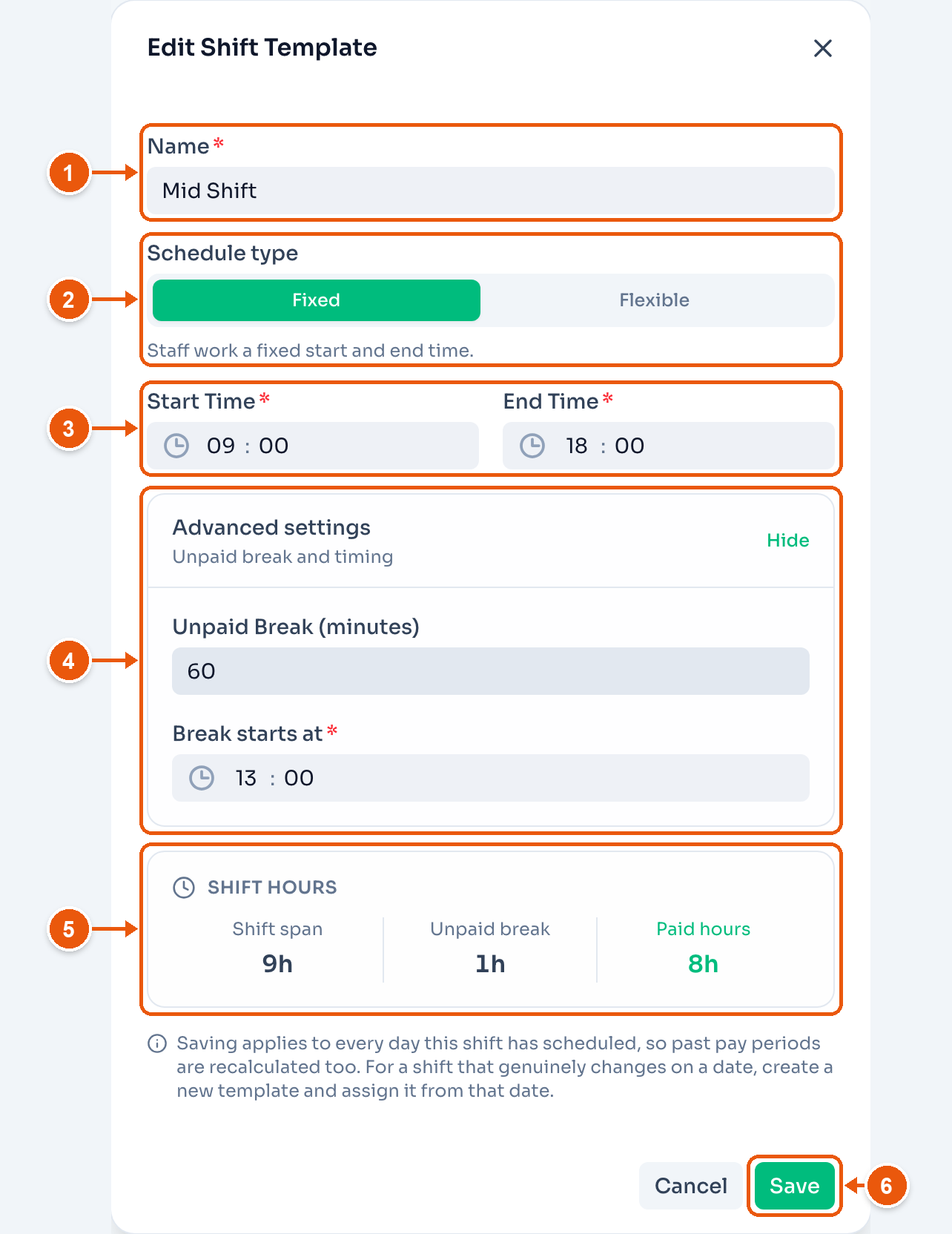
- Name. Here, Mid Shift.
- Schedule type. Fixed means a set start and end time. Flexible means staff clock in any time between Earliest clock-in and Latest clock-in, then work the Target hours.
- Start Time and End Time. A shift that ends before it starts runs overnight.
- Advanced settings. Unpaid Break (minutes) is taken off the paid hours. A new template starts at 60. Set it to
0for no break. Break starts at sets when the break begins. - Shift hours. Here, a 9h span with a 1h break gives 8h paid.
- Save. A new template says Create.
Saving a change applies to every day this shift is scheduled, past pay periods included. If a shift's times change from a certain date, create a new template and assign it from that date.
Recurring shifts
Open Shifts → Recurring Shifts.
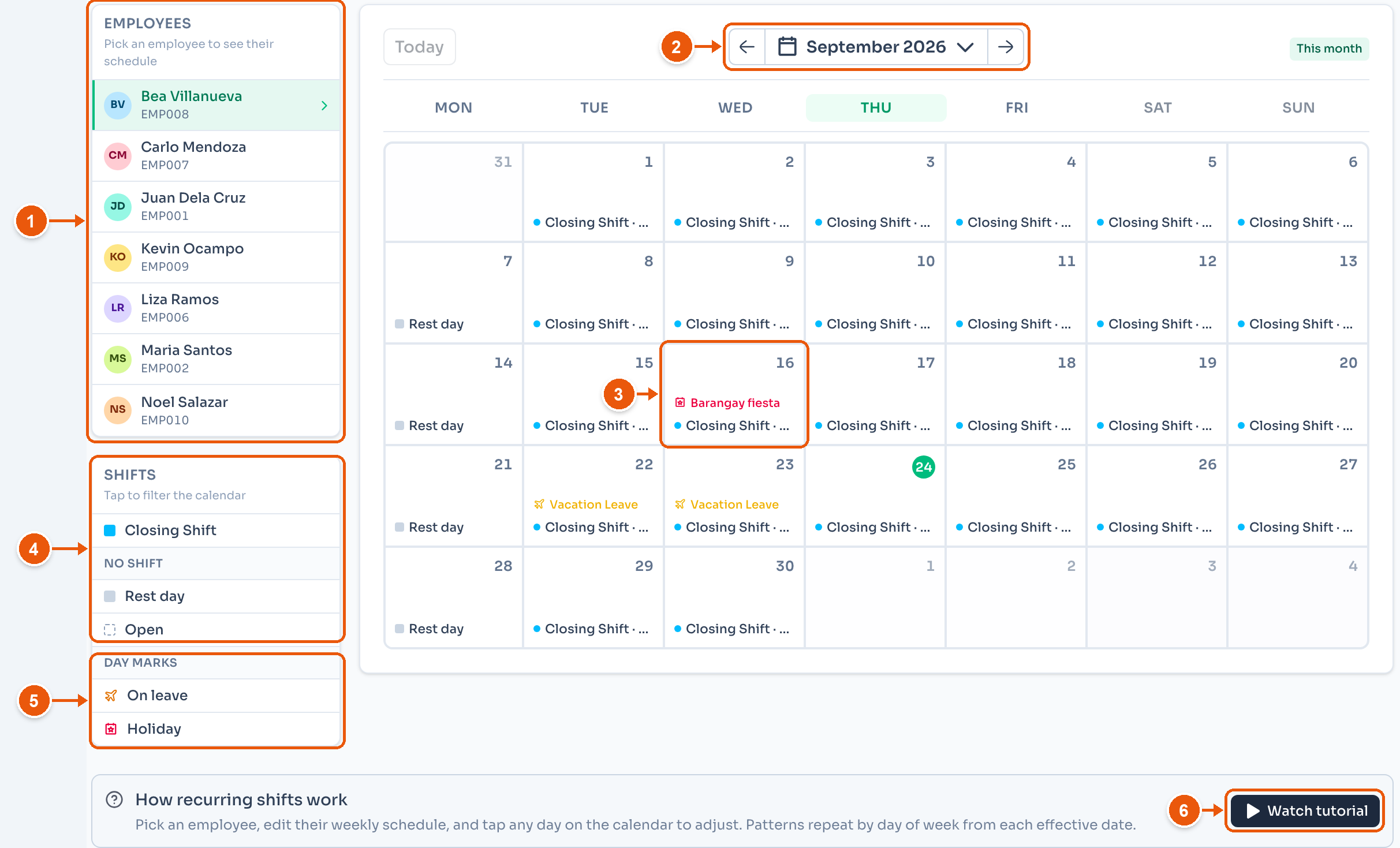
- Employees. Pick one to see their month. A warning icon marks anyone with no schedule.
- The month. Use the arrows or Today to move.
- A day. Tap it to edit the weekly schedule from that day. Here, September 16 also has a holiday.
- Shifts. Hover or tap a row to highlight every day with that shift. Tap it again to clear.
- Day marks. Approved leave and holidays show inside the day.
- Watch tutorial plays the video below.
Set an employee's recurring shifts
Pick an employee, tap a day, and quick-assign a shift to Mon–Fri. Change the days that differ and save, and the pattern repeats across the month.
Edit a weekly schedule
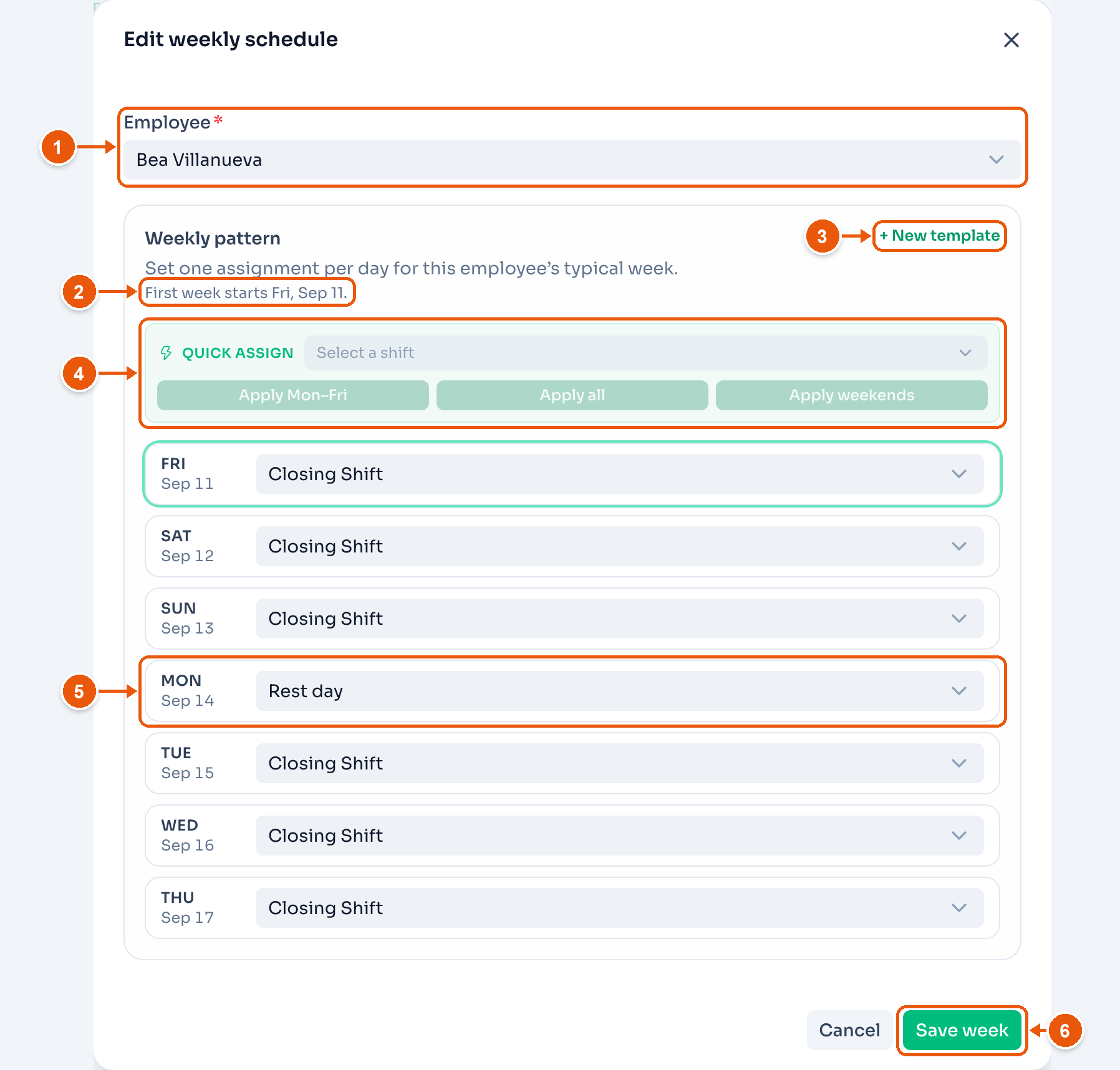
- Employee.
- The new pattern starts on the day you tapped. Here, First week starts Fri, Sep 11.
- + New template adds a shift time without leaving the dialog.
- Quick assign. Pick a shift, then Apply Mon–Fri, Apply all or Apply weekends.
- One day. Pick a shift template, Rest day, or Open. Open means no fixed shift.
- Save week.
The pattern repeats every week from its start date. Days before it keep the old pattern. To change a schedule later, tap the first day of the change and save a new week.
When some employees have no schedule, the page shows a warning with Assign shifts. That opens the same dialog with an Effective from date to pick.
Team Planner
The Team Planner shows the whole team's week on one grid. Open Shifts → Team Planner.
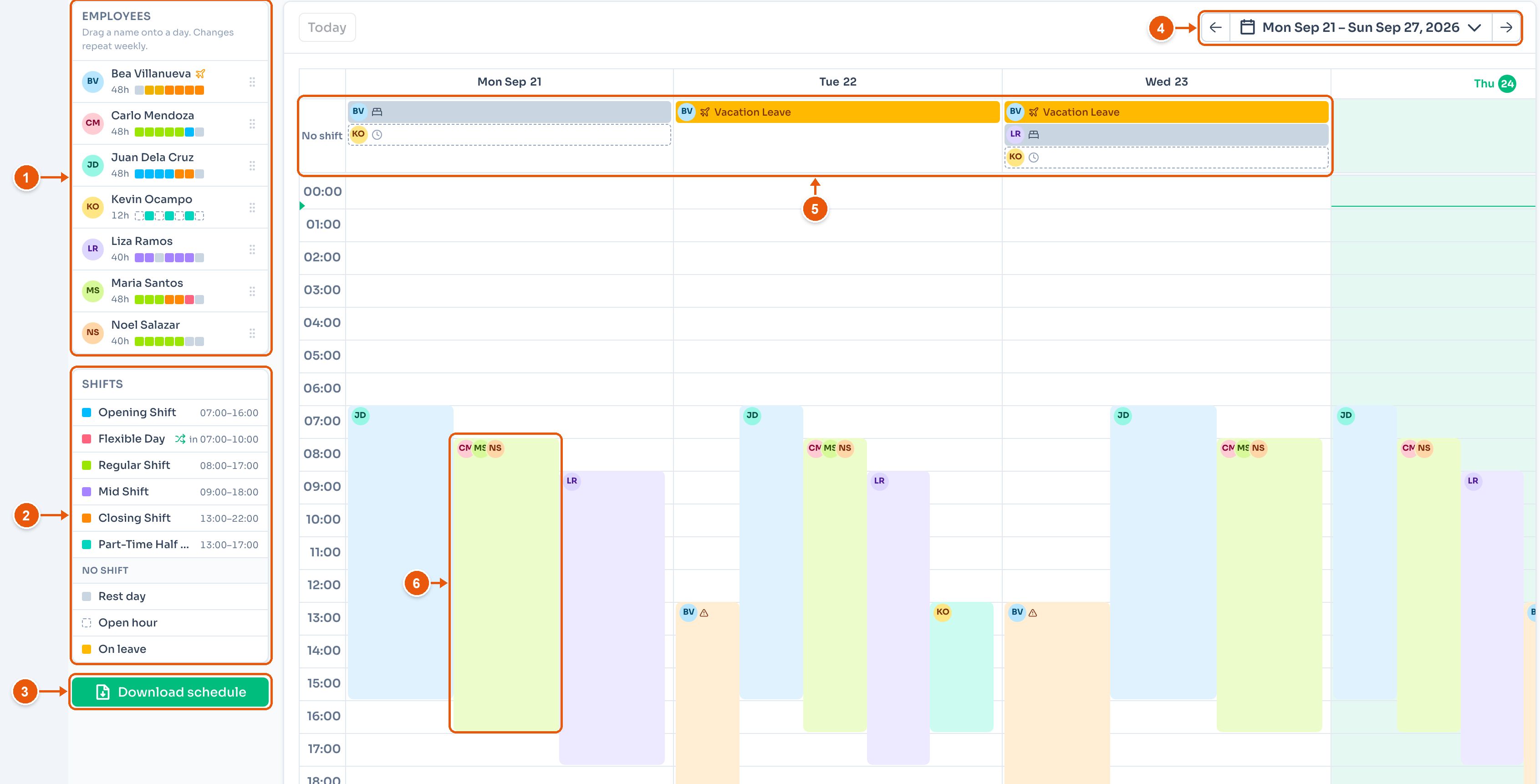
- Employees. Each person's hours this week, and a mark for each day. Drag a name onto a day to give them a shift.
- Shifts. The colour of each template.
- Download schedule opens the week in a new tab, ready to print or save.
- The week. Use the arrows or Today to move.
- No shift. Rest days, open hours and approved leave. Drop a name or a block here to make that day a rest day.
- A shift block. It shows everyone on that shift. Click it to change the day. Drag it to another day to move the whole crew.
Drop a name on the grid, or click a block, and ClockTap asks what to change.
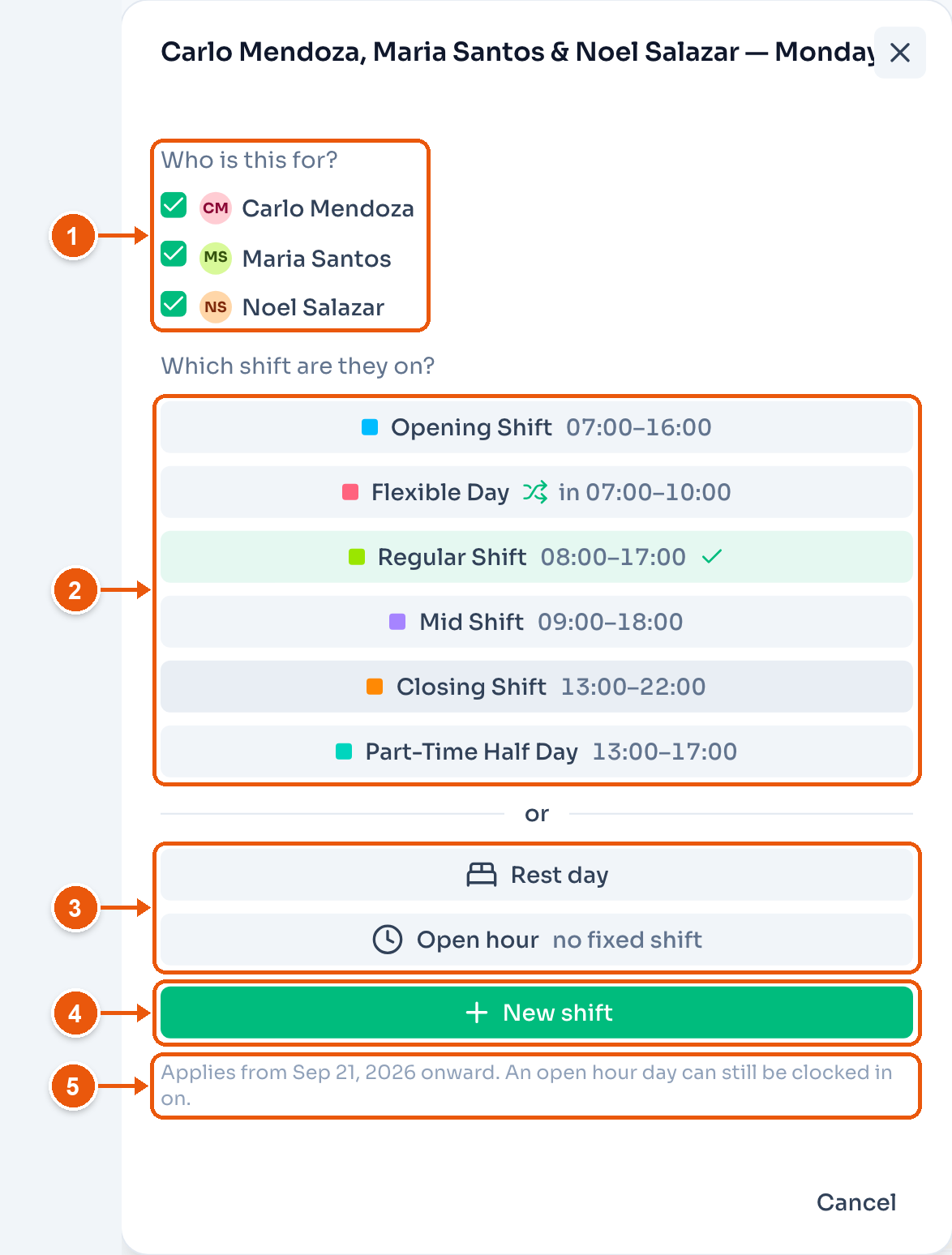
- Who is this for? Untick anyone who should keep their shift.
- Which shift are they on? The tick marks the current one. Picking a shift saves at once.
- Rest day, or Open hour for a day with no fixed shift. An open hour day can still be clocked in on.
- New shift adds a template for this day.
- The change applies from this date onward, every week on the same weekday.
Plan your team's week
Drag an employee onto a day and pick a shift, then move one person off a shift card. Both changes repeat in the weeks after.
Each change saves a recurring shift, the same as Edit weekly schedule. Past weeks keep the old plan. The message after a change has Undo.
On a phone or a narrow window, the week shows as a list. Tap a shift to change who is on it. Tap Add staff to put someone on a day.
Leave on the schedule
Approved leave shows on the Team Planner and on the Recurring Shifts calendar.
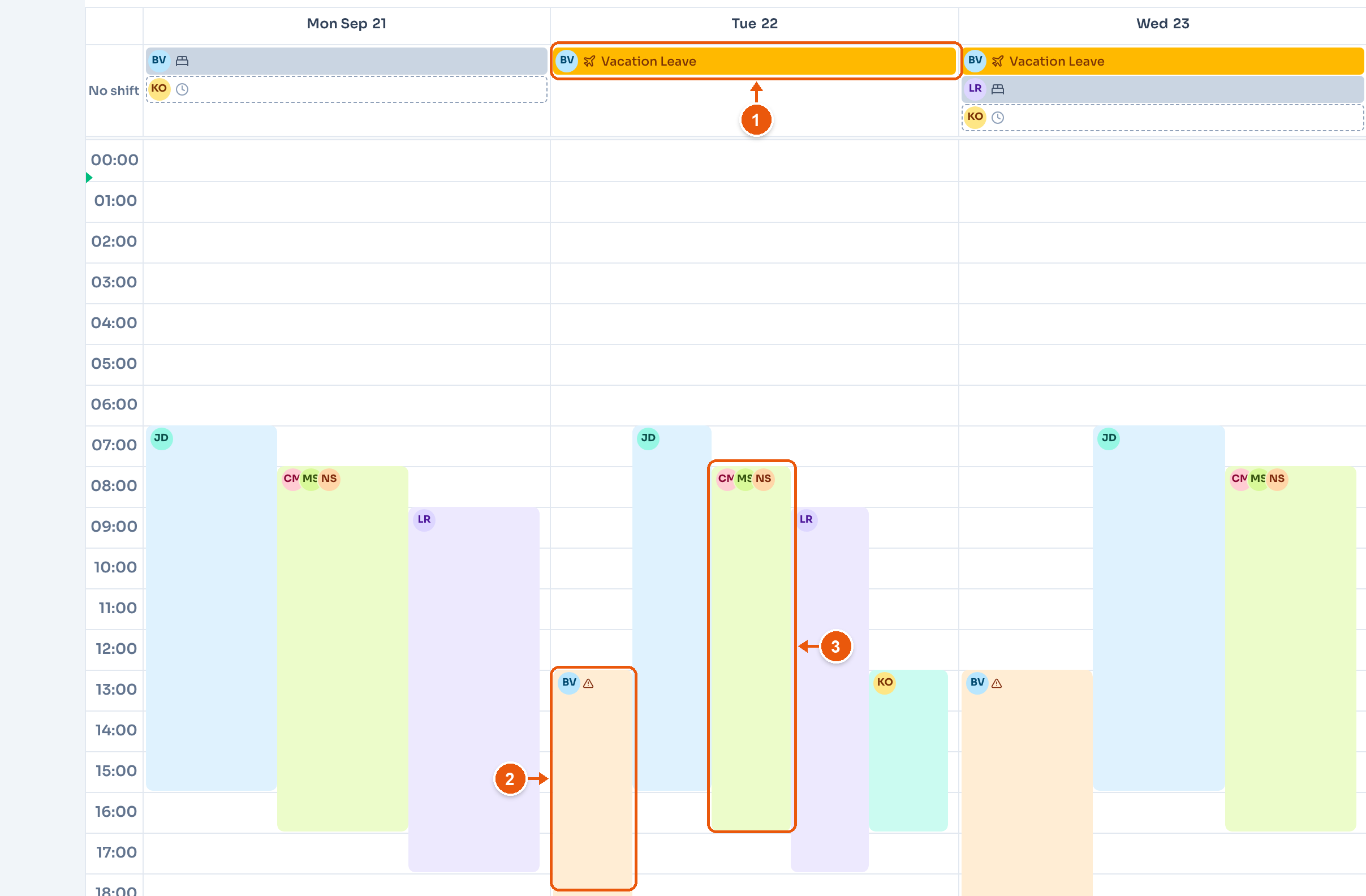
- The leave row. It shows the employee, an icon for the leave type, and its name. Here, Bea Villanueva's Vacation Leave.
- When the employee on leave also has a shift, their card moves apart with a warning triangle.
- Staff who are not on leave show as normal.
On the Recurring Shifts calendar, the leave row turns the same warning colour.
Leave on the schedule
Carlo's approved leave shows in amber on Wednesday. His shift card moves apart with a warning, and Maria's card has no warning.