Overtime
How an employee files overtime, and how you set when overtime counts.
Overtime
ClockTap marks overtime when an employee works past the end of their shift. That time is paid after the employee files it and an approver approves it. Approved overtime is what goes on the payroll export.
The payroll computation names overtime that was worked and not filed, and overtime that is filed and still waiting. Those hours stay out of gross pay. See Payroll.
Filing overtime
An employee files from My Clock on their phone, or from the kiosk clock screen. Open Requests, then Overtime.
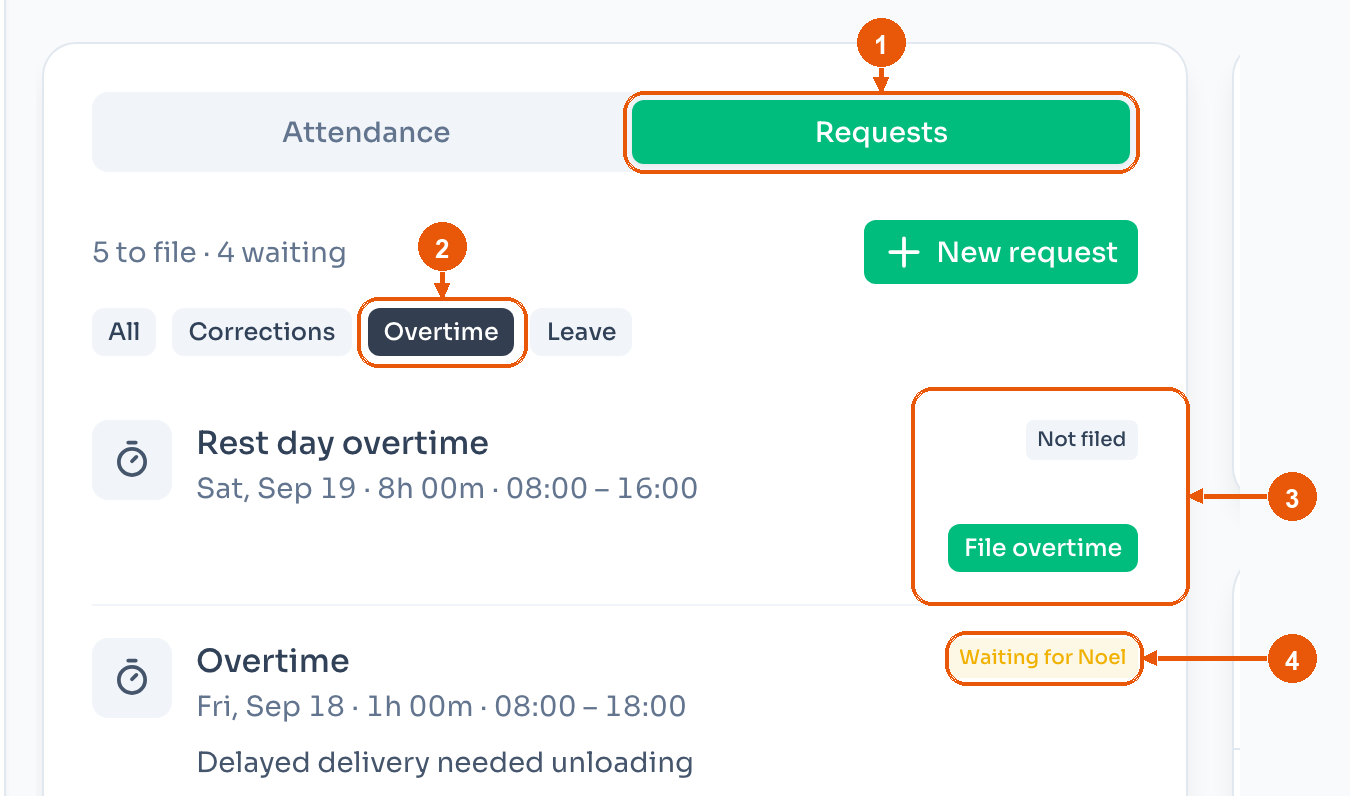
- Requests.
- Overtime shows only overtime rows. The line above the filters counts what is left. Here, 5 to file · 4 waiting.
- Not filed means this shift has not been sent. File overtime opens the form.
- On a phone, a filed request names the approver it is waiting for. Here, Waiting for Noel. On the kiosk, the same request says Pending. It is not paid yet.
There are two times to file.
After clock-out. If the overtime reaches the location's minimum, the title is Overtime Detected. The employee sets the hours, writes a reason, and taps File Overtime. Skip leaves the shift on this list, still Not filed.
Later. Each Not filed row has File overtime. The form is the same. Cancel closes it without sending.
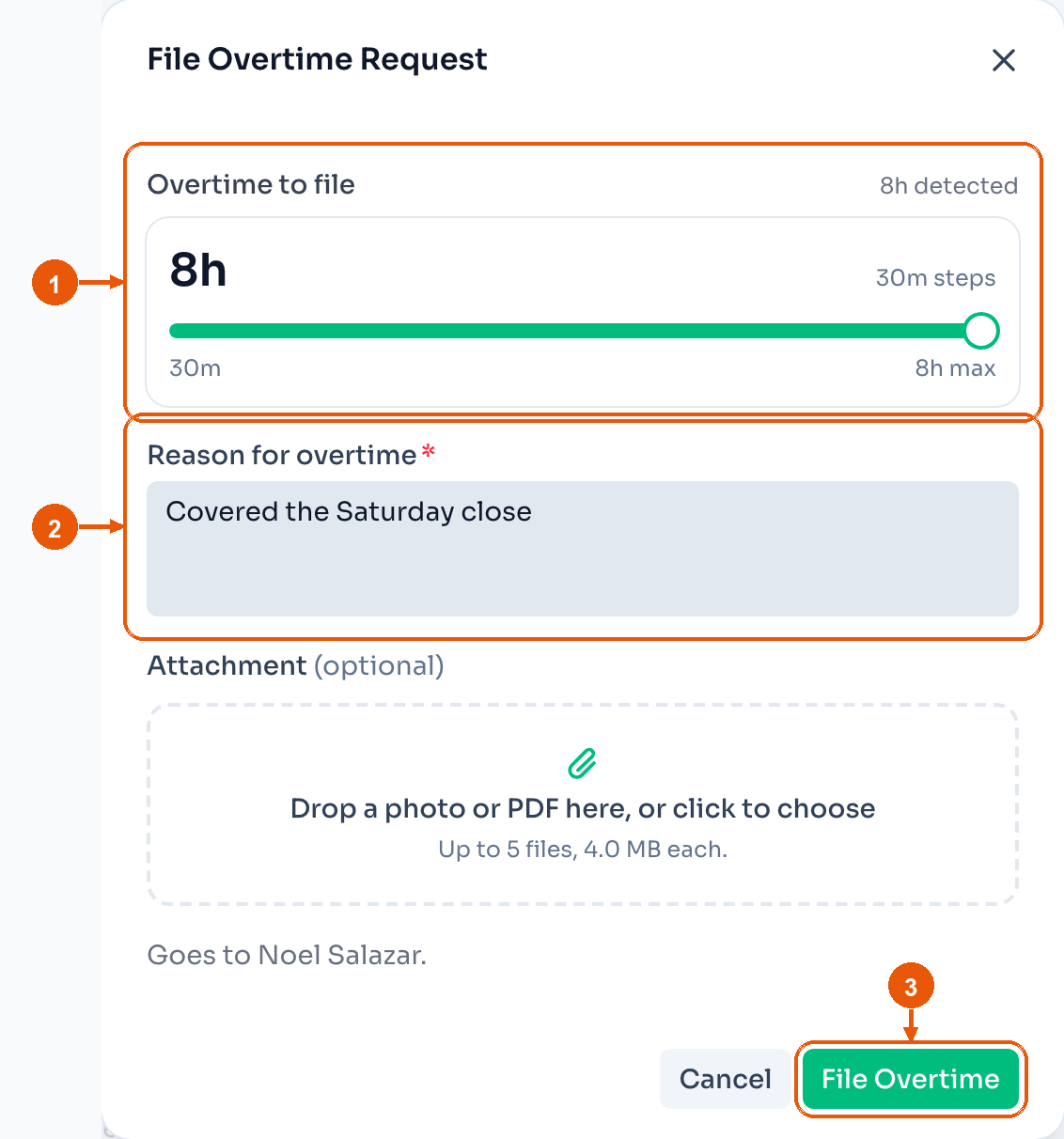
- Overtime to file. Drag the slider. It moves in the location's block size. Here, 30-minute steps, from 30 minutes up to the 8 hours ClockTap counted.
- Reason for overtime. The request needs a reason.
- File Overtime sends the request to Approvals.
You can add a photo or a PDF. The request sends if you leave that empty. On a phone, the form names the approver. Here, Noel Salazar.
Work on a rest day uses the same form. The row title is Rest day overtime.
Overtime rules
Each location has its own rules. Open Location Settings → Payroll, or Payroll settings on the Payroll page.
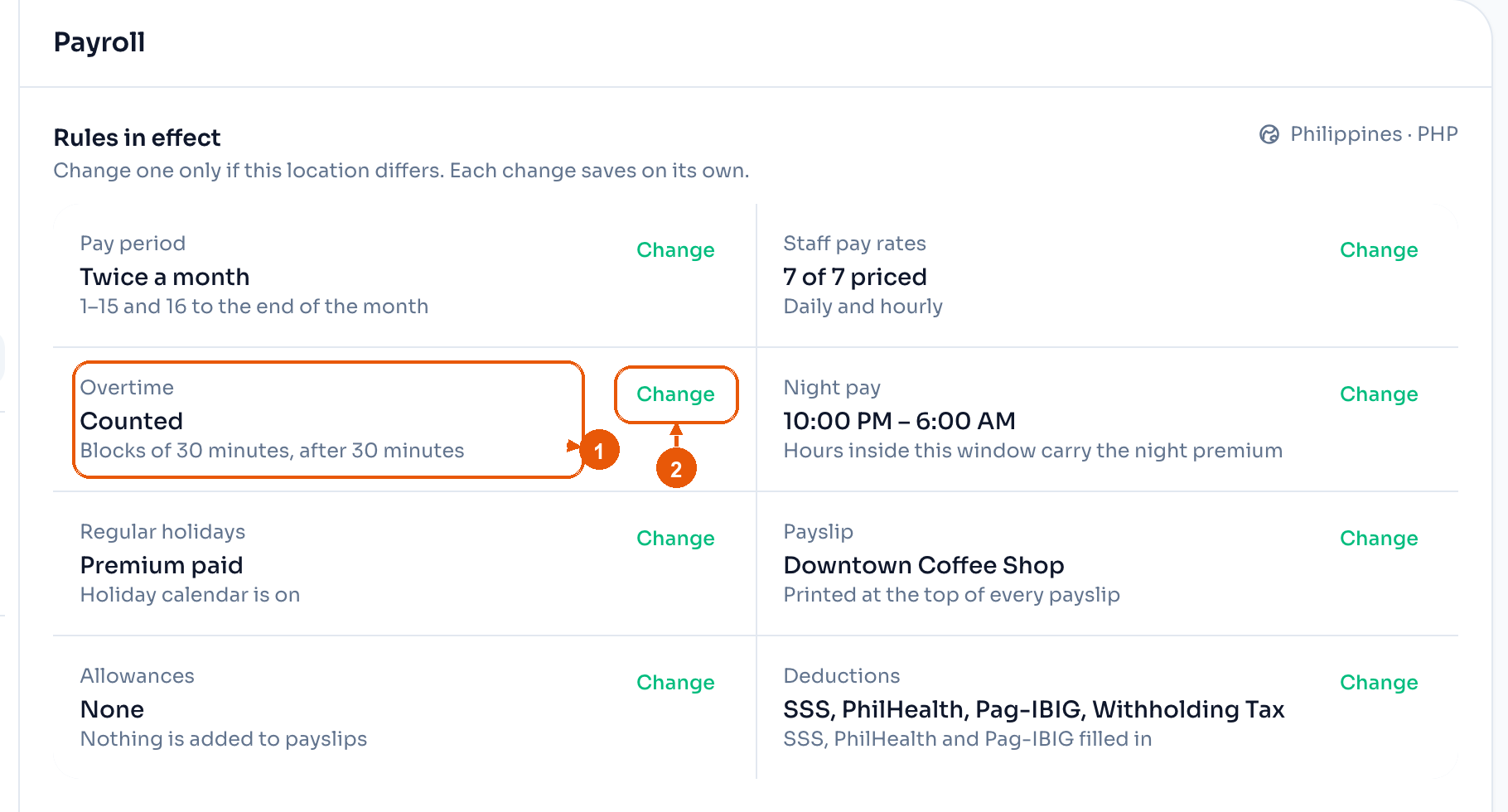
- The rule as it stands. Here, overtime is counted in blocks of 30 minutes, after 30 minutes.
- Change opens that rule.
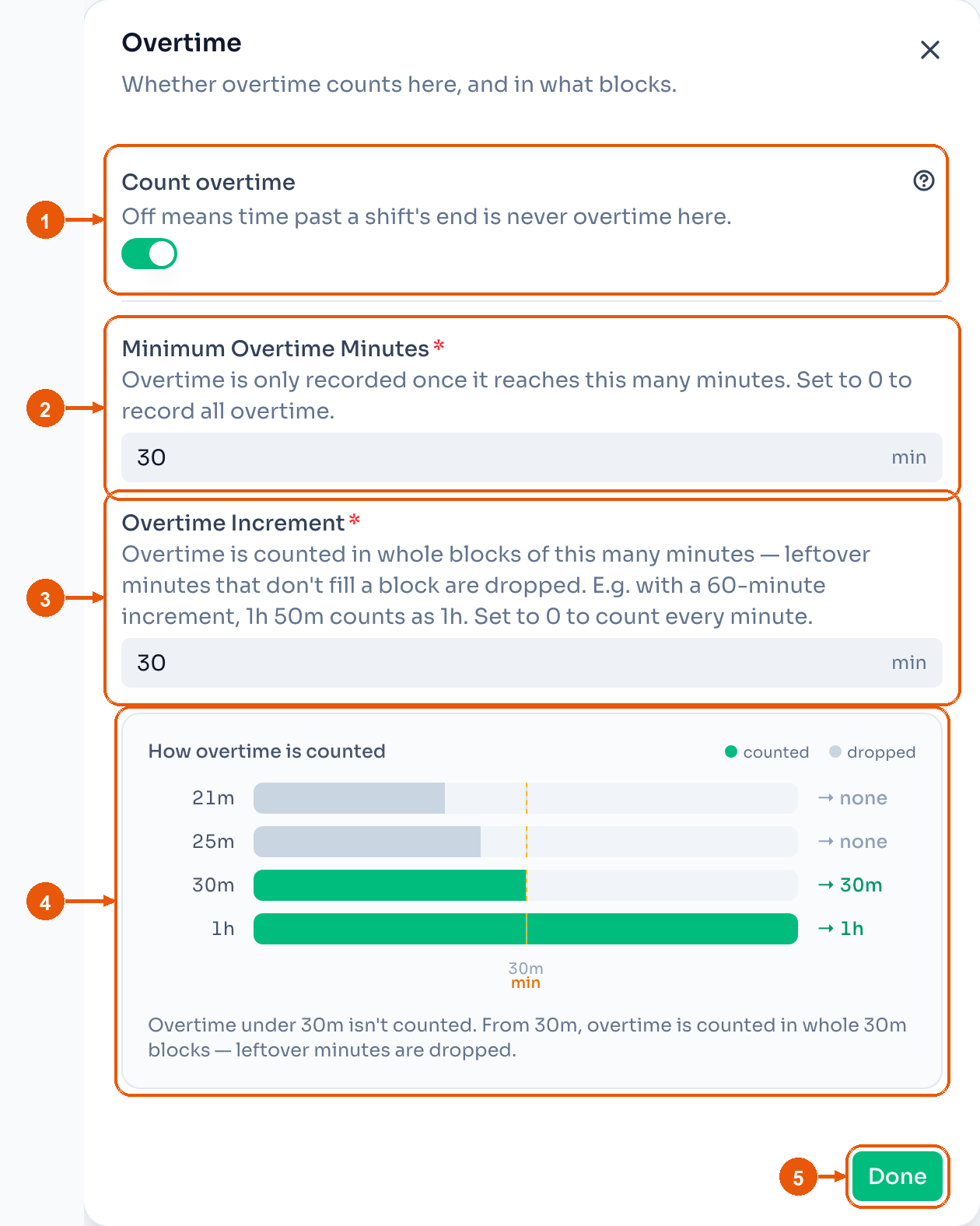
- Count overtime. When this is off, time past the end of a shift is not overtime at this location. There is nothing to file, approve, or pay.
- Minimum Overtime Minutes. ClockTap records overtime when it reaches this many minutes. Set it to
0to record all overtime. - Overtime Increment. ClockTap counts overtime in whole blocks of this many minutes. Minutes that do not fill a block are dropped. With a 60-minute increment, 1h 50m counts as 1h. Set it to
0to count every minute. - How overtime is counted. The bars use the two numbers above. Green is counted. Grey is dropped.
- Done saves this rule.
A new location starts with both numbers at 30. A few minutes after closing stay off the approvals list. Set both to 0 to pay every minute.
Grace period
Open Location Settings → Lateness.

- Lateness in the settings menu.
- Grace Period. This is the number of minutes after a shift starts before ClockTap marks the employee late.
A new location starts at 15 minutes.